


Feedback

The Identity server certificate must be updated using Procuro on the Primary SQL server. To update your Relativity identity server certificate, complete the following steps.
This procedure updates only the identity server certificate (RelativityIdentityCertificate). The cookie signing certificate is a separate certificate with its own update procedure. For more information, see Cookie signing certificate.
Log in to the primary SQL server using the Relativity Service Account.
Access the Procuro directory (for example, C:\Program Files\kCura Corporation\Relativity\Procuro).
Launch kCura.EDDS.Procuro.exe as administrator.
Click the Back button.
Click Update Certificate.
Click Next.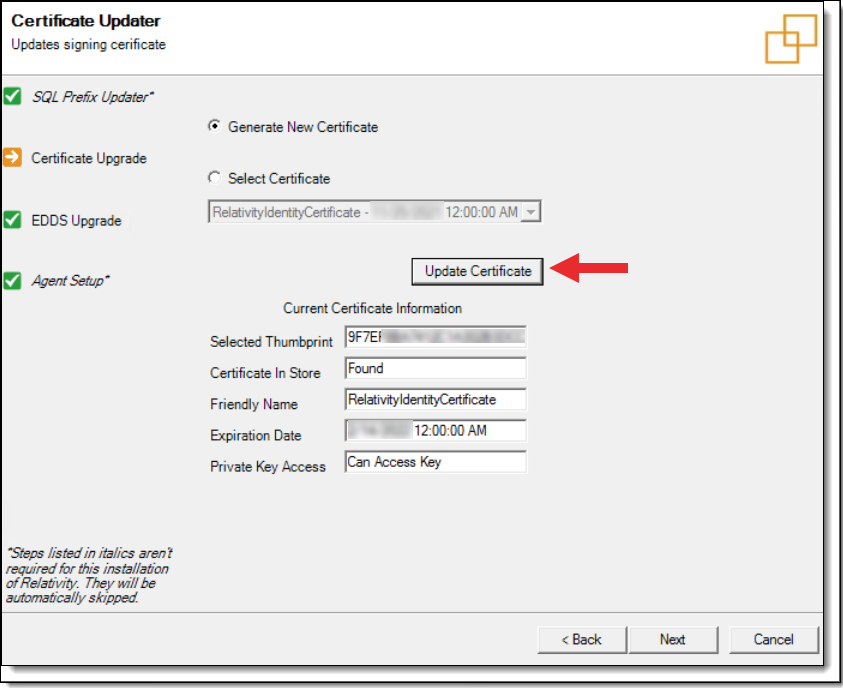
Close the Procuro window.
Delete the old certificate from the SQL server or servers.
Reboot all Web and Agent servers.
Restart the Relativity services on the Queue Manager server.
If your environment uses Data Grid, restart the Data Grid Control nodes.
Restarting the Relativity services on the Web and Agent servers is not enough. A service restart does not guarantee that the servers reconnect with the new certificate. You do not need to restart the Secret Store server.
Once complete, Relativity will configure a new Identity Certificate for the environment and will invalidate all authentication sessions.
