


Feedback

This document provides troubleshooting guidance for common issues that cause the Data Grid Audit tab in Relativity to fail or display errors. These issues can occur after initial setup, following an API key rotation, or when an existing API key has expired.
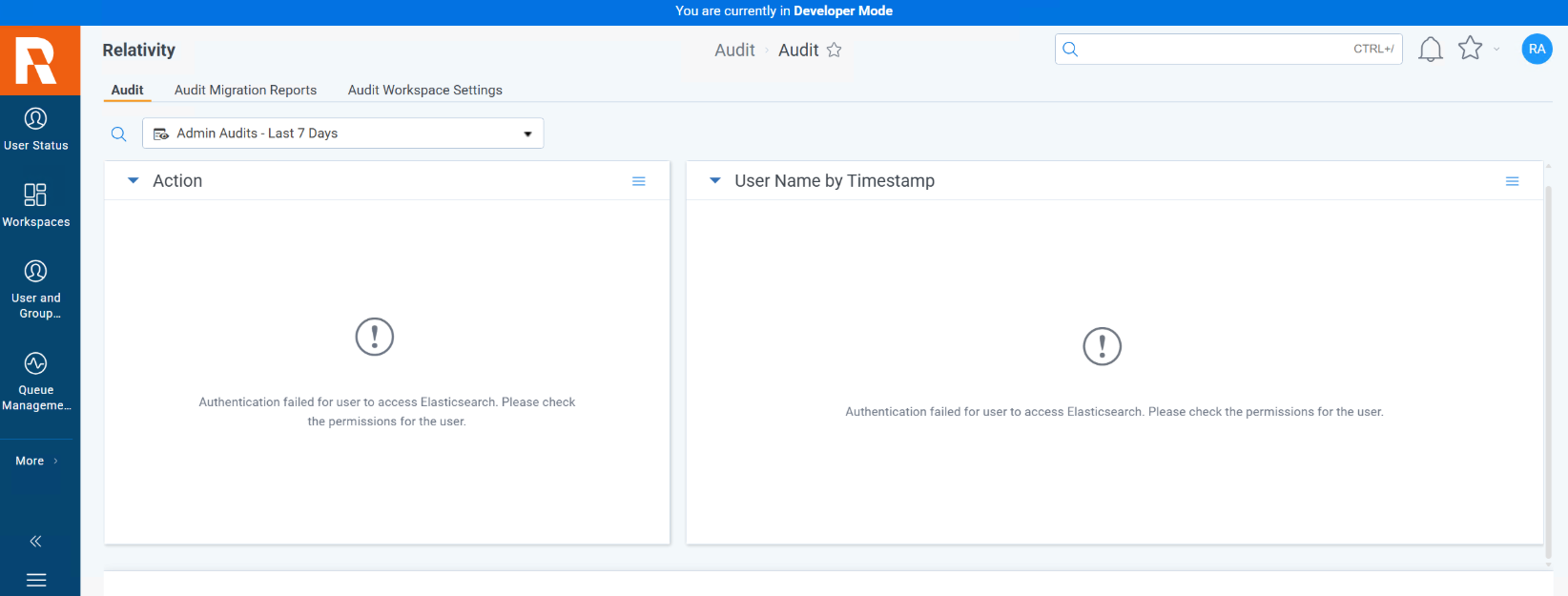
The Audit tab may display one of the following errors:
"Authentication failed for user to access Elasticsearch. Please check the permissions for the user." - Relativity cannot authenticate against Elasticsearch with the current API key.
"This chart did not return any results." - Relativity can reach Elasticsearch but data has not loaded, typically seen after services have been restarted but Elasticsearch is still initialising.
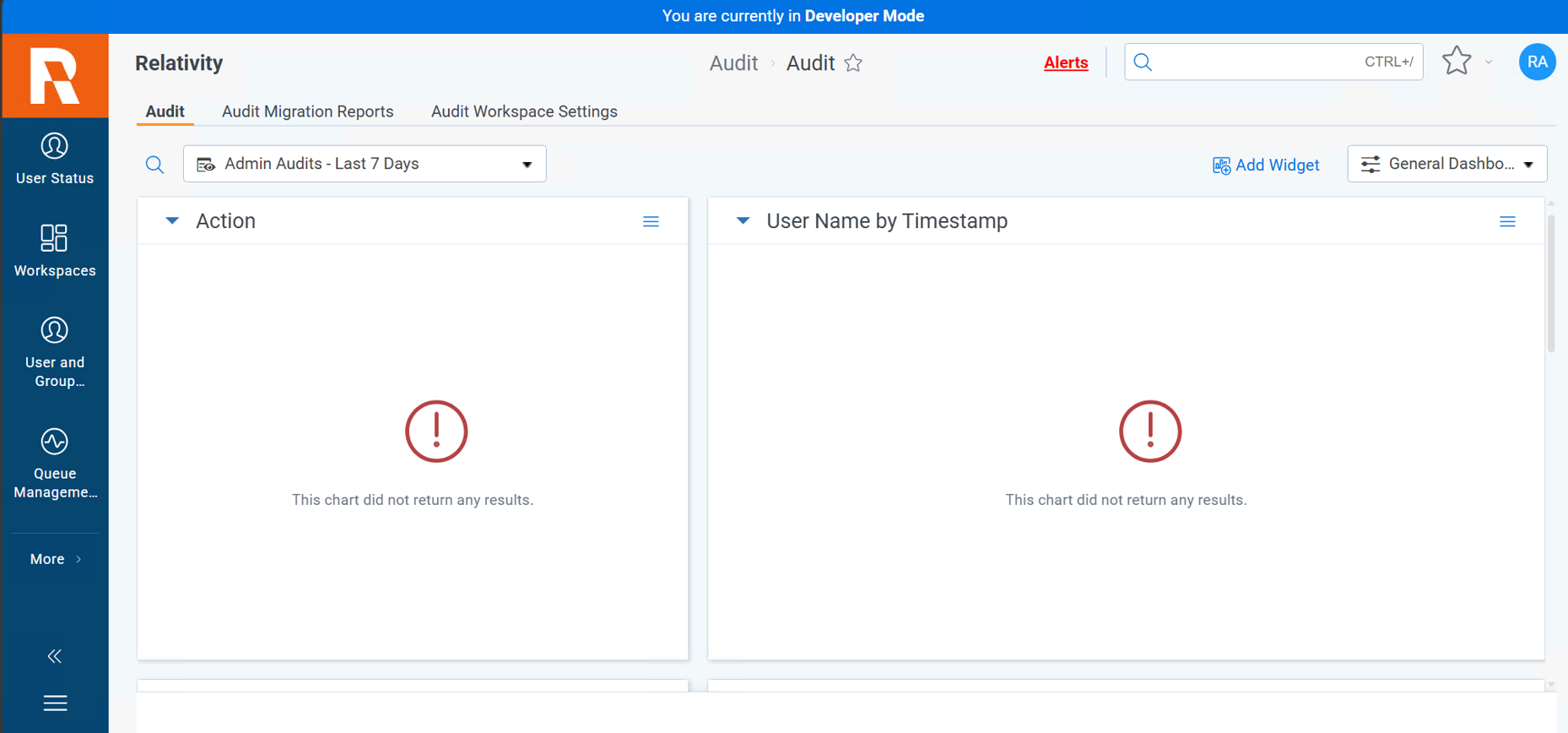
These errors can be caused by:
On the Elasticsearch server, open the log file at:
C:\elastic\elasticsearch\logs\elasticsearch.log
Look for repeated WARN entries matching this pattern:
[WARN ][o.e.x.s.a.ApiKeyAuthenticator] [<node>] Authentication using apikey failed - api key [<key_id>] has been invalidated
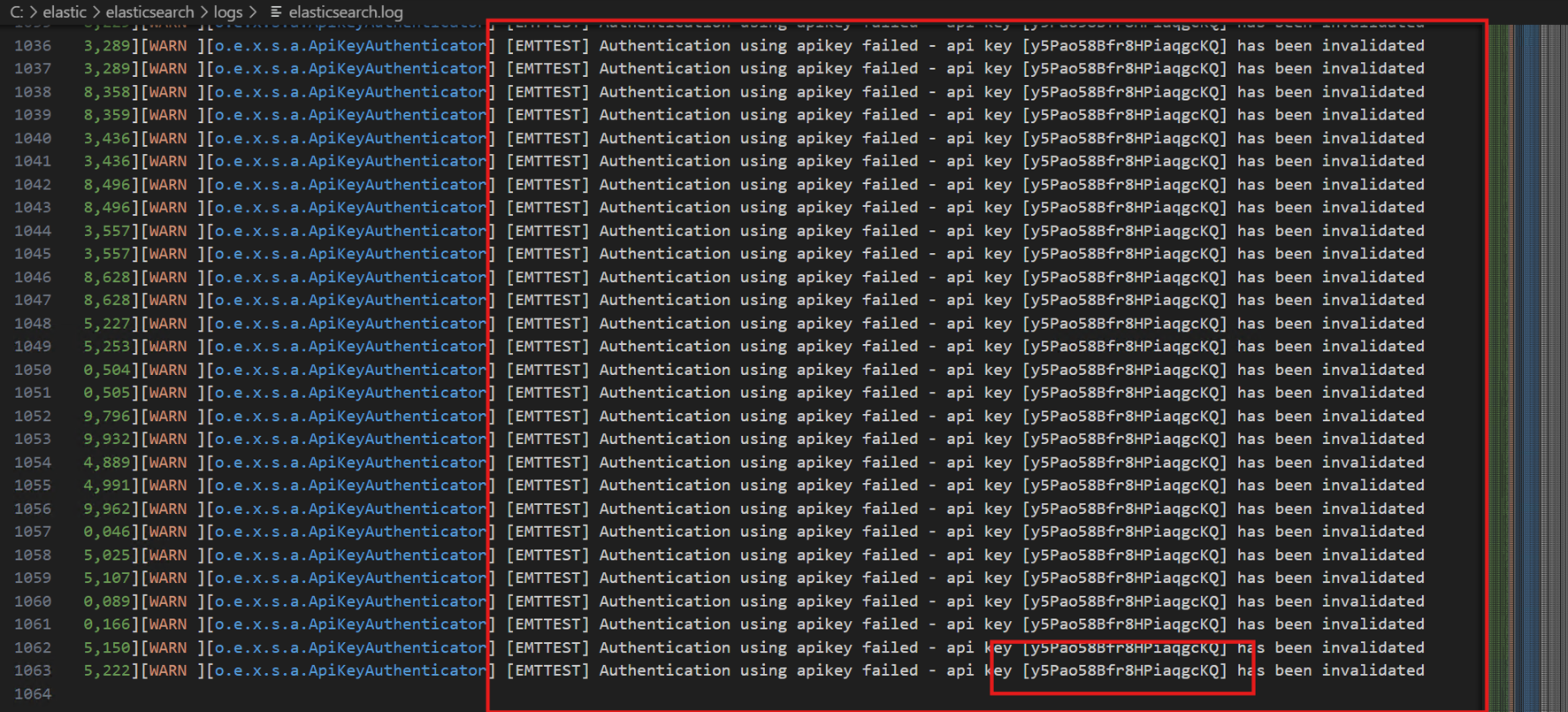
When Elasticsearch logs confirm the API key has been invalidated, issue a new key using the Relativity Server CLI.
Follow the Rotate an Elasticsearch API Key using the Relativity Server CLI guide, targeting rel-cluster-datagrid.
After the rotation completes, continue with Step 3: Restart Services to restore the Audit tab.
Restarting Relativity services forces them to re-read the API key from the Secret Store. In some cases, the Elasticsearch service also requires a restart.
Open Services (services.msc) and restart the following Relativity services on all servers in the Relativity instance:
kCura Edds Agent Manager
kCura Edds Web Processing Manager
kCura Service Host Manager
Navigate to Audit > Audit in Relativity and refresh the page.
The error may change to "This chart did not return any results." - this indicates Relativity can now reach Elasticsearch but data has not yet loaded.
On the Elasticsearch server, open Services and restart the Elasticsearch service.
Wait 1-5 minutes for Elasticsearch to fully restart and for Relativity to re-establish the connection.
Reload the Relativity UI and navigate back to the Audit tab. Audit data should now display correctly.
If the Audit tab still does not load after following these steps, verify that the new API key was successfully persisted to the Secret Store. See Rotate an Elasticsearch API Key using the Relativity Server CLI for Secret Store and Kibana verification steps.
