Relativity Server 2025 is not yet generally available, but is targeted for release between December 12-19, 2025. This documentation does not necessarily reflect or accurately describe the release version of Server 2025.

Task tracking

Relativity Legal Hold Task Tracking includes task management. In the Tasks tab, you can create different types of tasks for specific projects to manage custodians, IT requests, HR requests, and other user tasks associated with your legal hold projects.
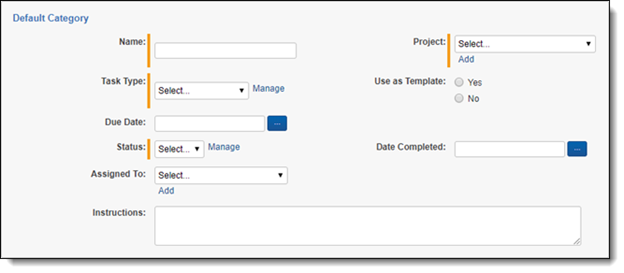
Adding a task

To add a task for a member of the legal hold project, navigate to the Tasks tab.

In the Tasks tab,

  1. Click New Task.
  2. Enter a task name.
  3. Select the Project. Click Add to create a new topic. For more information, see Creating a project.
  4. Select the Task Type. Click Manage to update Task Type choices. For more information, see Choices.
    1. HR Request.
    2. IT Request.
  5. (Optional) Add Due Date.
  6. Select Status. Click Manage to update Status choices. For more information, see Choices.
    1. Closed.
    2. Open.
  7. (Optional) Select the assignee.
  8. (Optional) Select Date Completed.
  9. (Optional) Add Instructions.

Task is then assigned to the Relativity user to complete by the selected date. Once assigned, you will need to communicate with the user, outside of Relativity, about the task assignment and task details.

Return to top of the page
Feedback