


Feedback

Use dtSearch to complete stemming, fuzzy, and proximity searches on the information included in your dtSearch index.
Considerations and best practices
Consider the following before running a dtSearch.
To run a dtSearch in the Search panel from the Documents list in Relativity:
The (Index Search) window opens.
The following table shows search string examples and their expected results. For more information, see Using dtSearch syntax options.
| Search String | Returns Documents With... |
|---|---|
| apple pear | The exact phrase apple pear |
| "apple pear" | The exact phrase apple pear |
| apple AND pear | The word apple and the word pear |
| (apple and pear) AndAny (grape or banana) | Any document that contains apple and pear, with grape and banana also being counted as hits. Grape and banana aren't evaluated as conditions; they're simply added to the search results as optional terms to be highlighted if they appear in the document. |
| apple OR pear | Either apple or pear |
| apple W/5 pear | Apple appears within 5 words of pear |
| apple PRE/5 pear | Apple appears within 5 words before pear Note: Relativity does not use the POST operator. However, you can mimic this functionality by reversing the order of the terms, and using the PRE operator. |
| apple NOT W/5 pear | Appleoccurs not within 5 words of pear |
| apple AND NOT pear | Apple appears but pear does not |
| apple W/5 xfirstword | Apple appears in the first 6 words of the document |
| apple w/5 xlastword | Apple appears in the last 6 words of the document |
You can access stemming or fuzziness for key terms by checking the Enable Stemming box or selecting a Fuzziness Level in the drop-down list.
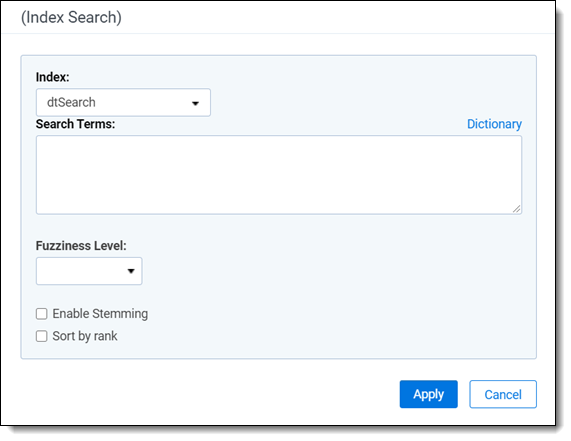
The search terms populate in the Search builder.
Click the Sort by rank checkbox to sort the results by order of relevance in relation to the search terms. The most relevant documents are listed at the top of the results set, with the least relevant documents, or the documents with the smallest number of keywords, is at the end of the list.
To run a dtSearch in the Search browser:
 to access the Search browser from the Documents List.
The (Index Search) window opens.
You can enter search terms on multiple lines (i.e., hit Enter), but the hard return will not be treated as an AND / OR operator.
Your total number of search terms cannot exceed 65,000 characters.
The following table shows search string examples and their expected results. For more information, see Using dtSearch syntax options.
| Search String | Returns Documents With... |
|---|---|
| apple pear | The exact phrase apple pear |
| "apple pear" | The exact phrase apple pear |
| apple AND pear | The word apple and the word pear |
| (apple and pear) AndAny (grape or banana) | Any document that contains apple and pear, with grape and banana also being counted as hits. Grape and banana aren't evaluated as conditions; they're simply added to the search results as optional terms to be highlighted if they appear in the document. |
| apple OR pear | Either apple or pear |
| apple W/5 pear | Apple appears within 5 words of pear |
| apple PRE/5 pear | Apple appears within 5 words before pear Note: Relativity does not use the POST operator. However, you can mimic this functionality by reversing the order of the terms, and using the PRE operator. |
| apple NOT W/5 pear | Apple does not appear within 5 words of pear |
| apple AND NOT pear | Apple appears but pear does not |
| apple W/5 xfirstword | Apple appears in the first 6 words of the document |
| apple w/5 xlastword | Apple appears in the last 6 words of the document |
You can access stemming or fuzziness for key terms by checking the Enable Stemming box or selecting a Fuzziness Level in the drop-down list.
The search terms populate in the Search builder.
Tap on the Sort by Rank check box beneath the search box to sort the results in order of the most relevance to your search terms. The most relevant documents are listed at the top of the results set, with the least relevant documents, or the documents with the smallest number of keywords, is at the end of the list.
When a word has more than 32 characters (none of which are whitespace, characters in the CJKRanges section, or symbols configured as spaces), dtSearch truncates the word and only indexes the first 32 characters. As a result, if you run a search on the first 32 characters, the search returns any words with 33 or more characters that contain the search term as the first 32 characters.
If you attempt to run a search with a string of 33 characters or more, dtSearch does not return any results because it does not truncate the query, and as we’ve seen, no word is longer than 32 characters. See below examples for reference.
| Search | Length (in characters) | Returned results |
|---|---|---|
| supercalifragilisticexpialido | 29 | supercalifragilisticexpialido |
| supercalifragilisticexpialidoc | 30 | supercalifragilisticexpialidoc |
| supercalifragilisticexpialidoci | 31 | supercalifragilisticexpialidoci |
| supercalifragilisticexpialidocio | 32 |
supercalifragilisticexpialidocio supercalifragilisticexpialidociou supercalifragilisticexpialidocious |
| supercalifragilisticexpialidociou | 33 | NO RESULTS |
| supercalifragilisticexpialidocious | 34 | NO RESULTS |
