


Feedback

Kibana Discover is a powerful interface for exploring and searching your data stored in Elasticsearch. This guide provides first-time users with an overview of the Discover UI and basic navigation for working with Environment Watch and Data Grid Audit data.
Log in to Kibana with an admin user.
logs-*, metrics-*, apm-*) to define which Elasticsearch indices you want to search. The Data View determines what data appears in your search results.If no Data Views exist, you'll need to create one first. For more details, see:
The Discover interface contains:
Reference:Kibana Discover Interface Documentation
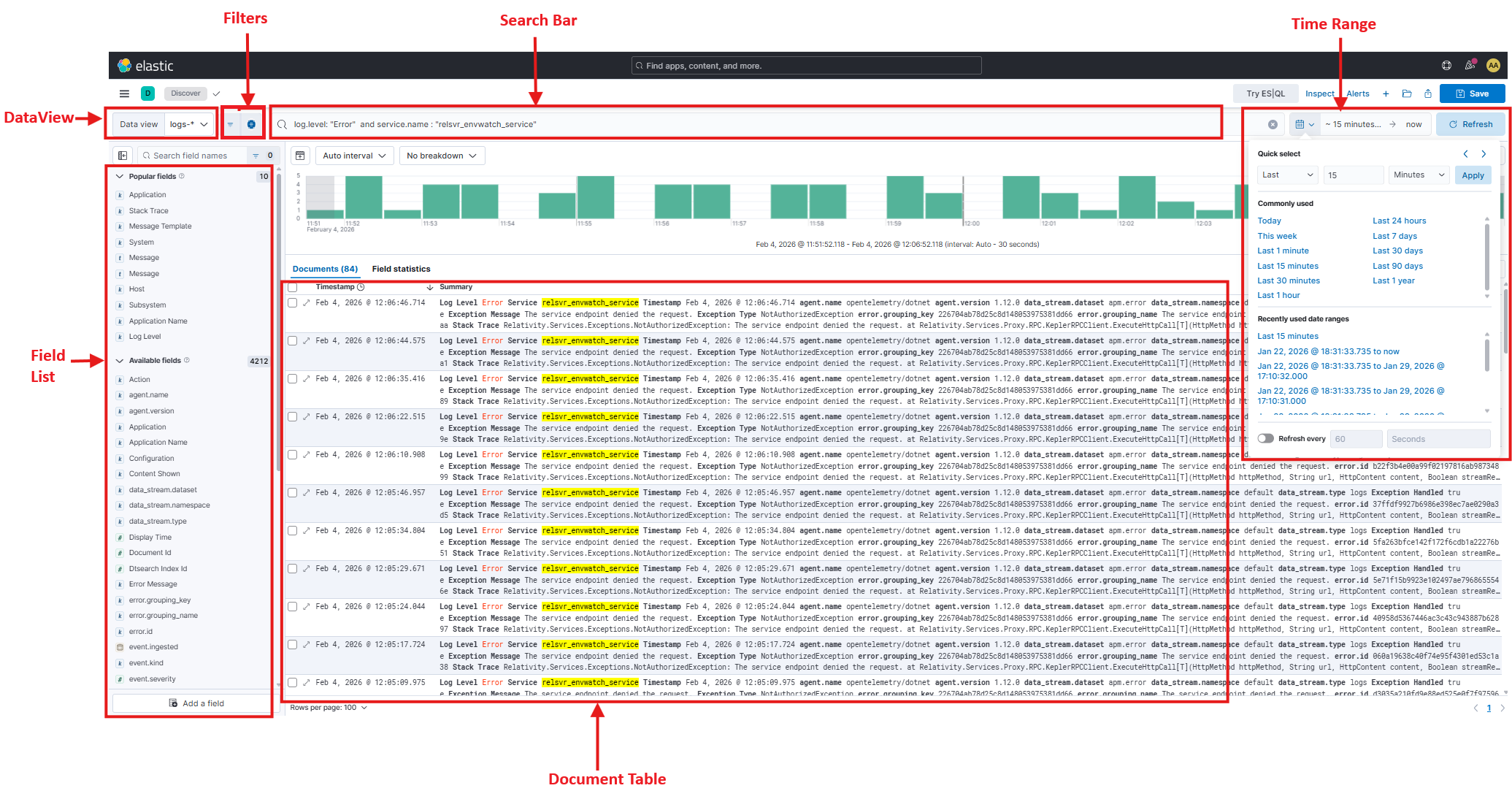
The screenshot above highlights the following key areas:
Search Bar: Enter KQL queries like:
log.level: ERROR and service.name: "relsvr_envwatch_service"
Time Picker: Choose ranges (Last 15m, 1h, 24h, custom).
Field List: Add/remove fields as columns, view distributions.
Document Table: Timeline histogram + log/event results.
Filters Bar: Manage active filters.
Adjusting the time range is critical when working with Environment Watch data. Narrowing the time window helps you focus on specific incidents or time periods, improves query performance, and ensures you're looking at relevant data.
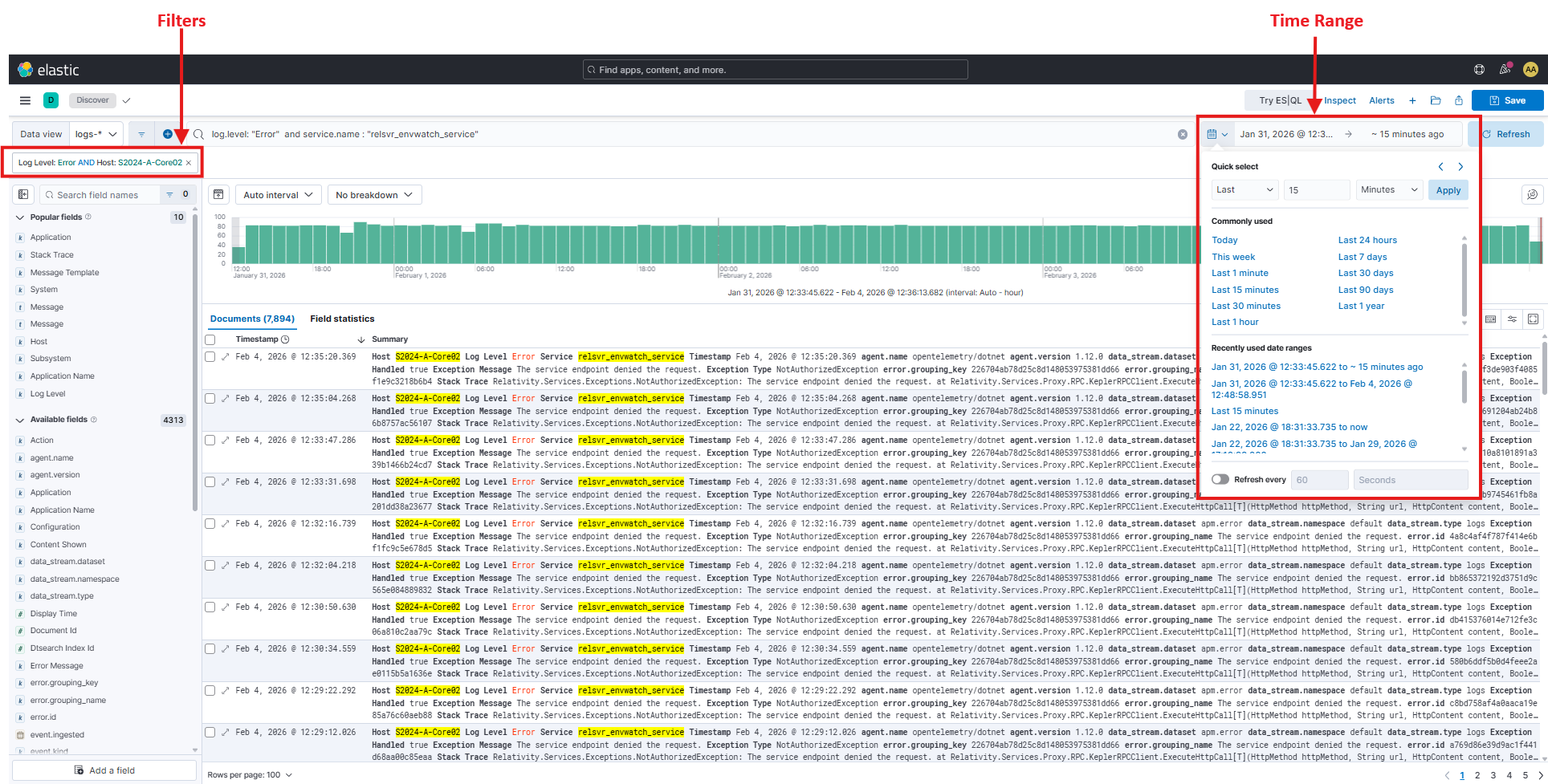
The screenshot above highlights the Time Picker dropdown showing quick range options (15m, 1h, 24h) and custom date/time selection. Click the time display in the top-right corner to open this menu.
Customizing columns allows you to see the most relevant fields for your investigation without expanding each document. This is especially useful when scanning through many log entries.
+
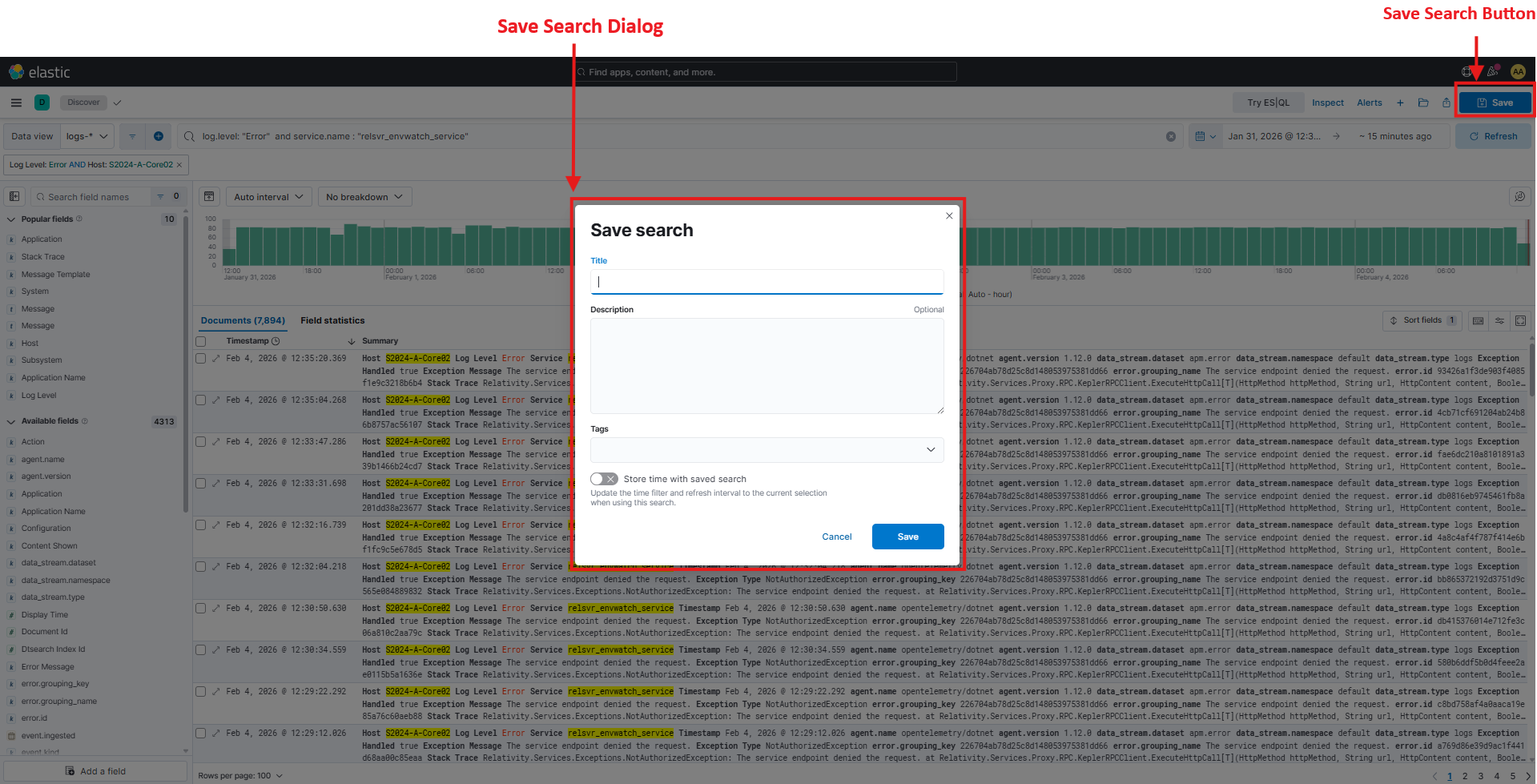
The screenshot above highlights the "Save" button (top-right) which opens a dialog where you can name your search and add a description for future reference.
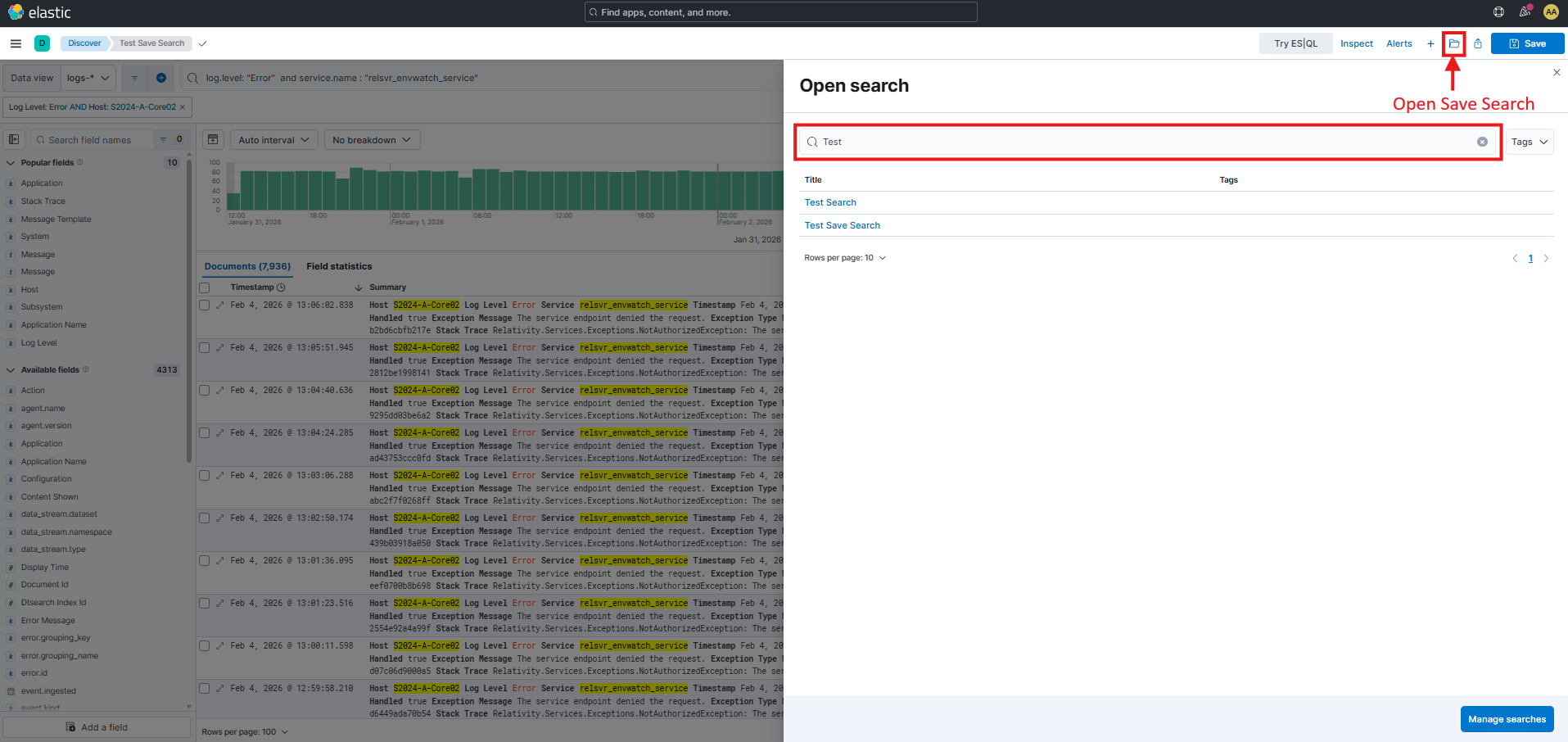
The screenshot above highlights the "Open" menu showing all previously saved searches. Click any saved search name to load it instantly.
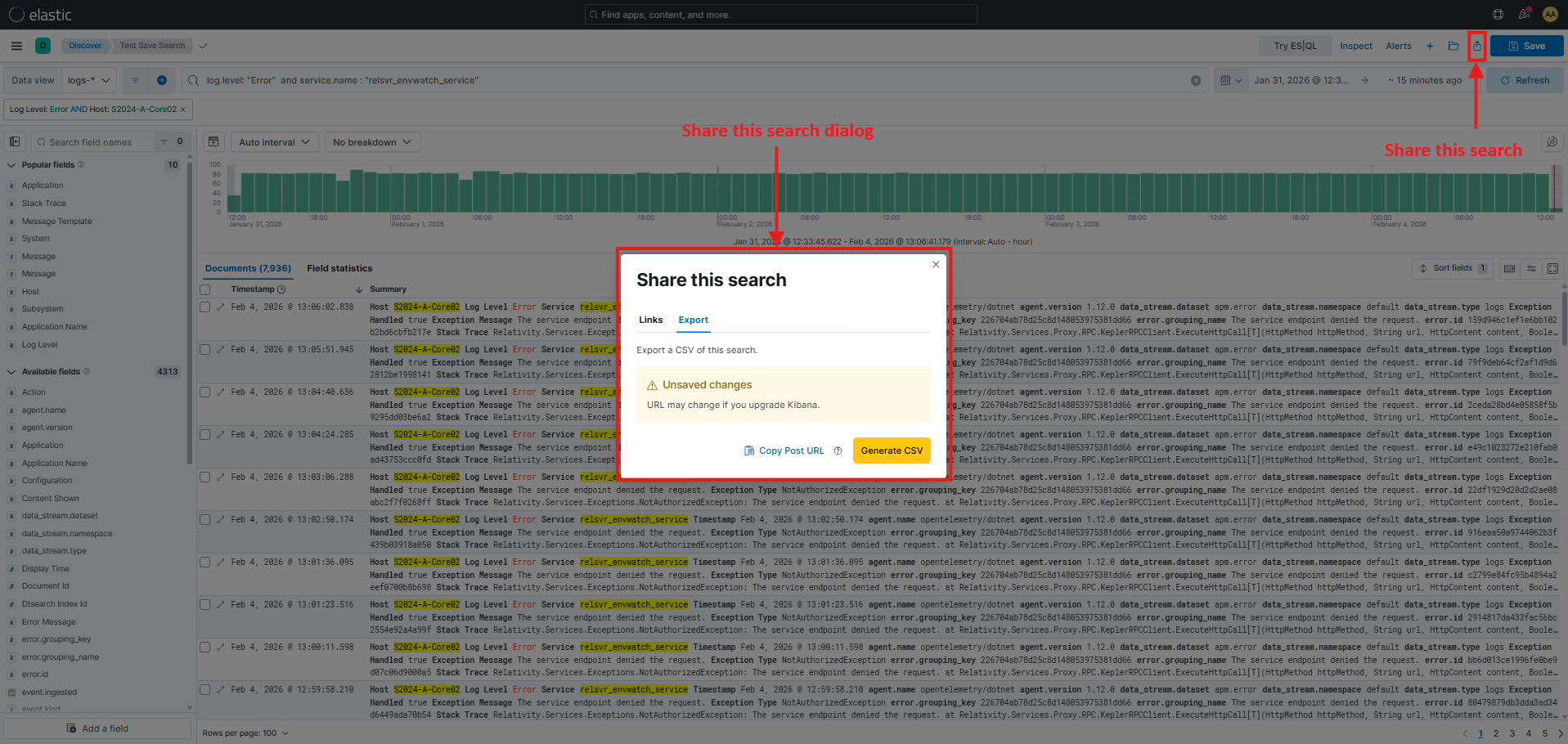
The screenshot above highlights the "Share" menu providing options to export search results, generate CSV reports, or share permalinks with colleagues.
Filters let you refine your search results without writing KQL queries. They're particularly useful for quickly narrowing down Environment Watch data by specific hosts, services, or log levels while preserving the ability to easily adjust or remove criteria.
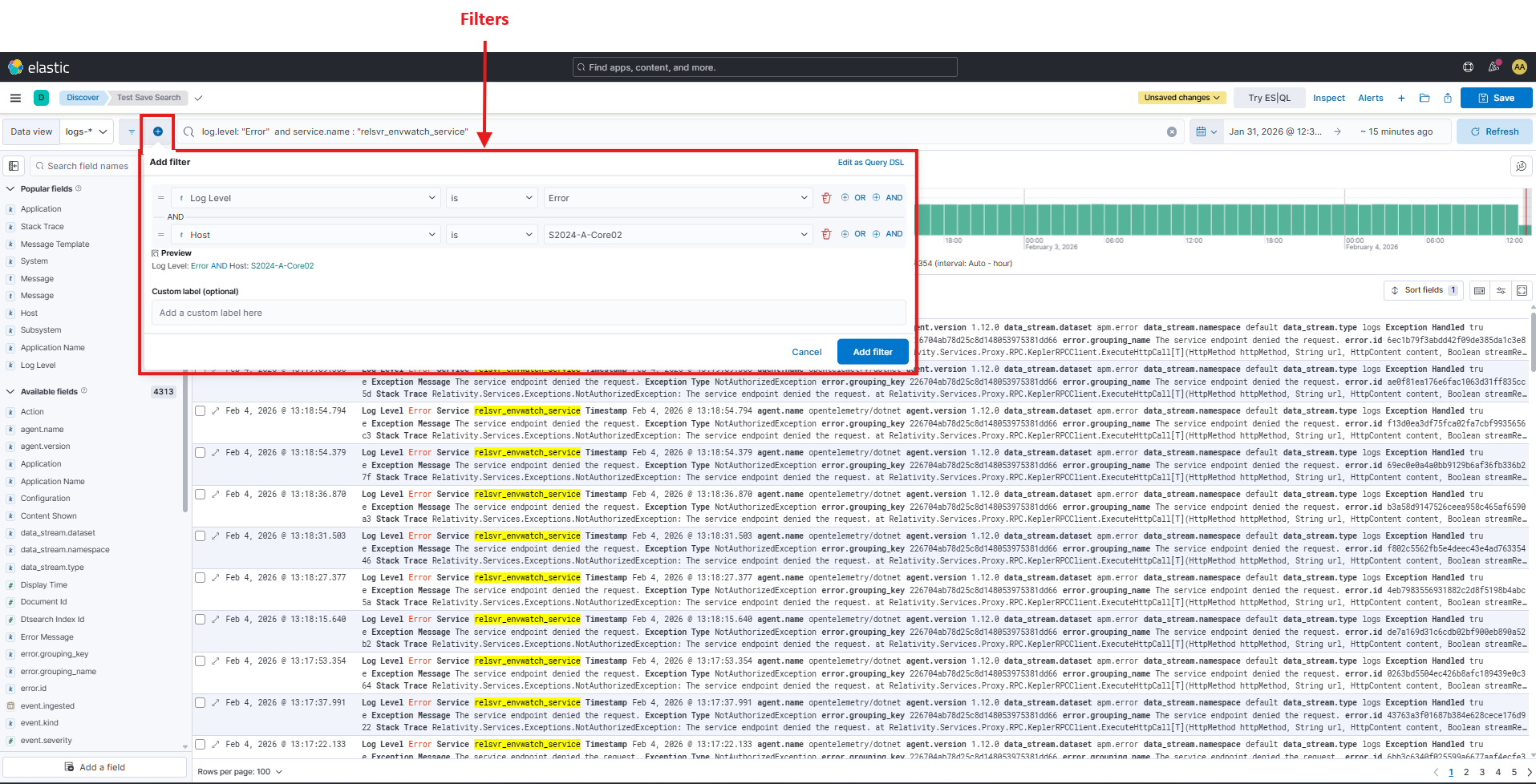
+ Add filter+ or -)
