How To Restore EDDS Logging with Environment Watch

This guide provides required steps to disable the Environment Watch toggle and stop forwarding logs to Kibana by modifying the relevant setting in the EDDS database and reverting the EDDSLogging sink to default configuration.

Use Cases

This procedure should be used in the following scenarios:

  • Local Database Logging Only: When organizational requirements mandate that all logs remain within the local EDDS database without external forwarding to Kibana or other observability platforms.
  • Network or Connectivity Problems: When the OpenTelemetry collector endpoint or Kibana instance is unreachable, causing log forwarding failures that need immediate resolution.
  • Planned System Maintenance: To temporarily disable Environment Watch monitoring before performing scheduled maintenance activities, system upgrades, or infrastructure modifications that may impact the monitoring pipeline.

Scope

This procedure disables the Environment Watch toggle and reverts logging to the default configuration. After completion:

  • Logs will be written to the RelativityLogs table in the EDDSLogging database.
  • Log forwarding to Kibana will be stopped.
  • Environment Watch monitoring and alerting capabilities will be disabled.

Prerequisites

  • Access to the Relativity EDDS and EDDSLogging SQL Server databases.
  • Permissions to execute SELECT, UPDATE, and EXECUTE statements on these databases.
  • Understanding of the impact to monitoring and alerting systems that rely on Kibana log ingestion.

Log Behavior

Historical Logs:

  • Logs that were previously forwarded to Kibana will remain in Kibana and will not be migrated to the EDDS database.
  • Historical logs in Kibana remain accessible according to Kibana retention policies.
  • Historical logs already in the RelativityLogs table (if any existed before Environment Watch was enabled) remain unchanged.

New Logs (After Disabling Environment Watch):

  • Only new logs generated from the point of disabling Environment Watch forward will be written to the RelativityLogs table in the EDDSLogging database.
  • New logs will not be forwarded to Kibana.

Upon Re-enabling Environment Watch:

  • Logs that accumulated in the EDDS database while Environment Watch was disabled will not be forwarded to Kibana.
  • Only new logs generated after re-enabling will be forwarded to Kibana.
  • Both Kibana and EDDS database logs will need to be queried separately for a complete historical view during the transition period.

Procedure

Step 1: Log In to Relativity EDDS Database

Log in to Relativity EDDS database.

Step 2: Verify Environment Watch Toggle State

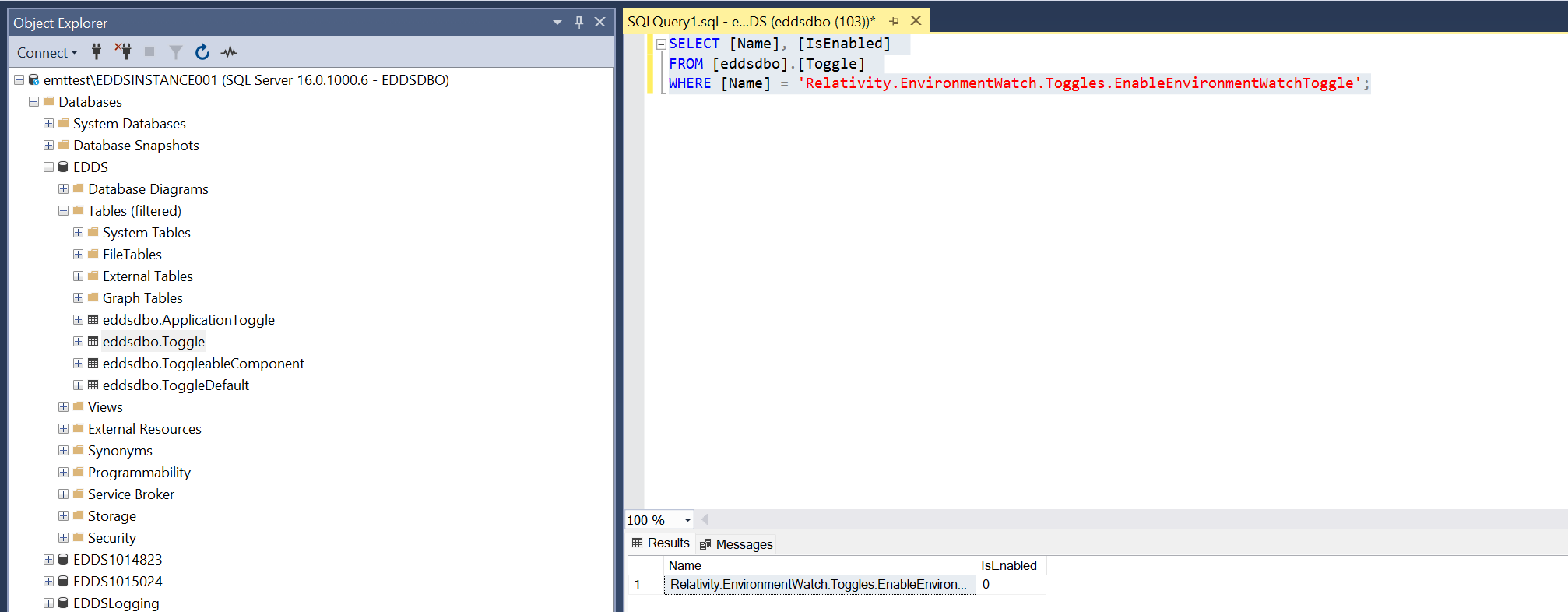
Verify that Environment Watch toggle is set as required.

Copy
SELECT [Name], [IsEnabled] 
FROM [eddsdbo].[Toggle] 
WHERE [Name] = 'Relativity.EnvironmentWatch.Toggles.EnableEnvironmentWatchToggle';
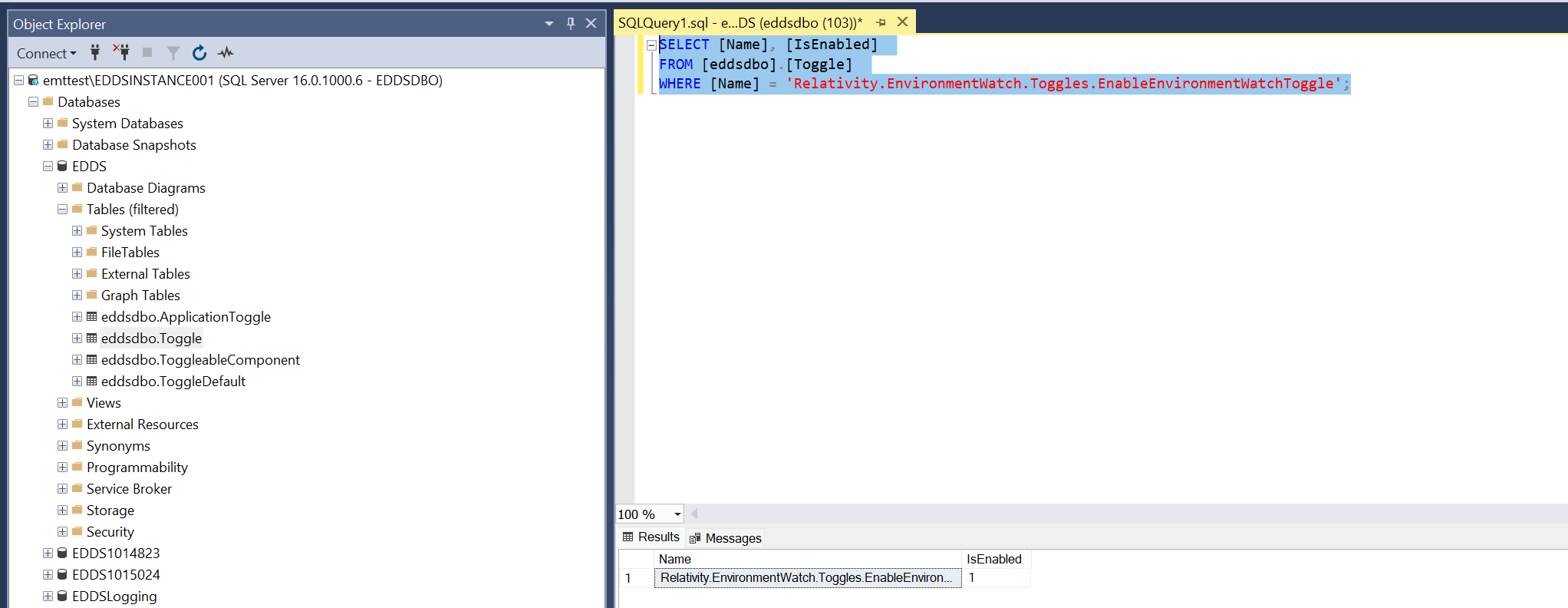
Verify Environment Watch Toggle State

Step 3: Disable Environment Watch Toggle

Execute the following query to disable Environment Watch Toggle:

Copy
UPDATE [eddsdbo].[Toggle] 
SET [IsEnabled] = 0 
WHERE [Name] = 'Relativity.EnvironmentWatch.Toggles.EnableEnvironmentWatchToggle';
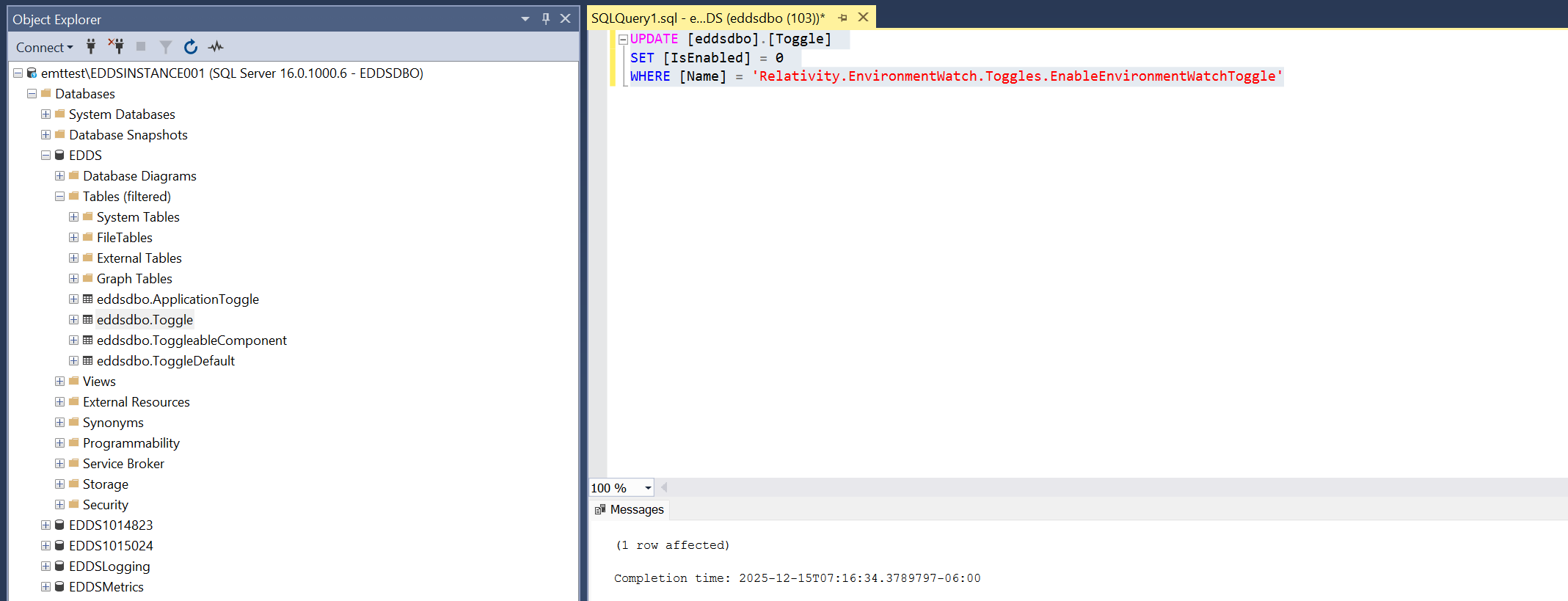
Disable Environment Watch Toggle

Environment Watch Toggle is disabled

Disabling Environment Watch will stop Kibana-based monitoring and alerting.

Step 4: Verify Sink Table Configuration

Verify that the Sink table contains an entry with "Name" set to OpenTelemetry, "TypeID" equal to 9, and "Data" configured as { EndpointUrl: "http://localhost:4318/v1/logs", ApiKey: "" }:

Copy
SELECT [Name], [TypeID], [Data]
FROM [EDDSLogging].[eddsdbo].[Sink];
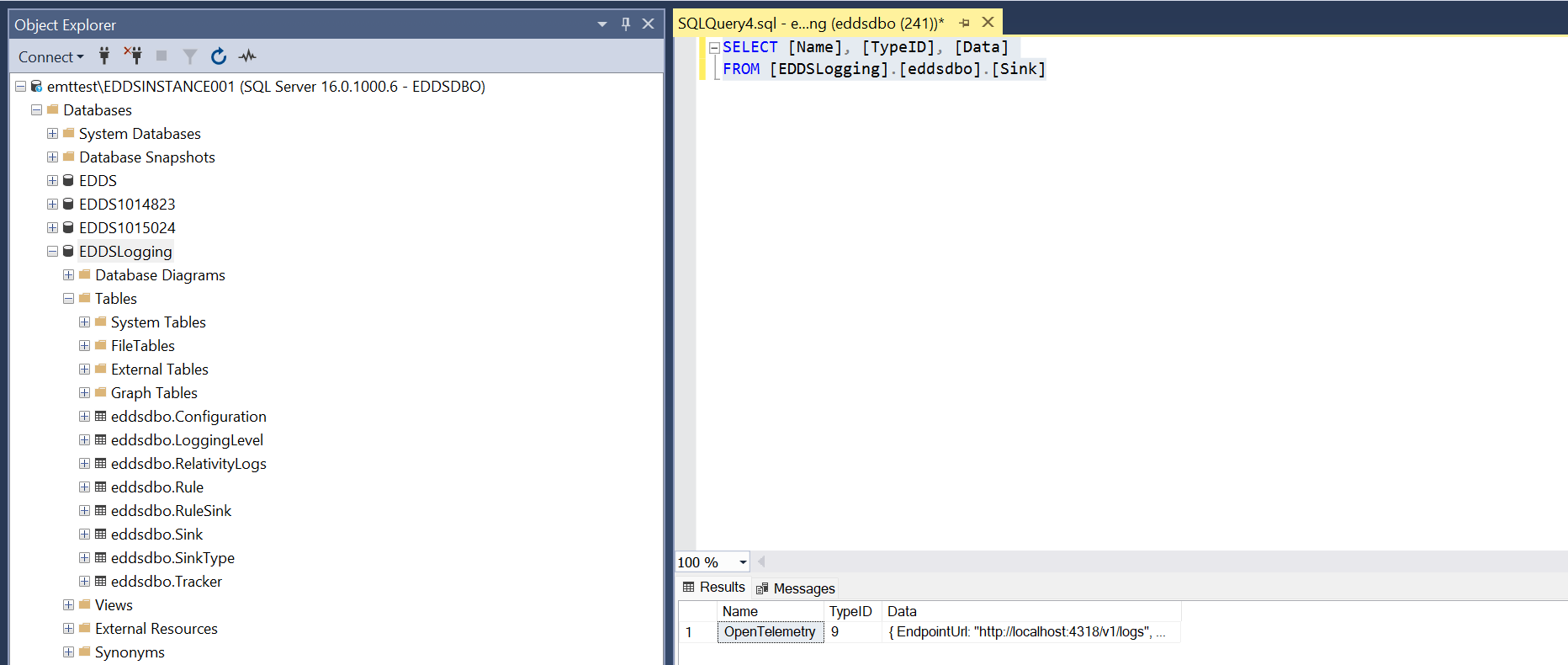
Sink table data verification for Environment Watch

Step 5: Reset Sink Table to Default Configuration

Run the stored procedure to reset the Sink table to its default configuration:

Copy
EXEC [EDDSLogging].[eddsdbo].[ResetToDefault_WithSinks] @WithParamNames = 1;
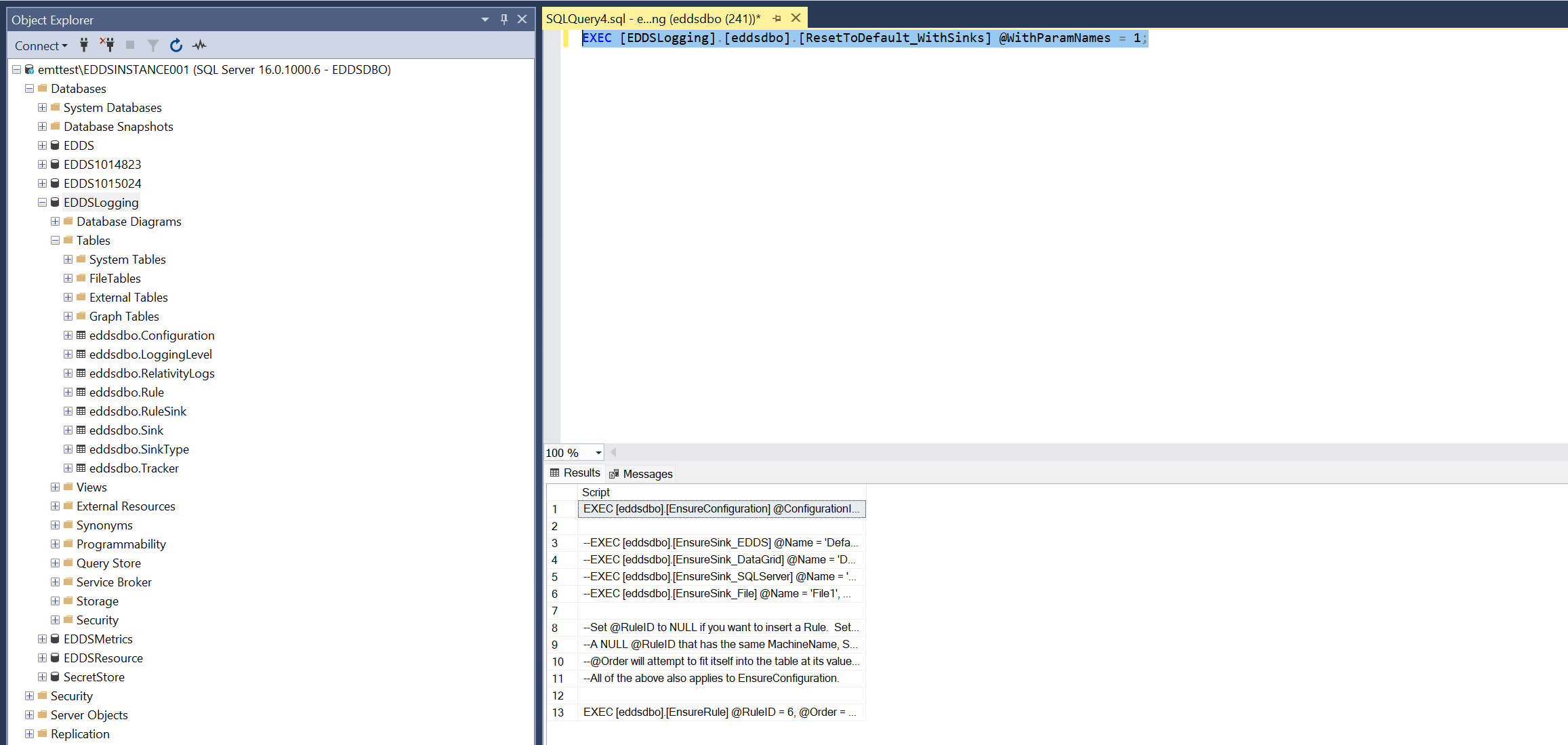
Sink Table OpenTelemetry Configuration

Step 6: Verify Default Configuration

Verify that Sink table is updated to default configuration:

Copy
SELECT [Name], [TypeID], [Data]
FROM [EDDSLogging].[eddsdbo].[Sink];
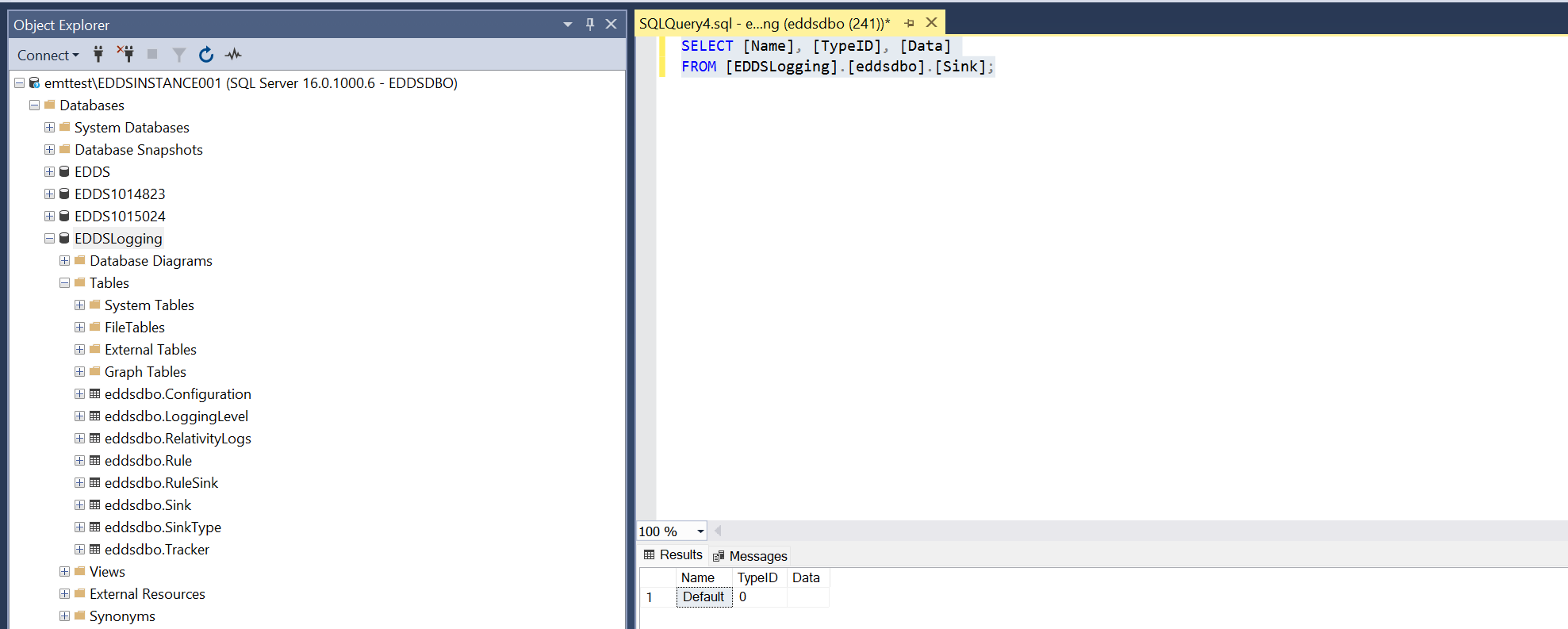
Sink Table Default Configuration

Step 7: Restart Relativity Environment Watch Service

A service restart is required for configuration changes to take effect. The service will be unavailable during the restart process.

  1. Open Services on the Windows server
  2. Locate Relativity Environment Watch Service
  3. Right-click and select Restart

Verification

ID Scenario Steps Expected Condition
01 Open EDDSLogging database 1. Execute the following query:
SELECT TOP (1000) [ID], [Message], [MessageTemplate], [Level], [TimeStamp], [Exception], [Properties] FROM [EDDSLogging].[eddsdbo].[RelativityLogs] ORDER BY [TimeStamp] DESC;
2. Verify the RelativityLogs table for error logs logged at the current timestamp.
  • Error logs should be logged according to the correct timestamp.
  • User should be able to view logs in the RelativityLogs table.
02 Validate logs visibility in Kibana 1. Log in to Kibana.
2. Select Discover.
3. Select Dataview Logs.
4. Verify logs.
  • Logs should not be written to Kibana.

Rollback Procedure

If you need to re-enable Environment Watch and resume log forwarding to Kibana:

  1. Run Relativity Server CLI to enable Environment Watch and reconfigure the logging to Kibana.
  2. Verify that logs are redirected to Kibana as expected.

Logs that were written to the EDDS database while Environment Watch was disabled will not be forwarded to Kibana. Only new logs generated after re-enabling will appear in Kibana.

Return to top of the page
Feedback