


Feedback

This section describes how to configure Windows service monitoring using the environmentWatchConfiguration JSON configuration file.
This configuration monitors the status of specified Windows services to ensure they are running as expected. Some Windows services are monitored by default depending on the installed products, even if they are not explicitly configured in the custom JSON configuration file.
The table below lists the service names that are monitored by default depending on the installed products.
| Service Name | Description |
|---|---|
| apm-server | Elastic Stack APM Server |
| elasticsearch | Elastic Stack Elasticsearch Service |
| W3SVC | Internet Information Services (IIS) |
| QueueManager | Invariant Queue Manager |
| RabbitMQ | RabbitMQ Message Broker |
| kCura EDDS Agent Manager | Relativity Agent Manager |
| Relativity Analytics Engine | Relativity Analytics Engine (CAAT) |
| Relativity Secret Store | Relativity Secret Store |
| kCura Service Host Manager | Relativity Service Host Manager |
| kCura EDDS Web Processing Manager | Relativity Web Processing Manager |
The following table lists the properties used to configure Windows services monitoring in the custom JSON configuration file.
| Property | Type | Description |
|---|---|---|
enabled
|
boolean | Enables or disables monitoring for Windows services. |
include
|
array | List of Windows service names (not display names) to monitor (for example, "WinDefend"). |
To identify the correct service name:
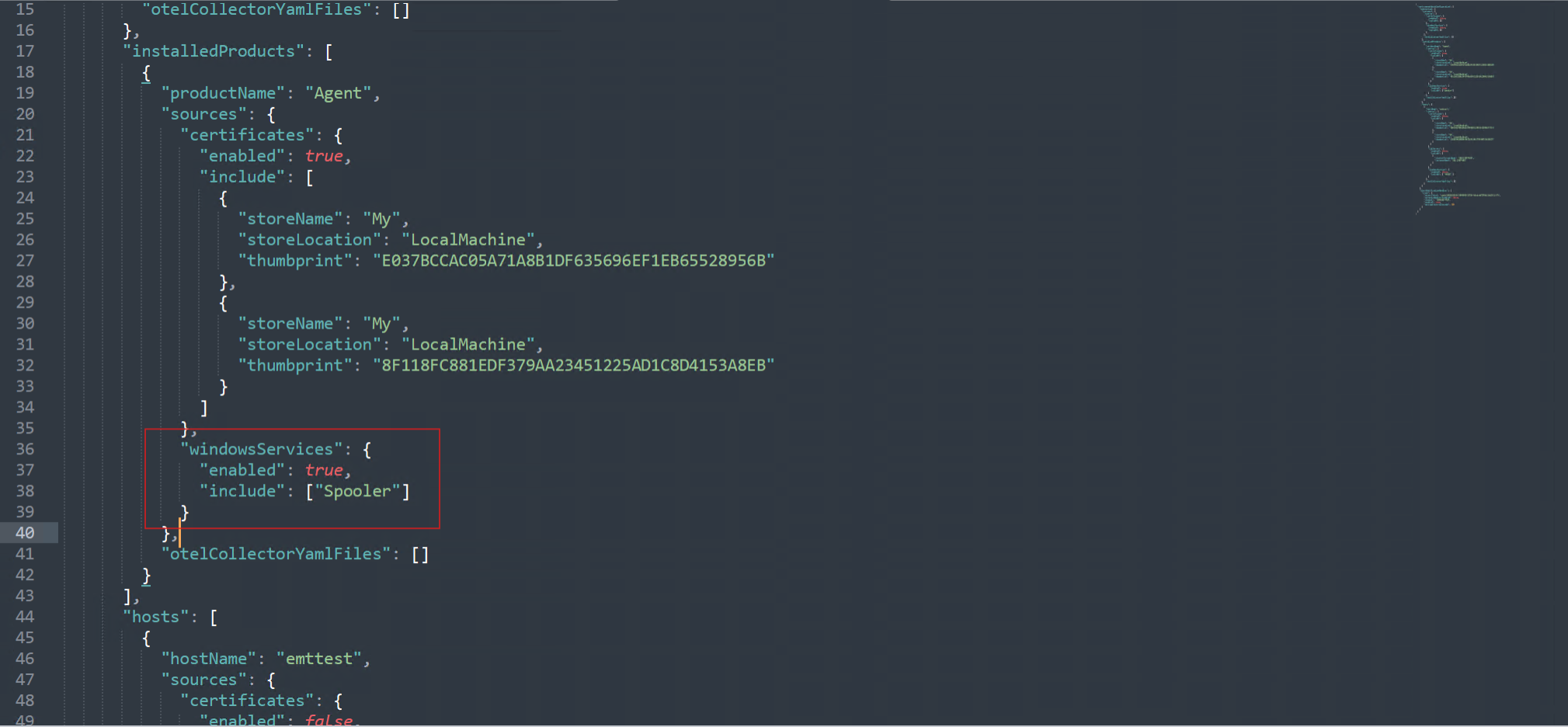
Windows services can be monitored at the "hosts", "instance", or "installedProducts" level. For services to monitor, locate "windowsServices" under the desired section and update the configuration as shown below.
enabled : Set to true to enable Windows services monitoring.include : List the service names to monitor.Example
{
  "environmentWatchConfiguration": {
    "monitoring": {
      "instance": {
        "sources": {
          "certificates": {},
          "windowsServices": {
            "enabled": false,
            "include": []
          }
        },
        "otelCollectorYamlFiles": []
      },
      "installedProducts": [
        {
          "productName": "Agent",
          "sources": {
            "certificates": {
              "enabled": true,
              "include": []
            },
            "windowsServices": {
              "enabled": true,
              "include": [
                "Spooler"
              ]
            }
          },
          "otelCollectorYamlFiles": []
        }
      ],
      "hosts": [
        {
          "hostName": "emttest",
          "sources": {
            "certificates": {
              "enabled": false,
              "include": []
            },
            "sqlServers": {
              "enabled": false,
              "include": []
            },
            "windowsServices": {
              "enabled": true,
              "include": [
                "W3SVC"
              ]
            }
          },
          "otelCollectorYamlFiles": []
        }
      ]
    },
    "alertNotificationHandlers": {}
  }
}
If the Windows service specified in the custom JSON configuration file cannot be found on the host, an alert will be triggered indicating that the service is stopped or missing. For troubleshooting guidance, refer Troubleshooting section.
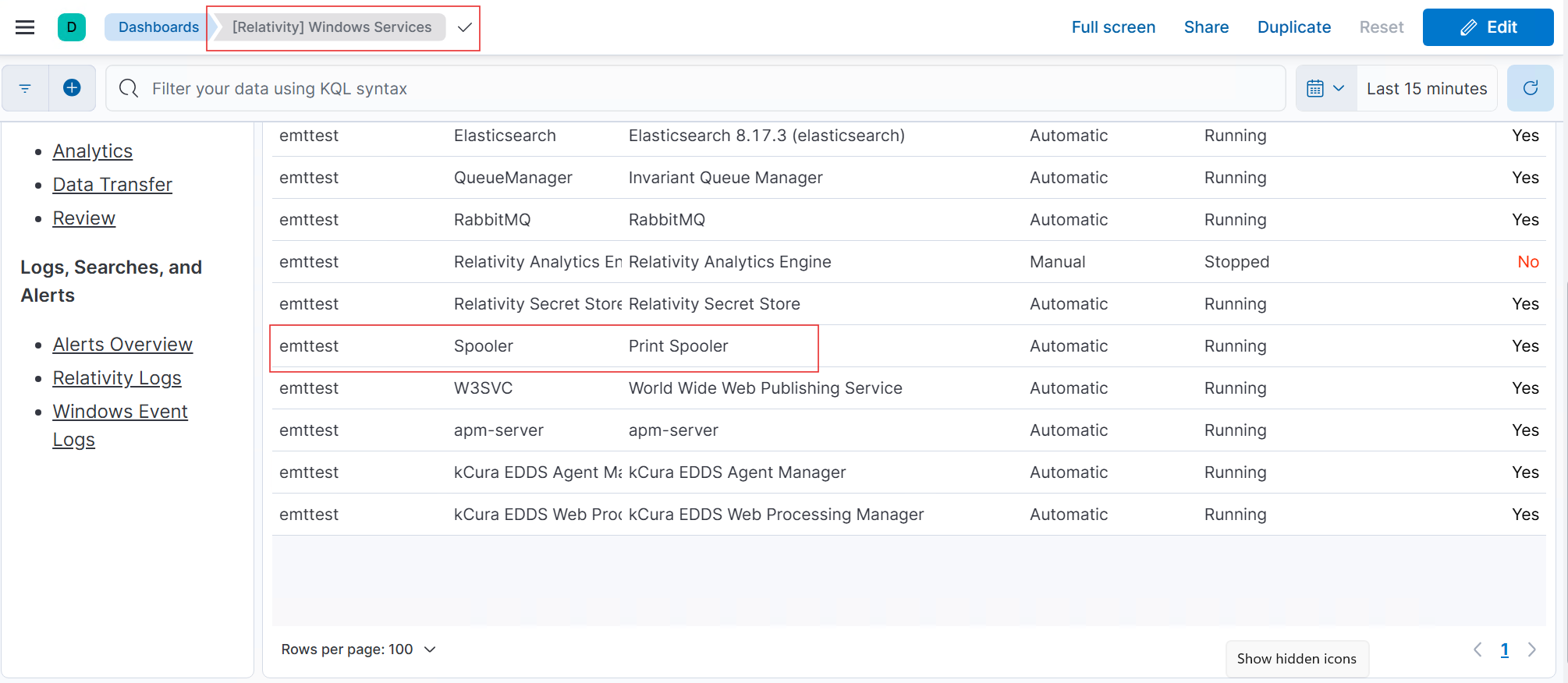
Refer to the Troubleshooting Guide to resolve any custom JSON windows services configuration issues.
