


Feedback

This step is required for Environment Watch.
The Relativity Alerts application is a new application as part of the Relativity Environment Watch suite. Its main functionality is to alert Relativity System Administrators to a variety of Environmental and Application related issues on a Relativity instance within Relativity web interface. It replaces a previous "Legacy Alerts" functionality with a new Open Telemetry based implementation with Elastic Stack backend. It allows in real time to notify Relativity System Administrators about issues, redirect them to easily readable dashboards with performance and health information, as well as accompanied by a comprehensive resolution guidelines.
To install the Relativity Alerts application on your Relativity instance:
Log in to Relativity as a System Administrator.
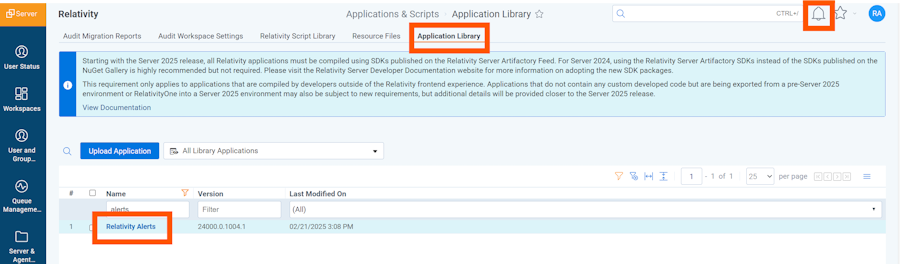
Navigate to the Application Library tab.
Click Upload Application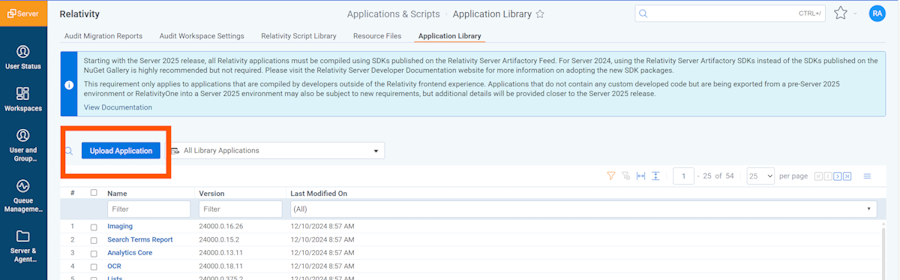
Click Select File.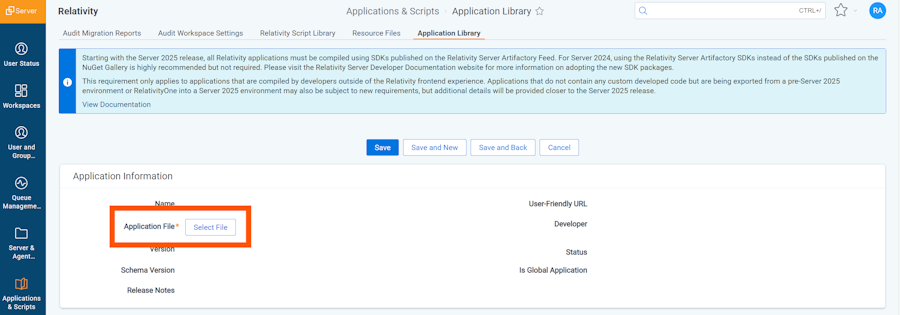
The Environment Watch bundle contains a RAPs folder with subfolders organized by Relativity Server version. Each subfolder Server202X contains the corresponding Relativity Alerts RAP file for that Relativity Server version.
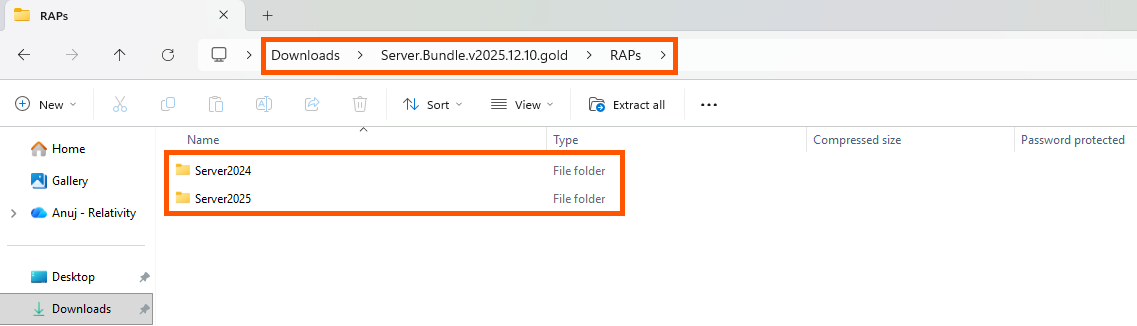
Navigate to the subfolder that matches your Relativity Server version, select the Relativity Alerts RAP file, and then click Open.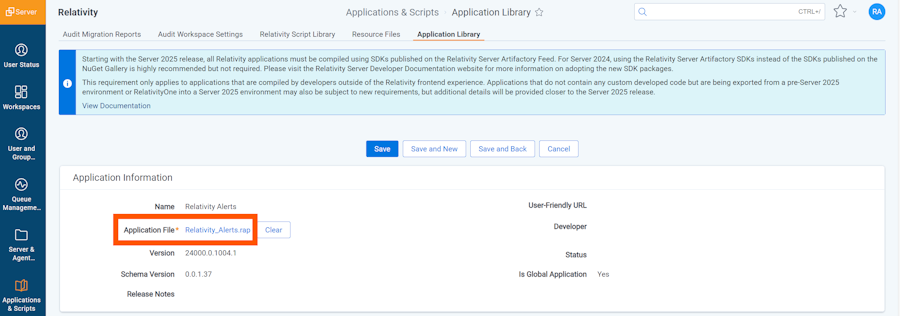
Click Save to upload the file to the Application Library.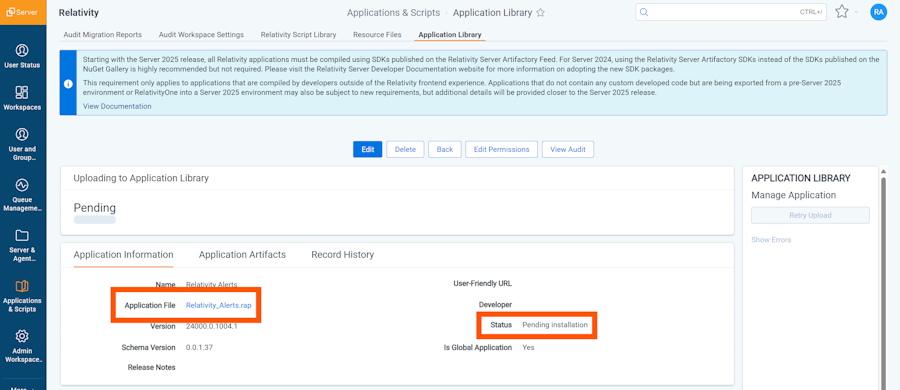
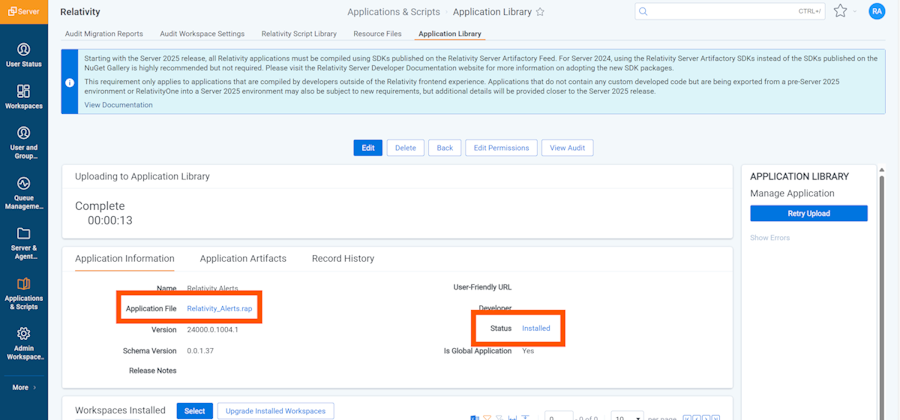
A list of common install issues and their resolutions are available at the troubleshooting guide.
Navigate to the Alerts tab, you should see all alerts available in Kibana.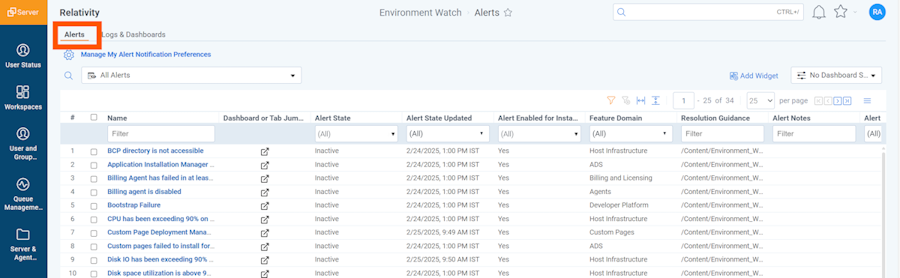
Navigate to Logs & Dashboards tab, you should see all Environment Watch dashboards and saved searches available in Kibana.
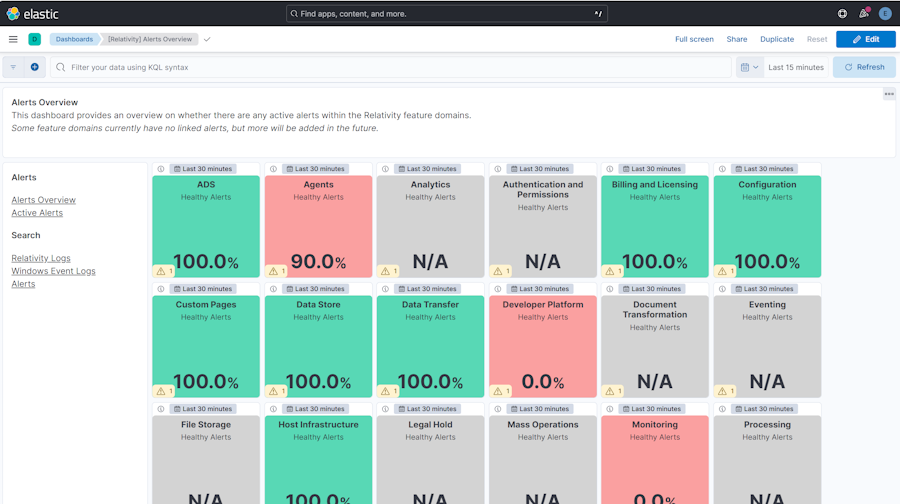
When on Logs & Dashboards tab, find **Alerts Overview88 dashboard and click the link. A new web browser tab will be created and you should be redirected to "Alerts Overview" dashboard in Kibana. If you have not logged in into Kibana yet, you will be prompted with a Kibana login page. Please login with your Kibana user account with privileges.
To confirm that the alerting functionality is operational, please do the following:
Go to the Agents tab
Select File Deletion Manager agent and disable it.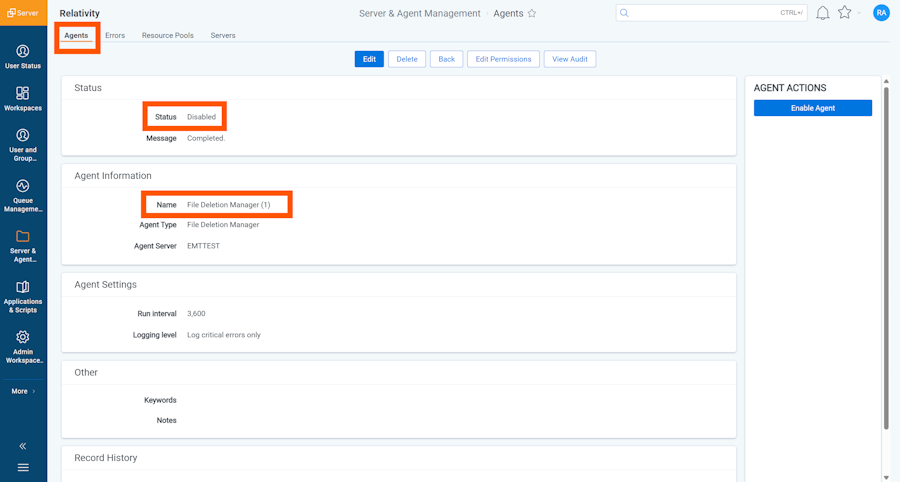
Within the next 30-60 seconds, the bell icon, in the top-right corner, will indicate that there is a new Alert.
Click on the bell icon, and you should be able to see the active One or more agents are disabled alert in the alert flyout.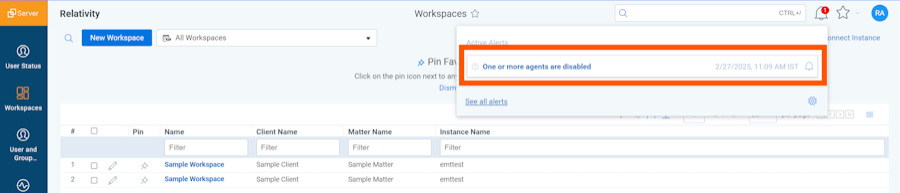
Click on the question mark icon next to the One or more agents are disabled alert, and you will be redirected to the resolution guidance for this alert in a new tab of your web browser.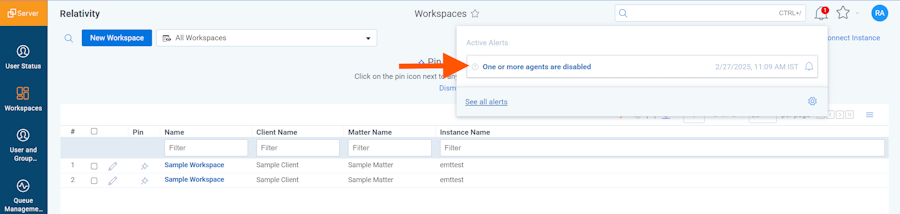
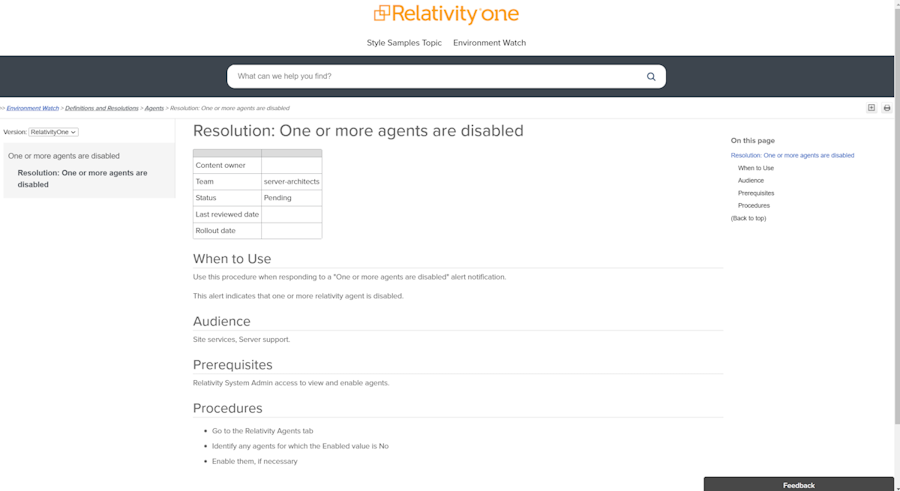
Return to the previous tab in Relativity, then click on the bell icon in the top-right corner. When the alert flyout opens, click on the 'One or more agents are disabled' alert, and you will be redirected to a filtered list of disabled agents in the Agents tab within Relativity.
While on Agents tab, please remember to enable the File Deletion Manager agent.
If any of the previous steps have failed, or any errors were displayed, please see troubleshooting guide for more information.
To access Kibana dashboards and saved searches, a new account must be created for each user and be assigned to the custom Kibana role that was installed during the Environment Watch CLI setup.
To create a Kibana user and assign the custom Kibana role:
alerts_dashboard_user).relativity_dashboard_user role. Optionally, also assign the monitoring_user to enable access to Stack Monitoring.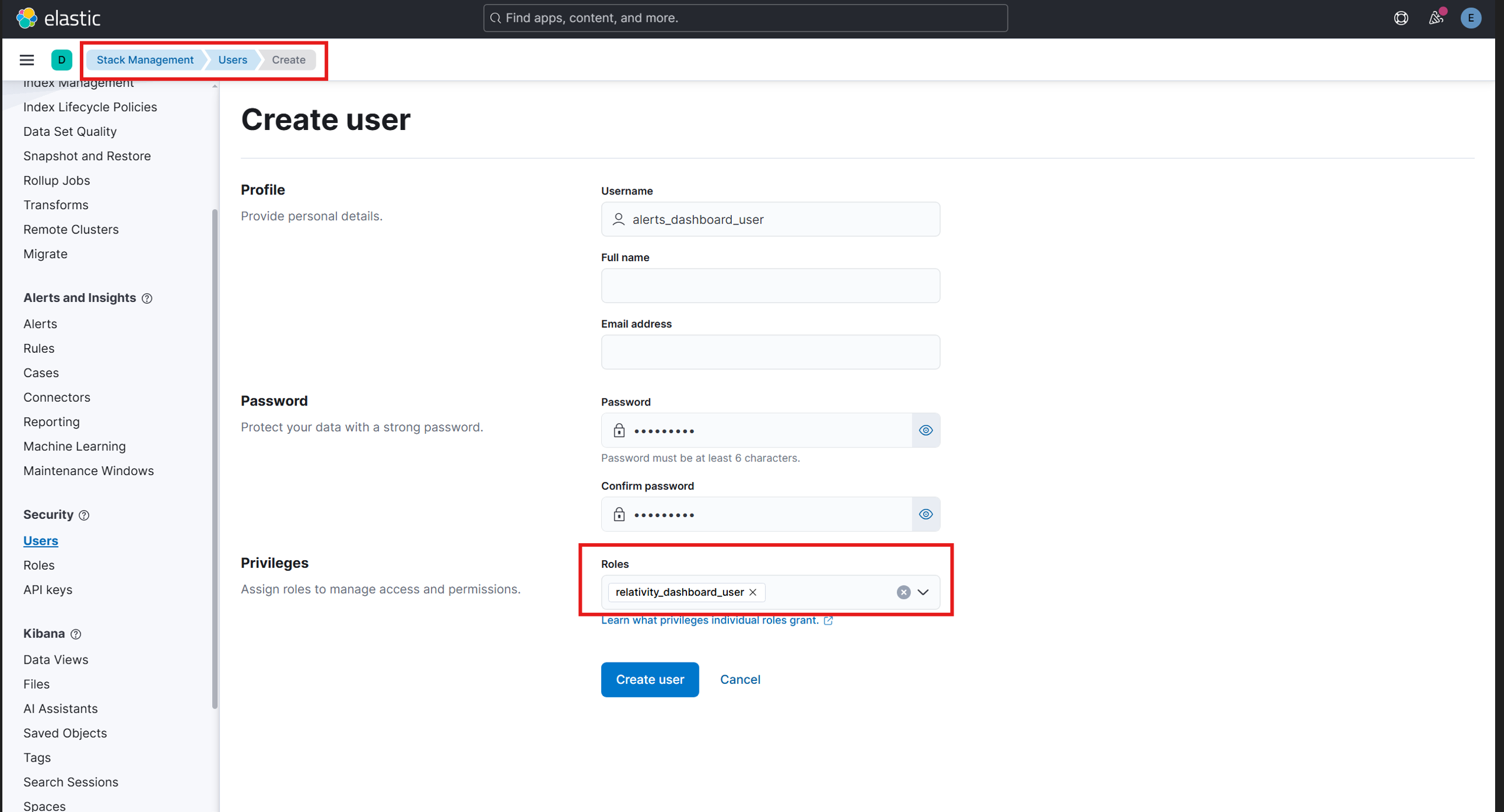
Users must log in with this account to access the Kibana dashboards and saved searches provided by Environment Watch.
You have reached the end of the setup process. If you are still running into any issues, please refer to the Troubleshooting Guides for further assistance.
