


Feedback

This document provides troubleshooting steps for common pre-requisites like port configuration.
The following table summarizes the default ports used by the Elastic Stack components.
| Component | Port | Protocol | Inbound | Outbound | Purpose |
|---|---|---|---|---|---|
| Elasticsearch | 9200 | HTTP/HTTPS | ✅ | Client communication and REST API | |
| 9300 | TCP | ✅ | ✅ | Inter-node communication | |
| Kibana | 5601 | HTTP/HTTPS | ✅ | Kibana web interface | |
| APM Server | 8200 | HTTP/HTTPS | ✅ | APM agent data ingestion |
Symptoms:
Troubleshooting Steps:
Check if Ports are in use: Verify that ports 9200 and 9300 are listening.
netstat -an | findstr ":9200"
netstat -an | findstr ":9300"
Expected output:
TCP    0.0.0.0:9200           0.0.0.0:0              LISTENING
TCP    0.0.0.0:9300           0.0.0.0:0              LISTENING
Identify Conflicting Processes. If a port is in use by another application, identify the process.
Get-NetTCPConnection -LocalPort 9200 -State Listen
Get-NetTCPConnection -LocalPort 9300 -State Listen
Test Elasticsearch Connectivity:
curl.exe -k -u <username>:<password> -X GET "https://<hostname_or_ip>:9200/"
Verify Network Binding:
Check C:\elastic\elasticsearch\config\elasticsearch.yml configuration:
network.host: 0.0.0.0 # For all interfaces
Symptoms:
Troubleshooting Steps:
Check if Port is in Use:
netstat -an | findstr ":5601"
Expected output:
TCP 0.0.0.0:5601 0.0.0.0:0 LISTENING
Test Kibana Connectivity:
(curl.exe -s -k -u <username>:<password> -X GET "http://<hostname_or_ip>:5601/api/status" | ConvertFrom-Json).status.overall | ConvertTo-Json -Depth 10
Verify Network Binding. Check C:\elastic\kibana\config\kibana.yml configuration:
server.host: "0.0.0.0" # For all interfaces
Symptoms:
Troubleshooting Steps:
Check if Port is in Use:
netstat -an | findstr ":8200"
Expected output:
TCP 0.0.0.0:8200 0.0.0.0:0 LISTENING
Test APM Server Connectivity:
curl.exe -k "http://<hostname_or_ip>:8200/"
Expected output:
{
  "build_date": "...",
  "build_sha": "...",
  "publish_ready": true,
  "version": "8.19.8"
}
Verify Network Binding. Check C:\elastic\apm-server\apm-server.yml configuration:
host: "0.0.0.0:8200"
Ensure that Windows Firewall or any other network security software is not blocking the required ports. You may need to create inbound rules to allow traffic on these ports.
Example for Kibana (port 5601):
New-NetFirewallRule -DisplayName "Kibana Web Interface" -Direction Inbound -Protocol TCP -LocalPort 5601 -Action Allow
Use Test-NetConnection to verify that a remote server can reach the port.
Test-NetConnection -ComputerName <hostname_or_ip> -Port <port_number>
Expected output:
ComputerName     : <hostname_or_ip>
RemoteAddress    : <ip>
RemotePort       : <port_number>
TcpTestSucceeded : True
Symptoms:
Troubleshooting Steps:
Verify Secure URL
Install SSL Certificate in Trusted Store
If your browser shows a "not secure" warning when accessing the Elasticsearch URL, you may need to install the certificate into your trusted store.
In your browser, view the certificate details and export the root certificate authority (CA) certificate. Save it to a local directory.
Double-click the downloaded certificate file and click Install Certificate.
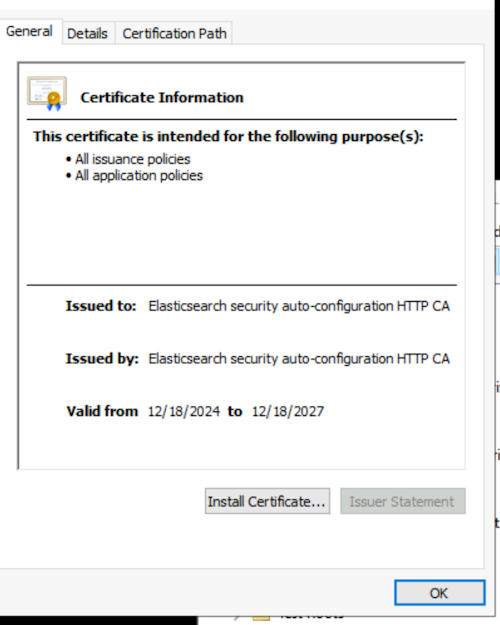
Select Local Machine and click Next.
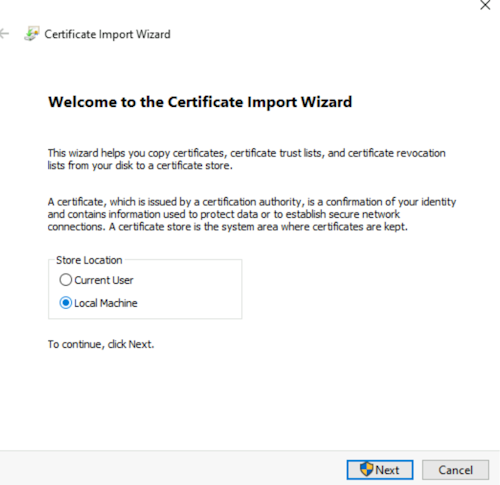
Select Place all certificates in the following store, click Browse, and select Trusted Root Certification Authorities. Click OK, then Next, and Finish.
To confirm, open the Microsoft Management Console (MMC):
mmc.exe. 

Choose Computer account and click Next, then Finish, and OK.
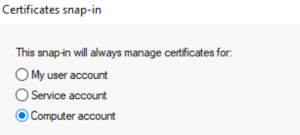
Expand Certificates (Local Computer) > Trusted Root Certification Authorities > Certificates and verify your certificate is listed.
Close your browser and reopen the Elasticsearch URL. It should now show as secure.
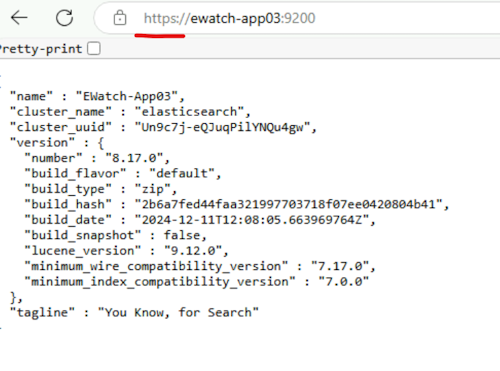
Verify Certificate Path in elasticsearch.yml.
Ensure the elasticsearch.yml file points to the correct certificate files.
Check C:\elastic\elasticsearch\config\elasticsearch.yml:
xpack.security.transport.ssl:
keystore.path: certs/transport.p12
truststore.path: certs/transport.p12
Check Elasticsearch Logs for SSL Errors
C:\elastic\elasticsearch\logs\.elasticsearch.log file for any SSL-related errors.
