


Feedback

Kibana and APM Server are required only for Environment Watch. For DataGrid Audit, they're optional.
Before beginning installation, you must decide on your cluster architecture:
For most organizations, Option 1 (Single Unified Cluster) is recommended as it simplifies operations while providing adequate performance and isolation through index management.
Official Documentation: For Elastic's guidance on air-gapped installations, see Air-gapped install.
If your environment is offline or air-gapped (no direct internet access), you have two options for obtaining Elastic Stack installation files:
Using a proxy server is the simplest approach for air-gapped environments:
Configure a proxy server that has internet access and is reachable from your isolated network.
Set proxy environment variables on the target servers before downloading:
# PowerShell - Set proxy for current session
$env:HTTP_PROXY = "http://proxy.yourcompany.com:8080"
$env:HTTPS_PROXY = "http://proxy.yourcompany.com:8080"

# Or configure system-wide proxy in Windows Settings > Network & Internet > Proxy
Download files normally using the URLs in this guide—traffic will route through the proxy.
Benefits:
For fully isolated networks with no proxy access:
From an internet-connected machine, download all required files:
elasticsearch-8.x.x-windows-x86_64.zip)kibana-8.x.x-windows-x86_64.zip)apm-server-8.x.x-windows-x86_64.zip)Transfer files to the air-gapped environment using approved media (USB drive, secure file transfer, etc.).
Install plugins offline using local file paths:
# Install mapper-size plugin from local file
.\elasticsearch-plugin install file:///C:/downloads/mapper-size-8.x.x.zip
Considerations:
Recommendation: If your security policy permits, configure a proxy server for Elastic Stack downloads. This significantly reduces complexity compared to manual file transfers and ensures version compatibility across components.
If you download a ZIP file (or another installer/archive) from the internet, Windows may block the file and prevent it from running correctly. Before installing Elastic components, ensure downloaded files are not blocked by Windows security. To unblock a file:
Right-click the downloaded file and select Properties.
In the General tab, check the box for Unblock at the bottom (if present).
Click Apply and then OK.
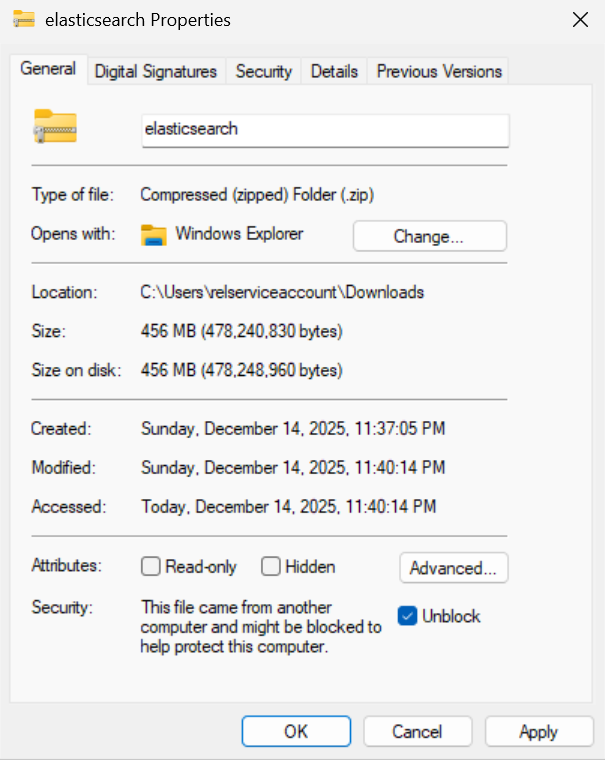
Official Documentation: For detailed installation guidance, see Elastic's official Elasticsearch installation documentation and Windows installation guide.
C:\elasticOpen an elevated PowerShell window, navigate to Elasticsearch's bin folder (C:\elastic\elasticsearch-x.x.x\bin), and run the following command to start Elasticsearch and perform the auto-configuration steps:
.\elasticsearch.bat
When starting Elasticsearch for the first time, security features are enabled and configured by default:
Single Cluster with Multiple Nodes: In a single cluster with multiple nodes setup, the enrollment token should be generated on a master-eligible node.
Save the token for future reference. Once the enrollment token is displayed, you need to stop Elasticsearch so you can proceed with the next steps. To do this, return to the PowerShell window where Elasticsearch is running and press Ctrl+C on your keyboard. This will safely terminate the process. The enrollment token will look similar to:
Enrollment token for Kibana:
eyJ2ZXIiOiI4LjE3LjMiLCJ...<rest_of_token>
Open an elevated PowerShell window, navigate to Elasticsearch's bin folder (C:\elastic\elasticsearch-x.x.x\bin), and run the following command to install Elasticsearch as a Windows service:
.\elasticsearch-service.bat install
The output will look similar to:
Installing service      :  "elasticsearch-service-x64"
Using JAVA_HOME (64-bit):  C:\Program Files\Java\jdk-17
The service 'elasticsearch-service-x64' has been installed.
Open an elevated PowerShell window, navigate to Elasticsearch's bin folder (C:\elastic\elasticsearch-x.x.x\bin), and run the following command to start the Elasticsearch service:
.\elasticsearch-service.bat start
The output will look similar to:
Starting service   :  "elasticsearch-service-x64"
The service 'elasticsearch-service-x64' has been started.
Alternative: If PowerShell fails to start the service, you can use the Windows Services application:
services.msc, and press Enter.elasticsearch-service-x64.Note: Stack Monitoring is disabled by default. It generates high transaction volume with minimal value. Enable only if needed for troubleshooting.
Navigate to the Elasticsearch configuration folder (e.g., C:\elastic\elasticsearch-x.x.x\config) and open the elasticsearch.yml file.
To enable Stack Monitoring (if needed), add the following line:
xpack.monitoring.collection.enabled: false # Set to true only if needed
Save the changes and restart the Elasticsearch service using the Windows Services application.
The following command resets the password for the elastic user, which is the default superuser (admin) account in Elasticsearch. This account is required for logging in to Kibana and for performing administrative tasks such as managing users, roles, and system settings.
Navigate to Elasticsearch's bin folder (C:\elastic\elasticsearch-x.x.x\bin).
Open an elevated PowerShell window and run the following command:
.\elasticsearch-reset-password.bat -u elastic
Alternative: You can also use the interactive mode:
.\elasticsearch-reset-password.bat -i -u elastic
This will prompt you interactively for the user and password reset process.
When prompted, press 'Y' to confirm and reset the password. The output will look similar to:
PS C:\Elastic\elasticsearch-8.19.8\bin> .\elasticsearch-reset-password -u elastic
warning: ignoring JAVA_HOME=C:\Elastic\elasticsearch-8.19.8\jdk; using bundled JDK
This tool will reset the password of the [elastic] user to an autogenerated value.
The password will be printed in the console.
Please confirm that you would like to continue [y/N]y

Password for the [elastic] user successfully reset.
New value: 3D2nYt7r=rBPCzCCt3iy
PS C:\Elastic\elasticsearch-8.19.8\bin>_
Record and securely store the generated password immediately.
The password is shown only once and cannot be retrieved later. Immediately record and securely store the password according to your organization's credential management and security policies. You will need this password for future authentication to Elasticsearch and Kibana.
Purpose: This section covers configuration for a single Elasticsearch cluster with multiple nodes. All nodes configured here belong to the same cluster (same cluster.name). For multi-cluster architecture (separate independent clusters), see the Multi-Cluster Configuration section below.
Official Documentation: For comprehensive configuration details, see Elasticsearch configuration documentation, Node roles, and Discovery and cluster formation.
node.roles: ["master"])data is not present in node.roles)node.roles: ["data", "ingest"])Navigate to the Elasticsearch configuration folder (e.g., C:\elastic\elasticsearch-x.x.x\config), open the elasticsearch.yml file and configure node roles:
# ---------------------------------- Cluster -----------------------------------
cluster.name: primary-cluster
#
# ------------------------------------ Node ------------------------------------
node.name: es-master-01
node.roles: [ "master" ]  # Master only - NO data role
#
# ---------------------------------- Network -----------------------------------
network.host: <primary-master-01-ip>
http.port: 9200
#
# --------------------------------- Discovery ----------------------------------
discovery.seed_hosts: ["<primary-master-01-ip>","<primary-master-02-ip>","<primary-master-03-ip>"]
cluster.initial_master_nodes: ["es-master-01","es-master-02","es-master-03"]
# ---------------------------------- Cluster -----------------------------------
cluster.name: primary-cluster
#
# ------------------------------------ Node ------------------------------------
#
# Use a descriptive name for the node:
#
node.name: es-data-01
node.roles: [ "data", "ingest" ]
#
# ---------------------------------- Network -----------------------------------
#
network.host: <primary-data-01-ip>
http.port: 9200
#
# --------------------------------- Discovery ----------------------------------
#
discovery.seed_hosts: ["<primary-master-01-ip>","<primary-master-02-ip>","<primary-master-03-ip>"]
cluster.initial_master_nodes: ["es-master-01","es-master-02","es-master-03"]  # only on first cluster bootstrap
For dedicated master nodes, use node.roles: ["master"] and ensure that data is not present in node.roles.
The cluster.initial_master_nodes setting is only for the very first cluster formation and must be removed or commented out on all nodes after the cluster has formed successfully to avoid accidental re-bootstrap scenarios.
Separating master and data roles is the most critical architectural difference for production environments to achieve optimal performance and stability.
Critical Rules:
Development Environment:
For development purposes, a single node can have all roles assigned. Example configuration:
# Development single-node configuration
cluster.name: dev-cluster
node.name: dev-node-1
node.roles: ["master", "data", "ingest"]
network.host: localhost
http.port: 9200
Purpose: Multi-cluster setup is optional and used when you need to segregate data across independent Elasticsearch clusters (e.g., primary cluster for Environment Watch and a separate audit cluster for DataGrid Audit). Multi-cluster means two independent Elasticsearch clusters with different cluster.name values, connected via Cross-Cluster Search (CCS) or Cross-Cluster Replication (CCR). This is distinct from a single cluster with multiple nodes.
Elasticsearch uses two ports for cluster operations:
IMPORTANT: Port 9300 must be accessible between clusters for Cross-Cluster Search (CCS) or Cross-Cluster Replication (CCR). Ensure firewall rules allow traffic on port 9300 between the primary and audit cluster nodes.
Configure transport port on all nodes in both clusters:
transport.port: 9300 to elasticsearch.yml (default, but explicit configuration recommended)Add remote_cluster_client role to nodes that will initiate cross-cluster queries:
Example coordinating node configuration:
node.roles: [ "remote_cluster_client" ] # Coordinating-only node for cross-cluster queries
Configure firewall rules:
IMPORTANT: Transport TLS and Remote Cluster Registration Required
CCS/CCR uses the transport layer (port 9300), so Transport Layer Security (TLS) must be properly configured between clusters.
TLS Trust Model Options:
Shared CA (Recommended): Use the same Certificate Authority (CA) for both clusters
elasticsearch-certutil caelastic-stack-ca.p12 as truststoreCross-Trust (Alternative): Each cluster has its own CA
Additional Requirements:
verification_mode should be consistent (recommend certificate or full)See the Configure Transport Layer Security section for detailed certificate setup instructions. Configure transport TLS before attempting cross-cluster connections.
On primary cluster nodes that will initiate cross-cluster queries, add the remote_cluster_client role (typically on coordinating or master nodes, not data-only nodes):
# ---------------------------------- Cluster -----------------------------------
cluster.name: primary-cluster
#
# ------------------------------------ Node ------------------------------------
node.name: es-master-01
node.roles: [ "master", "remote_cluster_client" ]  # remote_cluster_client enables cross-cluster queries
#
# ---------------------------------- Network -----------------------------------
network.host: <primary-master-01-ip>
http.port: 9200
transport.port: 9300  # Required for cross-cluster communication
#
# --------------------------------- Discovery ----------------------------------
discovery.seed_hosts: ["<primary-master-01-ip>","<primary-master-02-ip>","<primary-master-03-ip>"]
cluster.initial_master_nodes: ["es-master-01","es-master-02","es-master-03"]
# ---------------------------------- Cluster -----------------------------------
cluster.name: primary-cluster
#
# ------------------------------------ Node ------------------------------------
node.name: es-data-01
node.roles: [ "data", "ingest" ]  # Data nodes typically do not need remote_cluster_client
#
# ---------------------------------- Network -----------------------------------
network.host: <primary-data-01-ip>
http.port: 9200
transport.port: 9300  # Required for cross-cluster communication
#
# --------------------------------- Discovery ----------------------------------
discovery.seed_hosts: ["<primary-master-01-ip>","<primary-master-02-ip>","<primary-master-03-ip>"]
cluster.initial_master_nodes: ["es-master-01"]  # only on first cluster bootstrap
Configure each audit cluster node with the following settings in elasticsearch.yml:
# ---------------------------------- Cluster -----------------------------------
cluster.name: secondary-cluster
#
# ------------------------------------ Node ------------------------------------
node.name: es-audit-master-01
node.roles: [ "master", "data", "ingest" ]  # Add remote_cluster_client only if querying back to primary
#
# ---------------------------------- Network -----------------------------------
network.host: <secondary-node-01-ip>
http.port: 9200
transport.port: 9300  # Required for cross-cluster communication
#
# --------------------------------- Discovery ----------------------------------
discovery.seed_hosts: ["<secondary-node-01-ip>","<secondary-node-02-ip>","<secondary-node-03-ip>"]
cluster.initial_master_nodes: ["es-audit-master-01","es-audit-master-02","es-audit-master-03"]
Storage location is critical for Elasticsearch performance
Elasticsearch requires fast storage with high read/write performance.
Development:
Production:
Configuration is simple: Only two settings are needed to redirect data paths.
Understanding Elasticsearch directories:
path.data: Stores indices (the actual indexed documents, inverted indices, and metadata)path.logs: Stores Elasticsearch application logs (startup, errors, warnings, query logs)These are separate directories because data directories require high-performance storage and regular backups, while log directories primarily need adequate space for troubleshooting and monitoring.
Configure path.data and path.logs in elasticsearch.yml to point to dedicated high-performance volumes:
# Production - use dedicated fast disk (D:, E:, or SAN)
path.data: X:/esdata
path.logs: X:/eslogs
Save the changes and restart the Elasticsearch service:
Restart-Service -Name "elasticsearch-service-x64"
Alternative: To restart using the Windows Services application:
services.msc, and press Enter.elasticsearch-service-x64.Development Environment:
If you are running a single-node development environment and have changed the data path, you may need to reset the elastic user password after restarting the service. Use the following command in the Elasticsearch bin directory:
.\elasticsearch-reset-password.bat -u elastic
This ensures you can log in to Kibana and perform admin tasks after moving the data directory.
Purpose: This step is only required for single cluster with multiple nodes in production. Single-node development environments use Elasticsearch's default auto-generated certificates for transport layer security. A single cluster with multiple nodes requires explicit transport TLS configuration to ensure secure communication between nodes using certificates signed by a Certificate Authority (CA). If you are running a single-node development environment, you can skip this section and proceed to the mapper-size plugin installation.
Official Documentation: For comprehensive transport layer security details, see Elastic's security configuration documentation and TLS encryption documentation.
Purpose: To create a root CA used for signing and issuing certificates for nodes in the cluster. The CA ensures mutual trust among cluster nodes using certificates signed by the same authority.
Single Cluster with Multiple Nodes: Generate certificates on a dedicated master-eligible node server.
Follow these steps on a master-eligible node server:
C:\elastic\elasticsearch-x.x.x\bin)..\elasticsearch-certutil ca
elastic-stack-ca.p12 file, which acts as the root CA certificate.Purpose: To create unique certificates and private keys for each node in the cluster. These certificates, signed by the CA, enable secure inter-node communication.
C:\elastic\elasticsearch-x.x.x\bin)..\elasticsearch-certutil cert --ca elastic-stack-ca.p12
node1.p12, node2.p12).Purpose: To distribute the generated certificates to all nodes and configure transport layer security settings in elasticsearch.yml.
Follow these steps on all nodes in the cluster:
Copy the generated certificate files to each respective node:
elastic-stack-ca.p12 to each node (e.g., C:\elastic\elasticsearch-x.x.x\config\certs\)node1.p12, node2.p12) to its corresponding nodeOn each node, open the elasticsearch.yml file (e.g., C:\elastic\elasticsearch-x.x.x\config\elasticsearch.yml)
Add the following transport layer security configuration (update keystore.path to match the node-specific certificate):
Example for Node 1:
xpack.security.transport.ssl.enabled: true
xpack.security.transport.ssl.verification_mode: certificate
xpack.security.transport.ssl.keystore.path: certs/node1.p12
xpack.security.transport.ssl.truststore.path: certs/node1.p12
Example for Node 2:
xpack.security.transport.ssl.enabled: true
xpack.security.transport.ssl.verification_mode: certificate
xpack.security.transport.ssl.keystore.path: certs/node2.p12
xpack.security.transport.ssl.truststore.path: certs/node2.p12
Save the changes to elasticsearch.yml
Purpose: To securely store the keystore and truststore passwords, ensuring encrypted access to certificates and private keys.
Follow these steps on all servers and use the same password on all servers:
For each node, execute the following commands in the bin folder of Elasticsearch:
Remove Existing Passwords (if any):
.\elasticsearch-keystore remove xpack.security.transport.ssl.keystore.secure_password
.\elasticsearch-keystore remove xpack.security.transport.ssl.truststore.secure_password
Add New Passwords:
Keystore Password:
Enter the password created during certificate generation when prompted.
.\elasticsearch-keystore add xpack.security.transport.ssl.keystore.secure_password
Truststore Password:
Enter the same password used during certificate generation when prompted.
.\elasticsearch-keystore add xpack.security.transport.ssl.truststore.secure_password
Use identical passwords on all nodes in the cluster for proper inter-node communication.
Purpose: To enable Elasticsearch to index the size of each document in bytes, which is required for storage management and reporting purposes.
Open an elevated PowerShell window, navigate to Elasticsearch's bin folder (C:\elastic\elasticsearch-x.x.x\bin), and run the following command to install the 'mapper-size' plugin:
.\elasticsearch-plugin install mapper-size
To verify the 'mapper-size' plugin is installed, run:
.\elasticsearch-plugin list
Restart the Elasticsearch service by running the following command in an elevated PowerShell session:
Restart-Service -Name "elasticsearch-service-x64"
The output will look similar to:
WARNING: Waiting for service 'Elasticsearch x.x.x (elasticsearch-service-x64) (elasticsearch-service-x64)' to stop...
Official Documentation: For detailed JVM configuration guidance, see Elastic's JVM heap size documentation.
Proper JVM heap configuration is critical for Elasticsearch performance and stability.
Navigate to C:\elastic\elasticsearch-x.x.x\config\jvm.options
Set heap size to 50% of available RAM, with a maximum of 31GB per node:
# Xms represents the initial heap size
# Xmx represents the maximum heap size
# Both values should be equal to avoid heap resizing

-Xms16g
-Xmx16g
Production Sizing Guidelines:
-Xms16g -Xmx16g-Xms31g -Xmx31g (do not exceed 31GB)-Xms31g -Xmx31g (leave remainder for OS and Lucene)Restart-Service -Name "elasticsearch-service-x64"
To verify Elasticsearch is running, open an elevated Command Prompt and run the following command (replace <username>, <password>, and <hostname_or_ip> with your actual values). In production do NOT use -k; validate the server certificate using the CA certificate you installed:
curl.exe -u <username>:<password> --cacert "C:\elastic\elasticsearch-x.x.x\config\certs\http_ca.crt" --ssl-no-revoke https://<hostname_or_ip>:9200
Or with PowerShell (validates TLS by default):
Invoke-RestMethod -Uri https://<hostname_or_ip>:9200 -Credential (Get-Credential)
Browser Access: While you can navigate to https://<hostname_or_ip>:9200 in a browser, authentication may not work reliably in all browsers. The curl or PowerShell methods above are recommended for consistent results.
The response should show basic cluster information in JSON format if the server is running and accessible.
{
"name" : "emttest",
"cluster_name" : "elasticsearch",
"cluster_uuid" : "q5VtYDCQT2iNHU9dOdqomw",
"version" : {
    "number" : "8.x.x",
    "build_flavor" : "default",
    "build_type" : "zip",
    "build_hash" : "a091390de485bd4b127884f7e565c0cad59b10d2",
    "build_date" : "2025-02-28T10:07:26.089129809Z",
    "build_snapshot" : false,
    "lucene_version" : "9.12.0",
    "minimum_wire_compatibility_version" : "7.17.0",
    "minimum_index_compatibility_version" : "7.0.0"
},
"tagline" : "You Know, for Search"
}
Kibana is required for Environment Watch only.
Official Documentation: For detailed Kibana installation guidance, see Elastic's official Kibana installation documentation and Windows installation guide.
C:\elastic (e.g., C:\elastic\kibana-x.x.x).Navigate to Kibana's bin folder (e.g., C:\elastic\kibana-x.x.x\bin).
Open an elevated PowerShell window and run the following command:
.\kibana.bat
If successful, you should see output indicating that the Kibana server has started and is listening on port 5601. Look for lines similar to:
C:\elastic\elasticsearch-x.x.x\bin).Single Cluster with Multiple Nodes: Run this command on a master-eligible node server.
.\elasticsearch-create-enrollment-token.bat --scope kibana
eyJ2ZXIiOiI4LjE0LjAiLCJhZHIiOlsiMTAuMC4yLjI6OTIwMCJdLCJmZ3IiOiI4ZGE1MWZkYTExZmM1ZDAwNDBhZWZlNTJlNmRiYzQ5ZTM2NmYxYTkyOGIwY2NiMzExOGY0MWFjZTczODNkZDliIiwia2V5IjoiOGFfc1BKZ0Jra09qNlh6dngycS06bG5sWkNEMnpSbFNiZjZZclpRSHF6dyJ9
elastic user with the password that was generated when you started Elasticsearch.Recommended Configuration Order: This section describes how to enable HTTPS for Kibana's server interface. You can configure TLS either before or after enrollment, but note that:
Official Documentation: For comprehensive TLS configuration details, see Elastic's Kibana security documentation and Encrypt communications in Kibana.
Note: For single cluster with multiple nodes, run the following commands on a master-eligible node server.
Open an elevated PowerShell window in C:\elastic\elasticsearch-x.x.x\bin.
Create CA by running the following command:
.\elasticsearch-certutil.bat ca --silent --pem --out "C:\elastic\secrets\kibana_ca.zip"
Extract zip contents into C:\elastic\secrets\ca\ (you should have ca.crt and ca.key).
Create server cert for Kibana. Build SAN args with your DNS and IPs, e.g., --dns <fqdn> --dns <shortname> --ip <server-ip>, then run:
.\elasticsearch-certutil.bat cert --silent --pem --ca-cert "C:\elastic\secrets\ca\ca.crt" --ca-key "C:\elastic\secrets\ca\ca.key" --name kibana [SAN args] --out "C:\elastic\secrets\kibana_server.zip"
Example with actual values:
.\elasticsearch-certutil.bat cert --silent --pem --ca-cert "C:\elastic\secrets\ca\ca.crt" --ca-key "C:\elastic\secrets\ca\ca.key" --name kibana --dns <fqdn> --dns <shortname> --ip <server-ip> --out "C:\elastic\secrets\kibana_server.zip"
Extract zip contents into C:\elastic\secrets\kibana\ to get kibana.crt and kibana.key.
Create C:\elastic\kibana-x.x.x\config\certs directory.
Copy the certificate files:
C:\elastic\secrets\kibana\kibana.crt -> C:\elastic\kibana-x.x.x\config\certs\kibana.crt
C:\elastic\secrets\kibana\kibana.key -> C:\elastic\kibana-x.x.x\config\certs\kibana.key
C:\elastic\secrets\ca\ca.crt -> C:\elastic\kibana-x.x.x\config\certs\ca.crt
Install CA to Windows trust (Local Machine Root) so browsers trust Kibana. Run mmc, add Certificates snap-in for Computer account, import ca.crt under Trusted Root Certification Authorities, or run:
certutil.exe -addstore -f Root "C:\elastic\kibana-x.x.x\config\certs\ca.crt"
Configure kibana.yml
Open C:\elastic\kibana-x.x.x\config\kibana.yml and set:
server.host: "<bind address>"  # Use the specific interface or hostname; avoid 0.0.0.0 unless required
server.port: 5601
server.publicBaseUrl: "https://your.kibana.host:5601"
server.ssl.enabled: true
server.ssl.certificate: "C:/elastic/kibana/config/certs/kibana.crt"
server.ssl.key: "C:/elastic/kibana/config/certs/kibana.key"
Use forward slashes in paths (C:/...) to avoid YAML escape issues.
Official Documentation: For encryption key details, see Elastic's Kibana encryption keys documentation.
Important: Skipping the steps below will cause the Relativity Server CLI to fail.
Open an elevated PowerShell window, navigate to the Kibana bin folder (e.g., C:\elastic\kibana-x.x.x\bin), and run the following command:
.\kibana-encryption-keys generate
If successful, you will see output showing the generated encryption keys. For example:
xpack.encryptedSavedObjects.encryptionKey: "<randomly-generated-key-1>"
xpack.reporting.encryptionKey: "<randomly-generated-key-2>"
xpack.security.encryptionKey: "<randomly-generated-key-3>"
Store encryption keys securely (production)
Do NOT paste encryption keys or other secrets into kibana.yml in production or commit them to source control. Use the kibana-keystore (recommended) or an external secrets manager.
Example (elevated PowerShell) to add the generated keys to the Kibana keystore:
cd C:\elastic\kibana-x.x.x\bin

# Create the keystore if it doesn't exist
.\kibana-keystore.bat create

# Add encryption keys (interactive)
.\kibana-keystore.bat add xpack.encryptedSavedObjects.encryptionKey
.\kibana-keystore.bat add xpack.reporting.encryptionKey
.\kibana-keystore.bat add xpack.security.encryptionKey

# Or add non-interactively (stdin)
Write-Output '<randomly-generated-key-1>' | .\kibana-keystore.bat add xpack.encryptedSavedObjects.encryptionKey --stdin
Write-Output '<randomly-generated-key-2>' | .\kibana-keystore.bat add xpack.reporting.encryptionKey --stdin
Write-Output '<randomly-generated-key-3>' | .\kibana-keystore.bat add xpack.security.encryptionKey --stdin
After adding secrets, restart Kibana so it reads the keystore.
Verify that the keystore file has restrictive ACLs so only the Kibana service account can read it.
Restart Kibana by opening an elevated PowerShell, navigating to the Kibana bin folder (e.g., C:\elastic\kibana-x.x.x\bin), and running the following command:
.\kibana.bat
To verify success, check the terminal output for lines indicating that Kibana has started successfully.
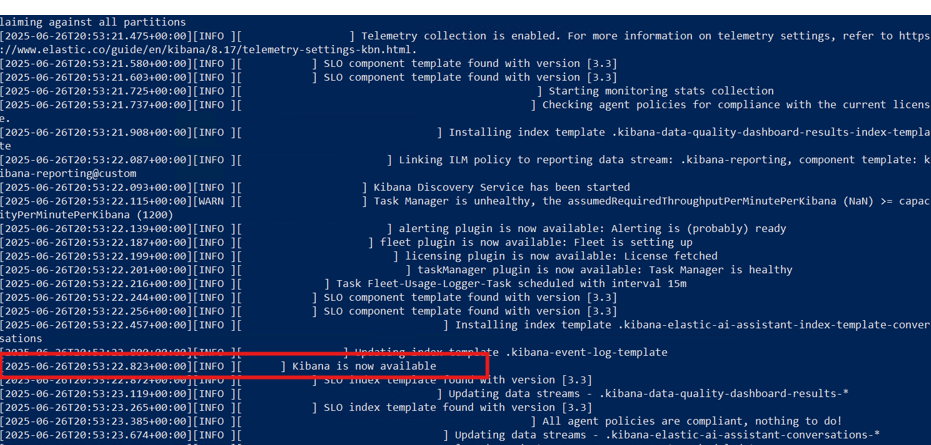
After Kibana has restarted, open a browser and go to https://<hostname_or_ip>:5601.
Log in using the elastic username and the password you generated earlier. This verifies that Kibana is running and your credentials are working.
For more details, refer to the official documentation: https://www.elastic.co/guide/en/kibana/current/kibana-encryption-keys.html
Warning: This method is only suitable for development environments. For production, always use the keystore method above.
Open C:\elastic\kibana-x.x.x\config\kibana.yml and add the following lines with your generated keys:
xpack.encryptedSavedObjects.encryptionKey: "<randomly-generated-key-1>"
xpack.reporting.encryptionKey: "<randomly-generated-key-2>"
xpack.security.encryptionKey: "<randomly-generated-key-3>"
Environment Watch does NOT require Kibana to run as a Windows service, nor does it require the use of NSSM. NSSM is a commonly used open-source tool to help run applications as services, but it is not mandatory. You can run Kibana manually from the code line if you prefer, and this will work perfectly for development and most production scenarios.
Only use NSSM if you want Kibana to start automatically as a service on Windows. If you do not wish to use NSSM, simply run kibana.bat manually:
C:\elastic\kibana-x.x.x\bin\kibana.bat
Kibana does not install as a Windows service by default. We recommend using NSSM (a commonly used open-source tool) to run Kibana as a Windows service.
Open an elevated PowerShell window, navigate to "C:\nssm-2.24\win64", and run the following command:
.\nssm.exe install kibana
This will open a popup to create a Windows service for Kibana.
In the Application tab:
C:\elastic\kibana-x.x.x\bin\kibana.batC:\elastic\kibana-x.x.x\binEditing Kibana Service Properties:
If you accidentally install the Kibana service before completing your configuration (for example, by pressing Return too early in the NSSM dialog), you can easily edit the service properties afterward. This allows you to update the application path, log file settings, or other options without reinstalling the service.
To edit the service properties, open an elevated PowerShell window and run the following command: C:\nssm-2.24\win64\nssm.exe edit kibana
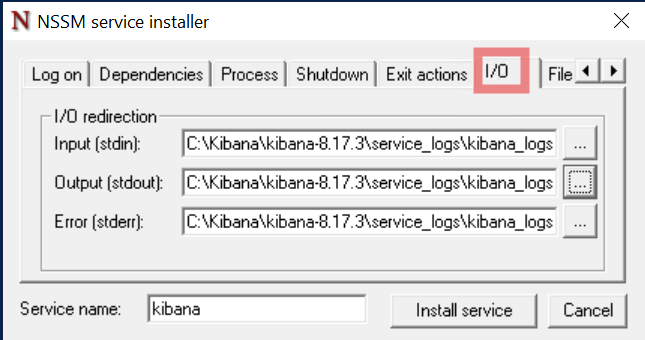
In the I/O tab, configure log file storage:
C:\elastic\kibana-x.x.x\service_logsC:\elastic\kibana-x.x.x\service_logs\kibana_service.logCopy the full log file path into the stdout and stderr sections.
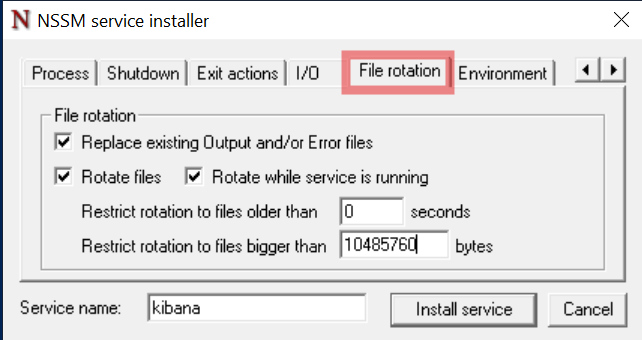
In the File rotation tab, check all boxes and enter 10485760 bytes so a new log file is generated for every 10 MB of logs.
Click the Install service button to create the Windows service for Kibana.
Service account (recommended)
svc_kibana). Do not run Kibana under LocalSystem in production.C:\nssm-2.24\win64\nssm.exe set kibana ObjectName "DOMAIN\svc_kibana" "<service-account-password>"
Go to the Services app in Windows, search for the kibana service, right click, and start the service.
Right click on the service and open Properties to change the startup type to Automatic, so Kibana runs automatically on system startup.
Verify that Kibana is running by opening it in your browser.
It is normal for Kibana to take 1-5 minutes to become accessible after starting the service, depending on your system. Please be patient while it starts up.
https://<hostname_or_ip>:5601.elastic username and the password you generated earlier.Note: This section is only required if you configured a multi-cluster architecture as described in the Multi-Cluster Configuration section. Skip this section if you are running a single cluster.
After both clusters are running and Kibana is configured, you can register the remote cluster connection to enable Cross-Cluster Search (CCS) or Cross-Cluster Replication (CCR).
Elasticsearch supports two modes for remote cluster connections:
Sniff mode (default, shown below): Discovers all eligible nodes in the remote cluster
Proxy mode: Connects through specific gateway nodes
"mode": "proxy" to the remote cluster settingsremote_cluster_client roleNetwork Requirements:
Register remote cluster connection from the primary cluster:
Open Kibana and navigate to Dev Tools (Management > Dev Tools), then run the following command to register the audit cluster:
Sniff mode (default):
PUT _cluster/settings
{
  "persistent": {
    "cluster": {
      "remote": {
        "audit-cluster": {
          "seeds": ["<secondary-node-01-ip>:9300", "<secondary-node-02-ip>:9300", "<secondary-node-03-ip>:9300"]
        }
      }
    }
  }
}
Proxy mode (for segmented networks):
PUT _cluster/settings
{
  "persistent": {
    "cluster": {
      "remote": {
        "audit-cluster": {
          "mode": "proxy",
          "proxy_address": "<gateway-node-ip>:9300"
        }
      }
    }
  }
}
Note: Replace audit-cluster with your desired cluster alias and update the seed host addresses to match your audit cluster node IPs.
Verify remote cluster connectivity:
You should see the audit cluster listed with connection status. Example response:
{
  "audit-cluster": {
    "connected": true,
    "mode": "sniff",
    "seeds": ["<secondary-node-01-ip>:9300", "<secondary-node-02-ip>:9300", "<secondary-node-03-ip>:9300"],
    "num_nodes_connected": 3,
    "max_connections_per_cluster": 3,
    "initial_connect_timeout": "30s"
  }
}
Test Cross-Cluster Search (Optional):
Once registered, you can query indices in the remote cluster using the cluster alias prefix:
GET audit-cluster:*/_search
{
  "query": {
    "match_all": {}
  }
}
APM Server is required for Environment Watch only.
Official Documentation: For detailed APM Server installation and configuration guidance, see Elastic's official APM Server documentation and APM Server configuration.
C:\elastic (e.g., C:\elastic\apm-server-x.x.x).Note:Single Cluster with Multiple Nodes: Run the following commands on the master node server.
Open an elevated PowerShell window in C:\elastic\elasticsearch-x.x.x\bin.
Create CA by running:
.\elasticsearch-certutil.bat ca --silent --pem --out "C:\elastic\secrets\apm_ca.zip"
Extract apm_ca.zip contents into C:\elastic\secrets\apm-ca\ (you should have ca.crt and ca.key inside the folder).
Create server cert for APM. Build SAN args with your DNS and IPs, e.g., --dns <fqdn> --dns <shortname> --ip <server-ip>, then run:
.\elasticsearch-certutil.bat cert --silent --pem --ca-cert "C:\elastic\secrets\apm-ca\ca.crt" --ca-key "C:\elastic\secrets\apm-ca\ca.key" --name apm-server [SAN args] --out "C:\elastic\secrets\apm-server.zip"
Extract zip contents into C:\elastic\secrets\apm-server\ to get apm-server.crt and apm-server.key.
Create C:\elastic\apm-server-x.x.x\config\certs directory.
Copy the certificate files:
C:/elastic/secrets/apm-server/apm-server.crt -> C:/elastic/apm-server-x.x.x/config/certs/apm-server.crt
C:/elastic/secrets/apm-server/apm-server.key -> C:/elastic/apm-server-x.x.x/config/certs/apm-server.key
C:/elastic/secrets/apm-ca/ca.crt -> C:/elastic/apm-server-x.x.x/config/certs/ca.crt
Install CA to Windows trust (Local Machine Root) so browsers trust APM. Run mmc, add Certificates snap-in for Computer account, import ca.crt under Trusted Root Certification Authorities, or run:
certutil.exe -addstore -f Root "C:\elastic\apm-server-x.x.x\config\certs\ca.crt"
https://<hostname_or_ip>:5601 using the elastic user.id and api_key values.Copy and save the id and api_key values immediately. Store them securely according to your organization's credential management and security policies.
Navigate to the APM Server folder (e.g., C:\elastic\apm-server-x.x.x).
Open apm-server.yml in a text editor.
Update the file to match the following sample configuration, replacing all placeholder values with your actual environment values:
apm-server:
    host: "0.0.0.0:8200"
    ssl.enabled: true
    ssl.certificate: "C:/elastic/apm-server-x.x.x/config/certs/apm-server.crt"
    ssl.key: "C:/elastic/apm-server-x.x.x/config/certs/apm-server.key"

output.elasticsearch:
    hosts:
        - "https://your-elasticsearch-host:9200"
    api_key: "your_api_id:your_api_key"
    ssl.enabled: true
    ssl.certificate_authorities:
        - "C:/elastic/elasticsearch-x.x.x/config/certs/http_ca.crt"
    ssl.verification_mode: full

setup.kibana:
    host: "https://your-kibana-host:5601"
    ssl.enabled: true
    ssl.certificate_authorities:
        - "C:/elastic/elasticsearch-x.x.x/config/certs/http_ca.crt"

instrumentation:
    enabled: true
    environment: production

# Stack Monitoring for APM Server (disabled by default)
# Uncomment and set enabled: true only if needed for troubleshooting
# monitoring:
#     enabled: false
#     elasticsearch:
#         hosts:
#             - "https://your-elasticsearch-host:9200"
#         api_key: "your_api_id:your_api_key"
#         ssl:
#             certificate_authorities:
#                 - "C:/elastic/elasticsearch-x.x.x/config/certs/http_ca.crt"
Certificate Paths:
C:/elastic/apm-server-x.x.x/config/certs/C:/elastic/elasticsearch-x.x.x/config/certs/http_ca.crtx.x.x with your actual version numbers (e.g., 8.19.8 or 9.0.0)your-elasticsearch-host and your-kibana-host with actual hostnames or IP addressesyour_api_id:your_api_key with the API key values from the previous stepOpen an elevated PowerShell window.
Change directory to the APM Server installation folder (e.g., cd C:\elastic\apm-server-x.x.x).
Run the following command to install the service:
PowerShell.exe -ExecutionPolicy Unrestricted -File .\install-service.ps1
The output should look similar to:
Installing service apm-server...
Service "apm-server" has been successfully installed.
Open an elevated PowerShell window and run the following command:
Start-Service -Name "apm-server"
If PowerShell fails to start the APM Server service: You can use the Windows Services application as an alternative:
services.msc, and press Enter.Open an elevated Command Prompt and run the following command (replace <hostname_or_ip> with your actual value). Validate TLS using the CA certificate rather than using -k:
curl.exe --cacert C:\elastic\apm-server-x.x.x\config\certs\ca.crt https://<hostname_or_ip>:8200
On Windows, use curl.exe to avoid PowerShell aliasing.
Or with PowerShell:
Invoke-RestMethod -Uri https://<hostname_or_ip>:8200
The response should indicate publish_ready is true and will look similar to:
{
  "build_date": "2025-02-27T18:17:35Z",
  "build_sha": "f6b917b725e1a22af433e5b52c5c6f0ff9164adf",
  "publish_ready": true,
  "version": "8.x.x"
}
Alternative to browser:
If you cannot access the APM Server endpoint in a browser, use the above curl or Invoke-RestMethod commands in your terminal to verify the server status. This is useful for headless environments or remote servers.
Skipping the steps below will cause the Relativity Server CLI to fail.
Log in to Kibana and navigate to Integrations (use the menu or search bar).
Search for "Elastic APM" and select it from the integration catalog.
Click the Add Elastic APM button in the top right corner.
Configure the integration:
<hostname_or_ip>:8200https://<hostname_or_ip>:8200Click Save and Continue.
Select Add Elastic Agent later (Agent is not required for initial setup).
Before proceeding with EW CLI, check if the APM data view is created in Kibana:
traces-apm*, metrics-apm*, logs-apm*)```bash
curl.exe -u <username>:<password> --cacert C:\elastic\secrets\ca\ca.crt https://<hostname_or_ip>:9200/_cat/health
```
> On Windows, use `curl.exe` to avoid PowerShell aliasing.
Or with PowerShell:
```powershell
Invoke-RestMethod -Uri https://<hostname_or_ip>:9200/_cat/health -Credential (Get-Credential)
```
Browser Access: While you can navigate to https://<hostname_or_ip>:9200/_cat/health in a browser, authentication may not work reliably in all browsers. The curl or PowerShell methods above are recommended for consistent results.
You should see a response similar to:
1690219200 10:00:00 elasticsearch green 1 1 0 0 0 0 0 0 - 100.0%
The word green in the response means the cluster is healthy. The word yellow in the response means the cluster is partially healthy. If you see red, investigate further.
Note: Optional for backup and recovery. Snapshot repositories enable backup and restore capabilities but are not required for basic Elasticsearch operation.
Official Documentation: For comprehensive snapshot and restore guidance, see Elastic's snapshot and restore documentation.
Important: For single cluster with multiple nodes, path.repo must be configured in elasticsearch.yml on every node. All nodes must have access to the same backup location (shared network drive or replicated storage).
Create a backup directory on a dedicated high-performance volume (not C:):
# Use a dedicated volume for backups
mkdir X:\es-backups
Grant the Elasticsearch service account full read/write permissions:
# For LocalSystem (default service account)
icacls "X:\es-backups" /grant "NT AUTHORITY\SYSTEM:(OI)(CI)F" /T

# For custom service account (replace DOMAIN\svc_elasticsearch)
# icacls "X:\es-backups" /grant "DOMAIN\svc_elasticsearch:(OI)(CI)F" /T

# Verify permissions
icacls "X:\es-backups"
Configure the snapshot repository path in elasticsearch.yml on all nodes:
path.repo: ["X:/es-backups"]
Restart Elasticsearch on all nodes to apply the changes:
Restart-Service -Name "elasticsearch-service-x64"
Open Kibana and navigate to Dev Tools (Management > Dev Tools).
Run the following command to register the repository:
PUT _snapshot/my_backup
{
    "type": "fs",
    "settings": {
        "location": "X:/es-backups",
        "compress": true
    }
}
Note: Verify that the location path matches the path.repo value configured in elasticsearch.yml.
In Kibana Dev Tools, run the following command:
POST _snapshot/my_backup/_verify
You should see a response confirming the repository is valid:
{
    "nodes": {
        "node_id": {
            "name": "node_name"
        }
    }
}
Create a test snapshot:
PUT _snapshot/my_backup/test_snapshot_001
{
    "indices": "*",
    "ignore_unavailable": true,
    "include_global_state": false
}
Monitor snapshot progress:
GET _snapshot/my_backup/test_snapshot_001/_status
List available snapshots:
GET _snapshot/my_backup/_all
Test restore (creates a renamed copy to avoid overwriting):
POST _snapshot/my_backup/test_snapshot_001/_restore
{
    "indices": "your-index-name",
    "ignore_unavailable": true,
    "include_global_state": false,
    "rename_pattern": "(.+)",
    "rename_replacement": "restored_$1",
    "include_aliases": false
}
Monitor restore progress:
GET _recovery?human
Clean up test snapshot after verification:
DELETE _snapshot/my_backup/test_snapshot_001
Creating Manual Snapshots:
To create a snapshot manually at any time, use: PUT _snapshot/my_backup/snapshot_name
Automated Backups: For automated scheduled snapshots, consider implementing Snapshot Lifecycle Management (SLM). See the official SLM documentation for details.
CCR replicates indices from a leader cluster to a follower cluster.
IMPORTANT: CCR requires appropriate Elastic licensing/features and configuration. Confirm your subscription/supportability before enabling.
Assume:
audit-cluster (registered in Register Remote Cluster Connection)secondary-clustermy-index-000001PUT /my-index-000001-follower/_ccr/follow
{
"remote_cluster": "audit-cluster",
"leader_index": "my-index-000001"
}
Check follower status:
GET /my-index-000001-follower/_ccr/info
GET _cluster/health?pretty
GET _cat/nodes?v
GET _remote/info

