---
title: "Reports"
description: "Run Legal Hold reports to analyze and manage your projects from the Legal Hold tab > Reports tab."
feature: "Legal Hold"
audience: ["end user", "developer", "system analyst", "system administrator", "system engineer"]
version: "Relativity aiR"
type: ["User Guide", "Tutorial"]
url: "https://help.relativity.com/RelativityaiR/Content/Relativity_Legal_Hold/Reports.htm"
lastModified: "2026-11-20"
---
# Reports
Run Legal Hold reports to analyze and manage your projects from Reports tab. These reports are on a project-by-project basis. Export formats do not lend well to being used as load files.
## Considerations
You must consider and know the following before creating reports:
- There is a limit of adding 180 projects to a report.
- The Print and Export report options appear at the bottom of the report modal in Legal Hold 4.1.466.5 and beyond.
## Report types
Run the following reports in Legal Hold:
- [Active Preservation Holds Report (Legacy)](#Active)
- [All Preservation Holds Report (Legacy)](#All)
- [Communication Summary Report](#Communic)
- [Custodian Active Projects Report](#Custodian_Active)
- [Custodian Change Report](#Custodia)
- [Custodians Report](#Custodia2)
- [Employment Status Change Report](#EmploymentStatusChange)
- [Global Summary Report](#Global)
- [Non-Responsive Custodians Report](#NonResponsiveCustodians)
- [Custodian Open Items Report](#Open)
### Active Preservation Holds Report (Legacy)
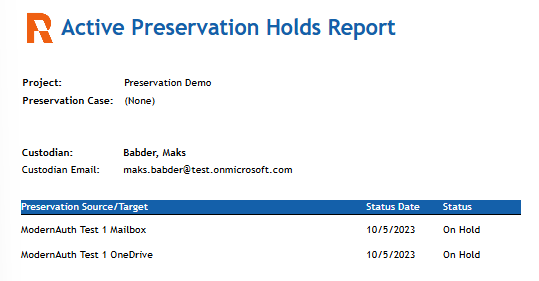
Run this report to identify custodians that are currently on a preservation hold. This information appears from each project and is broken down by project.
> **Note:** This report works with the Preservation Hold (Legacy) application only. If you run this report with the Preservation in-place application, a message appears indicating no custodians are on an active preservation hold for the project.
> For information on Preservation in-place reporting, see [Preservation data](https://help.relativity.com/RelativityaiR/Content/Relativity/Preservation/Preservation_data.md).
View Active Preservation Holds Report
### All Preservation Holds Report (Legacy)
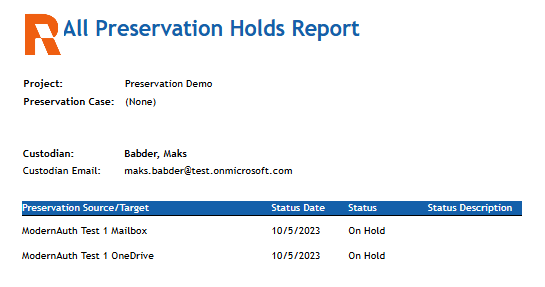
Run this report to identify custodians on a preservation hold across all projects. Results are organized by project.
> **Note:** This report works with the Preservation Hold (Legacy) application only. If you run this report with the Preservation in-place application, a message appears indicating no custodians are on an active preservation hold for the project.
> For information on Preservation in-place reporting, see [Preservation data](https://help.relativity.com/RelativityaiR/Content/Relativity/Preservation/Preservation_data.md).
View All Preservation Holds Report
### Communication Summary Report
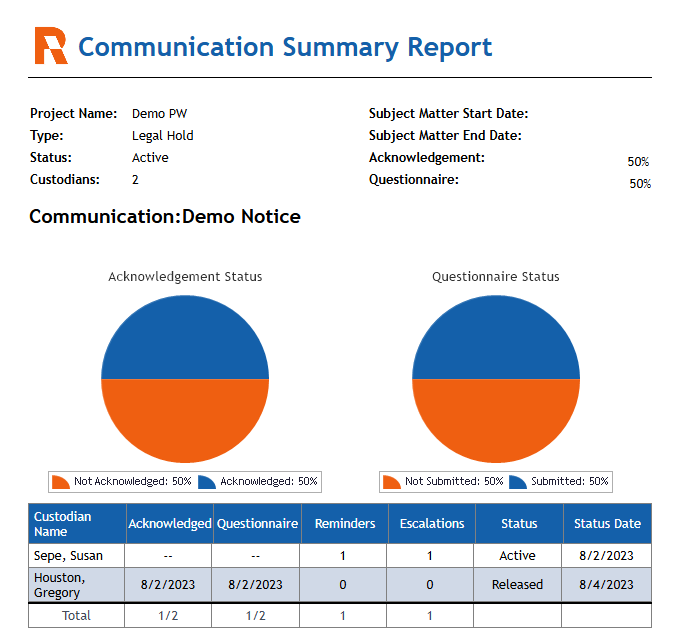
Run this report to track the status of projects broken down by individual communication. Each communication and questionnaire displays with an indication of the response status for each individual the communication was sent to.
> **Note:** A custodian with the role tag Do Not Notify will not appear on this report. See [Assigning roles to custodians](https://help.relativity.com/RelativityaiR/Content/Relativity_Legal_Hold/Roles.md).
View Communication Summary report
### Custodian Active Projects Report
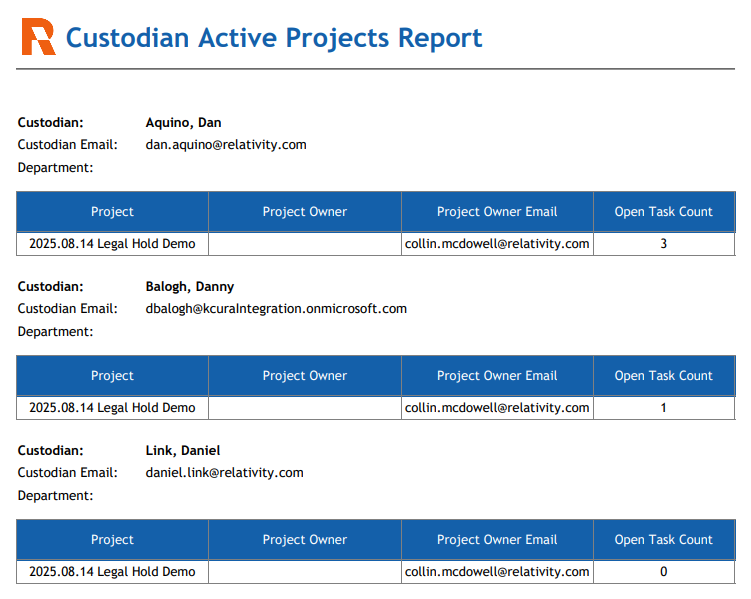
Run this report to see details of the active custodians currently subject to a legal hold. Locate custodians on single or multiple holds in order to take further steps.
View Custodian Active Projects report
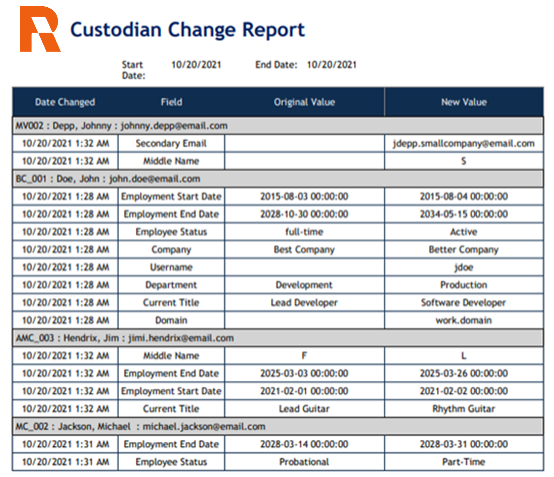
### Custodian Change Report
This report can only be generated as a scheduled report. When the report is run as a scheduled report, it will include all changes to custodians since the last time the report was run, or since the scheduled report was created.
Run this report to track changes to custodians' details, such as title or employment status, for all custodians on an active project to get updates that could potentially affect your preservation strategies.
To run a Custodian Change report, you will need the View All Audits permission set. For more information on permissions, see [Workspace security](https://help.relativity.com/RelativityaiR/Content/Relativity/Security_permissions/Workspace_security.md).
> **Note:** The user running the report needs permission to view the Manager field for that row to display in the report. If the Manager role field value changes, the Manager row will not display.
View Custodian Change report
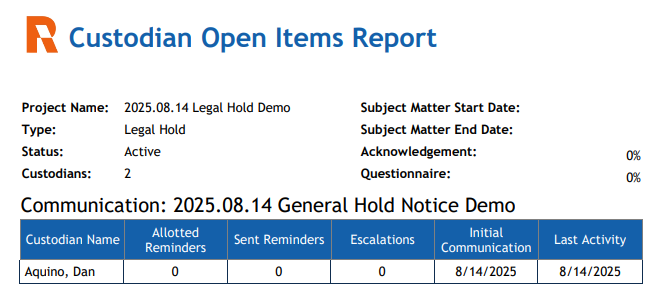
### Custodian Open Items Report
Run this report to quickly identify who has not acknowledged a notice or responded to a questionnaire. This information appears for each project, broken down by communication.
> **Note:** A custodian with the role tag Do Not Notify will not appear on this report. See [Assigning roles to custodians](https://help.relativity.com/RelativityaiR/Content/Relativity_Legal_Hold/Roles.md).
View Custodian Open Items report
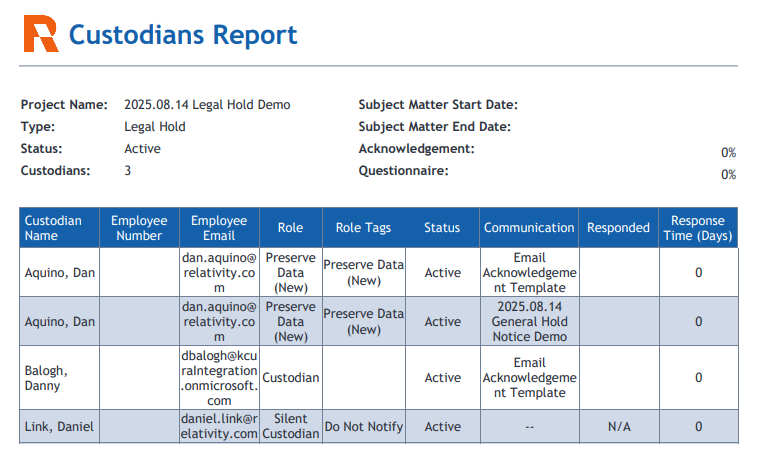
### Custodians Report
Run this report to see a list of all of the people on a project, their role, status, received communications, response dates, and average response times. This report is broken down by project.
View Custodians report
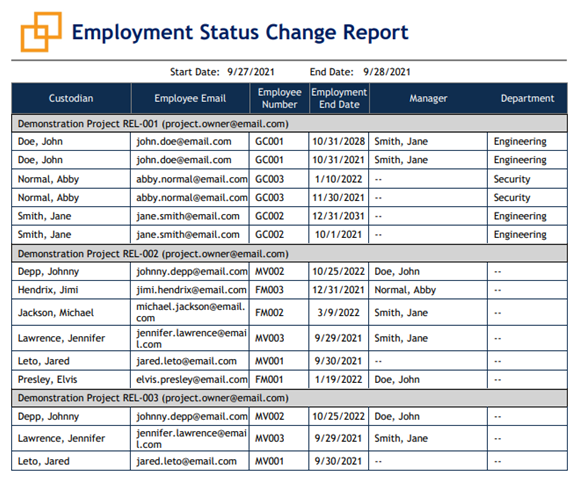
### Employment Status Change Report
This report can only be generated as a scheduled report. When the report is run as a scheduled report, it will include custodians/entities that had a change in either the Employee Status or Employment End Date fields since the last time the report was run, or since the scheduled report was created. Run this report to see audit entries for any changes to the custodian/entity Employee Status or Employment End Dates.
> **Note:** This report is only accessible from the Reports Tab.
View Employment Status Change report
### Global Summary Report
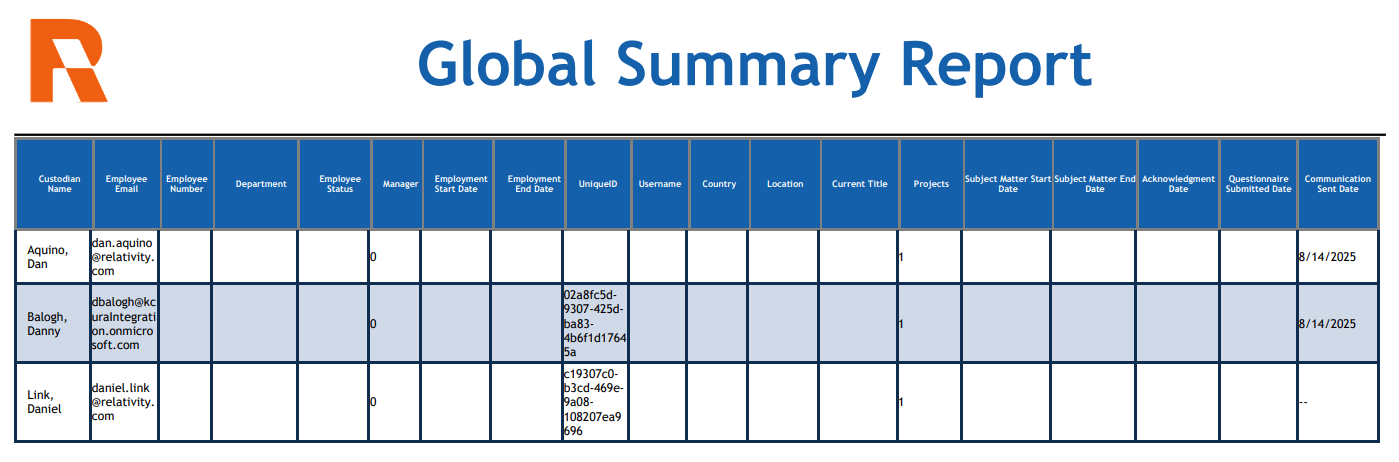
Run this report to see details on the most active people in your project or projects. The graph shows the top ten people by number of projects, while the table displays all people on at least one project. You can see the subject matter time span for each person and the last time there was any activity between the application and the person.
View Global Summary report
### Non-Responsive Custodians Report
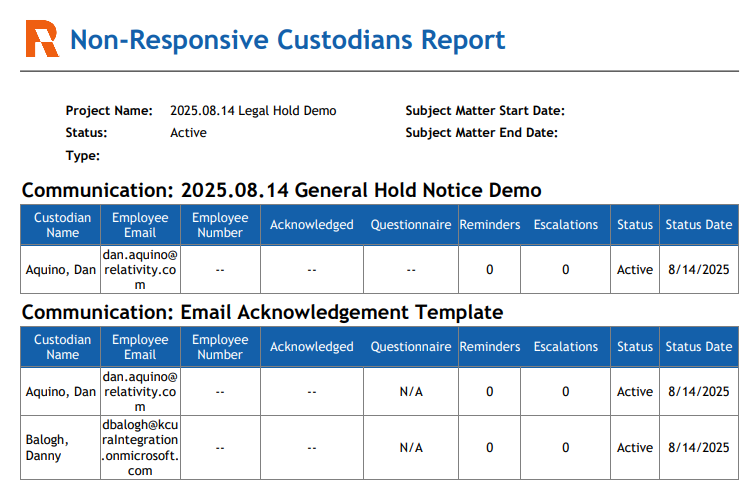
Run this report to quickly identify any custodians that have not acknowledged a hold notice or completed a questionnaire. This report is grouped by project and sorted alphabetically (ascending).
This report is for communications that require acknowledgement or have a question. If projects without outstanding tasks or no custodians assigned to a project, a message appears in place of the table.
View Non-responsive Custodians report
### Questionnaire Response report
Run this report to export a .csv file with all custodian questionnaire answers/responses from different projects. You can select the questionnaire they want, can filter by Project, Status, Communication, Questionnaire. This report is sent as an attachment to an email.
To send the report,
1. Select the Questionnaire Response radio button.
2. Select questionnaire or questionnaires.
> **Note:** If multiples are selected, they are each sent out as separate exports.
3. Click **Generate Report** to open the Email Report modal.
4. Add a required email address or addresses. Separate email addresses by comma, space, or semicolon.
5. Select Export File Format.
1. **CSV**—attached to the sent email is the selected report in a comma-separated values file (.csv)
2. **DAT**—attached to the sent email is the selected report in a data file (.dat).
> **Notes:** Import the data file to Excel and separate text using the þ and DD4 as delimiters.
6. Click **Send**.
> **Note:** Import the data file to Excel and separate text using the þ and DD4 as delimiters.
#### Questionnaire responses library
If the file is too big for email, users can find the export in the System Generated Attachments view in the Attachments tab located under libraries. For more information, see [Question responses](https://help.relativity.com/RelativityaiR/Content/Relativity_Legal_Hold/Question_responses.md).