---
title: "Projects"
description: "The Projects tab contains all information related to all Legal Hold projects. In this tab, you can create, review, update, and close projects."
feature: "Legal Hold"
audience: ["end user", "developer", "system analyst", "system administrator", "system engineer"]
version: "Relativity aiR"
type: ["User Guide", "Tutorial"]
url: "https://help.relativity.com/RelativityaiR/Content/Relativity_Legal_Hold/Projects.htm"
lastModified: "2026-11-20"
---
# Projects
The Projects tab contains all information related to all Legal Hold projects. In this tab, you can create, review, update, and close projects.
Watch the [Legal Hold training](https://www.youtube.com/watch?v=QSpN_lVCHYU) video for more information.
[Legal Hold training video on YouTube.](https://www.youtube.com/embed/QSpN_lVCHYU?&rel=0&modestbranding=1)
## Projects landing page
Understand Legal Hold projects with custom layouts, project views, and project dashboards. Create, update, or delete any layout, view, or dashboard at any time. These features display projects, project status, and the project health.
### Project dashboards
Using the new user interface, Legal Hold now has default dashboards that help visualize project status and ownership.
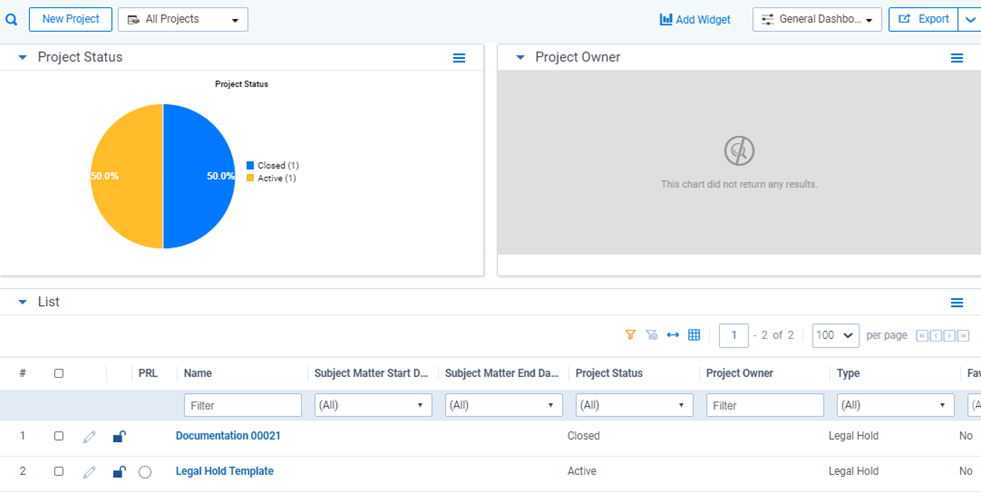
The following fields are also available for use to create other customizable dashboards in Legal Hold:
#### Group By/Pivot On fields
View Group By/Pivot On fields
- Case
- Company
- External Counsel
- Favorite
- General Counsel
- Project Attachments
- Project Close Date
- Project Owner
- Project Start Date
- Project Status
- Projects
- Subject Matter End Date
- Subject Matter Start Date
- Template::Project Status
- Type
- Use as Template
| Object | Pivot-enabled field |
| --- | --- |
| Attachments | Communication Attachments::Acknowledgement Required |
| Communication | Acknowledgement Required |
| Communication | Template::Acknowledgement Required |
| Entity | Company |
| Entity | City |
| Entity | Country |
| Entity | Company |
| Entity | Current Title |
| Entity | Department |
| Entity | Document numbering prefix |
| Entity | Domain |
| Entity | Email |
| Entity | Employee Number |
| Entity | Employee Status |
| Entity | Employment End Date |
| Entity | Employment Start Date |
| Entity | First Name |
| Entity | Full Name |
| Entity | Last Name |
| Entity | Location |
| Entity | Manager |
| Entity | Past Department |
| Entity | Past Manager |
| Entity | Past Title |
| Entity | Phone Number |
| Entity | Redirect Recipient |
| Entity | Secondary Email |
| Entity | State/Province |
| Entity | UniqueID |
| Entity | Username |
| Entity | Zip/Postal Code |
| Entity Role | Communications |
| Entity Role | Communications::Acknowledgement Required |
| Entity Role | Communications::Communication Type |
| Entity Role | Communications::Response Due Date |
| Entity Role | Custodian |
| Entity Role | Custodian::Department |
| Entity Role | Custodian::Email |
| Entity Role | Custodian::Office |
| Entity Role | Name |
| Entity Role | Notes |
| Entity Role | Project |
| Entity Role | Project::Project Status |
| Entity Role | Release Date |
| Entity Status | Custodian |
| Entity Status | Acknowledgement Required |
| Entity Status | Resolved By |
| Entity Status | Escalations Sent |
| Entity Status | Reminders Sent |
| Message | Communication::Acknowledgement Required |
| Project | Use As Template |
| Question | Answer Type |
| Question | Category |
| Questionnaire Question | Send Communication::Acknowledgement Required |
| Questionnaire Question | Alert Communication::Acknowledgement Required |
| Questionnaire Response | Communication::Acknowledgement Required |
### Legal Hold layouts
Legal Hold layouts are web-based coding forms that give you the ability to view and edit document fields. You can use layouts to develop workflows specific to the needs of your case. You can develop layouts that contain only the fields required to complete specific legal hold tasks, making the legal hold process clean and intuitive.
#### Creating a custom layout
Create a custom layout to view the important project information. Add custom fields and re-arrange the organization to meet your project needs.
To create a custom layout:
1. From the **Workspace Admin** > **Layouts** sub-tab, filter using the **Project** object type.
2. Select the **Detail** layout.
3. From the Layout console, click **Build Layout**.
4. Edit fields and categories, add custom fields, and re-arrange the layout to your specification. See [Layouts](https://help.relativity.com/RelativityaiR/Content/Relativity/Layouts/Layouts.md) in the Relativity documentation site.
5. Click **Save and Close** when finished.
6. Click **Edit**.
7. From the **Name** field, re-name your layout.
8. From the **Order** field enter **-1** to ensure that Legal Hold uses the new layout as the default layout.
9. Click **Save**.
### Project views
Use project views to filter specific legal hold projects. Based these views on a set of specified criteria to display legal hold information in an organized fashion to understand projects better. A legal hold view organizes items displayed on the list, based on a set of criteria, displays fields of information displayed for the returned items, and sorts the order of the returned items.
To view a specific project view, select a view from the drop-down menu.
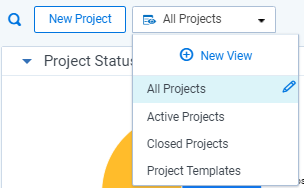
#### Creating or editing a project view
1. Click  to edit or  to add a view, and make appropriate updates to any fields. See [Views](https://help.relativity.com/RelativityaiR/Content/Relativity/Views.md) in the Relativity documentation site.
2. When finished, click **Save**.
#### Project response level
The Project Response Level (PRL) aggregates the number of communications sent and the number of responses. A percentage on the number of responsive custodians to the number of communications is created. The PRL percentage is then compared to the set PRL thresholds. As the PRL meets a custom thresholds, the PRL status icon changes between red, yellow, green. The thresholds are set in Legal Hold settings. To learn how to set the PRL Thresholds, see [General settings fields](https://help.relativity.com/RelativityaiR/Content/Relativity_Legal_Hold/Adding_general_settings.md#General).
When communications are created in the project, but not sent, the PRL icon is blank. The PRL is not activated until a communication is sent.
The PRL gives a high-level overview of the project's responses. For a more detailed view of project communications, see [Communication Summary Report](https://help.relativity.com/RelativityaiR/Content/Relativity_Legal_Hold/Reports.md#Communic).
## Project Details
The Project Details page appears once you create a project in Legal Hold. Access the project details by clicking the project from the Projects landing page.
From here, you can view all details related to that project.
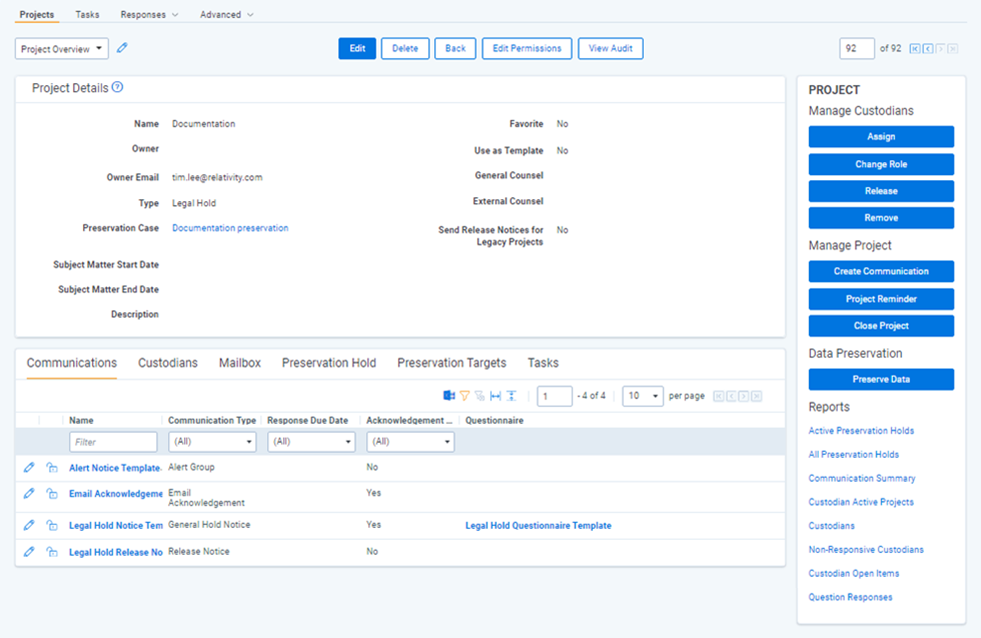
Project Details (Legacy)
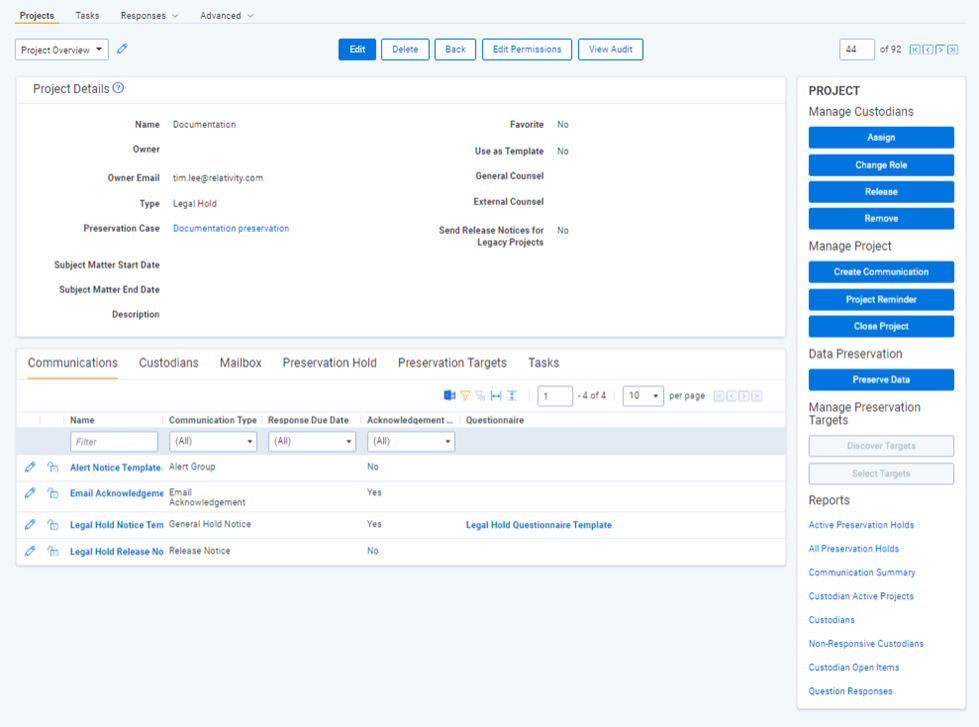
- **Project Details**—see [Project Details layout fields](https://help.relativity.com/RelativityaiR/Content/Relativity_Legal_Hold/Managing_projects.md#Set).
- **Communications tab**—lists the communications associated with the project. Use the column filters to sort information and click on an item to view its details. See [Creating a communication](https://help.relativity.com/RelativityaiR/Content/Relativity_Legal_Hold/Creating_communications.md).
- **Custodians tab**—lists all of the custodians assigned to the project. Use the column filters to sort information and click on an item to view its details.
- **Mailbox tab**—lists all of the sent and received emails from communications for this project. Use the column filters to sort information and click on an item to view its details. See [Mailbox](https://help.relativity.com/RelativityaiR/Content/Relativity_Legal_Hold/Mailbox.md).
- **Preservation Hold tab**—lists the custodians in Exchange and OneDrive that are currently on a preservation hold. It also lists the custodian targets in SharePoint that are on hold. Use the column filters to sort information and click on an item to view its details. See [Preservation hold (Legacy)](https://help.relativity.com/RelativityaiR/Content/Relativity_Legal_Hold/Preservation_hold.md).
- **Preservation Targets tab**—lists the status for each discovery of SharePoint targets that each custodian has access to. For more information on the targets, see [Preservation hold (Legacy)](https://help.relativity.com/RelativityaiR/Content/Relativity_Legal_Hold/Preservation_hold.md#Preserva).
### Project console
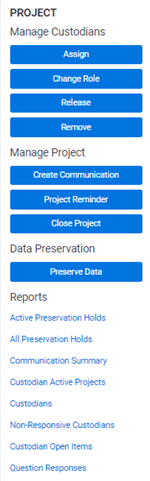
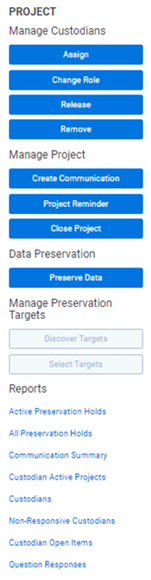
Use the Project console to take an action related to that project and its assigned custodians. Buttons are shaded gray when the action is unavailable or may not appear at all, depending on your permissions. See [Legal Hold Application Permissions](https://help.relativity.com/RelativityaiR/Content/Relativity_Legal_Hold/Workspace_security.md#Securing). For more information on data preservation, see [Creating a preservation](https://help.relativity.com/RelativityaiR/Content/Relativity/Preservation/Preservations.md#Creating).
Legacy preservation app
#### **Manage Custodians**
Manage the project's custodians using the buttons In the Managing Custodians section.
> **Note:** When adding custodians to the project, only add one custodian per email address. Multiple custodians with the same email address will cause issues when sending emails and releasing custodians.
The following buttons are available:
- **Assign**—select a custodian to add to the current legal hold project. See [Assigning custodians to a project](https://help.relativity.com/RelativityaiR/Content/Relativity_Legal_Hold/Managing_projects.md#Assignin).
- **Change Role**—select one of the legal hold roles and assign it to a custodian. See [Changing a custodian's role](#Changing).
- **Release**—select a custodian and end their hold obligations in the current project. You must have a release communication created in order to release a custodian if you have previously sent them a communication from Legal Hold. See [Releasing a custodian from the project console](#Releasin).
- **Remove**—select a custodian to end their hold obligations and remove all record of their details from a specified project. See [Removing a custodian from the project console](#Removing).
##### Releasing a custodian from the project console
You can release a custodian from a project at any time. Releasing means that this person is no longer an active participant in the project but they will still appear in any reports associated with the project in a Released status. This allows for a record of their involvement to remain in the application. If the custodian is on a preservation hold and is released from the project, no changes will be made to the hold itself.
The following must be true in order to release a custodian from a project:
- A release notice exists.
To release a custodian:
1. From the Project console, click **Release**.
2. Select one of the following options:
- **Release: with Communication**—if there are multiple release notices on the project, select a release notice from the drop-down list.
- **Release: Silently**—release a custodian silently. This means that the custodian will not receive a release notice. You can silently release a custodian even if they are not a Silent Custodian. See [Assigning roles to custodians](https://help.relativity.com/RelativityaiR/Content/Relativity_Legal_Hold/Roles.md#Roles).
3. Click **Release**.
4. From the Item picker, select custodians.
5. Click **Select**.
6. Click **Release**. If you're not releasing a custodian silently, Legal Hold sends the release notice and releases the custodian from the project. If the custodian is a Silent Custodian or if you've just released a custodian silently, that custodian won't receive a release notice from Legal Hold notifying that they were released from the project. See [Assigning roles to custodians](https://help.relativity.com/RelativityaiR/Content/Relativity_Legal_Hold/Roles.md#Roles). If the Send Releases Notices for Legacy Projects is set to Yes, the custodian does not need any prior communication to be released.
> **Note:** Releasing a custodian that is on a Preservation Hold will not remove the Preservation Hold from Microsoft 365.
##### Removing a custodian from the project console
You can remove a custodian from a project at any time. Removing means that this person is longer an active participant in the project and won't appear in any reports. A custodian cannot be removed if they have Custodian Interactions redirected to them from another custodian that has their Custodian Interaction level set to Redirect. For more information on redirecting communications, see [Custodian Interaction level](https://help.relativity.com/RelativityaiR/Content/Relativity_Legal_Hold/Creating_entities.md#Custodia)
> **Note:** We do not recommend removing a custodian for auditing purposes. Only remove someone if they were added to a project by mistake.
To remove a custodian:
1. From the Custodian console, click **Remove**.
2. Select a custodians.
3. Click **Select (#)**.
4. Click **Remove**.
5. Verify that you want to remove the custodian from all selected projects or only from projects where they are already released.
> **Note:** Custodians currently on a Preservation Hold cannot be deleted. In order for a custodian to be removed, the custodian cannot be on a preservation hold. To remove the custodian, change the role of the custodian from a preservation role to another role. For more information, see [Changing a custodian's role](#Changing).
##### Changing a custodian's role
You can change a custodian's role on a project at any time. For information on each roles, see [Assigning roles to custodians](https://help.relativity.com/RelativityaiR/Content/Relativity_Legal_Hold/Roles.md#Roles).
> **Note:** The existence of a Release Date prevents changes to the role of a released custodian. To release a custodian from a project, see [Releasing a custodian from the project console](#Releasin).
To change a custodian's role:
1. From the Project console, click **Change Role**.
2. From the **Assign Role** drop-down menu, select the new role.
3. Select the checkbox next to each custodian whose role you want to update.
4. Click the arrow to move the selected custodians to the right panel.
5. Click **Change Role**.
> **Note:** A warning will appear when changing a custodian's role from a preservation role to a non-preservation role. Select **Yes** to remove the custodian from the preservation hold or **No** to continue with the custodian's preservation hold. When a custodian is removed from a preservation hold, the custodian's data in Microsoft 365 is no longer preserved.
#### **Manage Project**
Manage the project using the buttons In the Manage Project section to create communications, send project reminders, and to close the project. The following buttons are available:
- **Create Communication**—create a communication. See [Creating a communication](https://help.relativity.com/RelativityaiR/Content/Relativity_Legal_Hold/Creating_communications.md).
- **Project Reminder**—send periodic reminders to all active, on-hold custodians to review their hold obligations on a specific project. These reminders can be sent without a required acknowledgement. For more information, see [Project reminders](https://help.relativity.com/RelativityaiR/Content/Relativity_Legal_Hold/Reminders.md#Project).
- **Close Project**—close a project. See [Closing a project](https://help.relativity.com/RelativityaiR/Content/Relativity_Legal_Hold/Managing_projects.md#Closing).
#### Data Preservation
Manage your preservation holds from the Project console. Click **Preserve Data** to navigate to the preservation wizard. For more information, see [Using the preservation wizard](https://help.relativity.com/RelativityaiR/Content/Relativity/Preservation/Preservations.md#Using).
**Manage Preservation Targets (Legacy)**
Manage SharePoint preservation targets after they've been discovered. The following buttons are available:
- **Discover Targets**—manually start the Sharepoint preservation target discovery process for the project's custodians. Can use to retry errors.
- **Select Targets**—select Custodian's SharePoint target sites to be placed on a preservation hold. Access to the button when the custodian discovery status is *Discovered*. To learn how to select targets, follow the steps in [Selecting SharePoint targets](#Selectin).
The length of the SharePoint targets discovery process in your environment depends on the size of your Microsoft 365 environment. Size depends on the number of users and how many custodians are on hold.
##### Selecting SharePoint targets
After discovering SharePoint targets, you need to select targets based on SharePoint URLs associated to a custodian.
To select targets, follow the steps below.
1. Click the **Select Targets** console button.
2. In the Select window, select the check boxes next to the custodian name and target URL you want to put on a preservation hold.
3. Use the arrows to select the custodians.
4. Click **Select Targets**.
#### Reports
Run a project-specific report from this section. The report appears inline. See [Report types](https://help.relativity.com/RelativityaiR/Content/Relativity_Legal_Hold/Reports.md#Report) for more information about each report.
> **Note:** You may not be able to view all reports depending on your permissions.
If you run the *Question Responses* report from the Project, or Communication console, you must manually clear the applied search condition by clicking the magnifying glass icon after Legal Hold reroutes you to the Question Responses tab. This is the only way to view other responses not related to a specified project, especially when navigating back to the Question Responses tab later in your browsing session.
## Project lock down
You legal hold project disables, or locks down, when Relativity detects an entity with duplicate custodian roles in a project. Two records linked to the same entity causes the issue.
> **Note:** Adding custodians using the application interface prevents duplicate roles from being created and prevents the project from shutting down. For more information, see [Creating legal hold entities](https://help.relativity.com/RelativityaiR/Content/Relativity_Legal_Hold/Creating_entities.md).
Every time you load a project, Relativity checks to see if there are duplicates.
When Relativity detects duplicate custodian roles, you will see three things in the UI:
1. Red banner with warning message.
2. The UI is grey.
3. The Console buttons disable.
If you see those items disable, you cannot complete the following tasks:
- Add, remove, change roles or release any custodians from the project.
- Create or send any new communications on the project.
- Close or reopen the project.
Typically, this issue arises during the importing of legacy data. To resolve, use the *Clean Up Duplicate Custodian Role* mass operation . For more information on deduplicating custodian roles, see [Custodian Projects tab](https://help.relativity.com/RelativityaiR/Content/Relativity_Legal_Hold/Custodian_projects_tab.md#Mass)