---
title: "Adding email settings"
feature: "Legal Hold"
audience: ["end user", "developer", "system analyst", "system administrator", "system engineer"]
version: "Relativity aiR"
type: ["User Guide", "Tutorial"]
url: "https://help.relativity.com/RelativityaiR/Content/Relativity_Legal_Hold/Adding_email_settings.htm"
lastModified: "2026-11-20"
---
# Adding email settings
To complete the Legal Hold Settings, you need to add the email settings. These settings provide the information so you can issue legal holds as well as send and receive communications from your legal hold instance.
See these related pages:
- [Gmail API](https://help.relativity.com/RelativityaiR/Content/Relativity_Legal_Hold/Gmail_API.md)
- [Microsoft Graph API - Application permissions](https://help.relativity.com/RelativityaiR/Content/Relativity_Legal_Hold/Graph_API.md)
- [Microsoft Graph API - Delegated permissions](https://help.relativity.com/RelativityaiR/Content/Relativity_Legal_Hold/Graph_API_Delegated.md)
## Email processor types and requirements
With Legal Hold, you can use different email processor types.
The *EWS email processor type* will be deprecated in October 2026, with EWS fully disabled in April 2027. For more information, see [Microsoft's documentation](https://learn.microsoft.com/en-us/exchange/clients-and-mobile-in-exchange-online/deprecation-of-ews-exchange-online).
After this date, you can continue using one of the following options:
- [Graph API email settings requirements](#RequiredGraphAPIsettingsinfo)
- [Gmail settings requirements](#Gmail)
- [SMTP email settings requirements](#Requiredemailsettingsinfo)
These types include:
- [Graph API email settings requirements](#RequiredGraphAPIsettingsinfo)
- [Gmail settings requirements](#Gmail)
- [SMTP email settings requirements](#Requiredemailsettingsinfo)
Each type has its own setup that have different requirements.
### Graph API email settings requirements
The Microsoft Graph API is an endpoint used to access data and services across Microsoft services. It is a RESTful web API that performs a variety of tasks. In this case, to send communications as a Microsoft user from Relativity.
When using a Graph API option as the email processor type in Legal Hold, you must provide credential information. Legal Hold supports three Graph API processor types:
- **Graph API (Application)**—uses the [Microsoft Graph API - Application permissions](https://help.relativity.com/RelativityaiR/Content/Relativity_Legal_Hold/Graph_API.md) model.
- **Graph API Gov (Delegated)**—uses the [Microsoft Graph API - Delegated permissions](https://help.relativity.com/RelativityaiR/Content/Relativity_Legal_Hold/Graph_API_Delegated.md) model.
- **Graph API (Delegated)**—uses the [Microsoft Graph API - Delegated permissions](https://help.relativity.com/RelativityaiR/Content/Relativity_Legal_Hold/Graph_API_Delegated.md) model.
> **Note:** You can configure a single Microsoft Entra ID application to handle both outgoing and incoming email. To do this, configure the app with both Application permissions, for outgoing, and Delegated permissions, for incoming, then select Graph API (Application) as the outgoing email processor type and Graph API with Delegated permissions as the incoming email processor type. For more information, see [Microsoft Graph API - Application permissions](https://help.relativity.com/RelativityaiR/Content/Relativity_Legal_Hold/Graph_API.md) and [Microsoft Graph API - Delegated permissions](https://help.relativity.com/RelativityaiR/Content/Relativity_Legal_Hold/Graph_API_Delegated.md).
Although the required credential information is the same across all three types, the steps to gather that information depend on which permissions model your processor type uses. Before adding the information in the Adding email settings section, gather the required credential information for your permissions model:
- **Application permissions**—see [Microsoft Graph API - Application permissions](https://help.relativity.com/RelativityaiR/Content/Relativity_Legal_Hold/Graph_API.md).
- **Delegated permissions**—see [Microsoft Graph API - Delegated permissions](https://help.relativity.com/RelativityaiR/Content/Relativity_Legal_Hold/Graph_API_Delegated.md).
When switching from using delegated permissions to application permissions, you must remove your redirect URI. For more information, see [Deleting the redirect URL](https://help.relativity.com/RelativityaiR/Content/Relativity_Legal_Hold/Graph_API.md#Deleting).
> **Note:** We recommend using the Graph API for email communications. When using the Graph API, you need to register your application in Microsoft Entra ID and set the permissions. For more information, see [Microsoft Graph API - Application permissions](https://help.relativity.com/RelativityaiR/Content/Relativity_Legal_Hold/Graph_API.md).
Use the table below to gather the required information before proceeding to the steps.
| Information label | Description of required information | Required information |
| --- | --- | --- |
| Application Client ID | The Application Client ID you created when registering the Legal Hold application in Microsoft 365. For more information, see [Registering an Azure application and credentials](https://help.relativity.com/RelativityaiR/Content/Relativity_Legal_Hold/Graph_API.md#Setting). | |
| Application Client Secret | The Application Client Secret you created when registering the Legal Hold application in Microsoft 365. For more information, see [Creating a client secret](https://help.relativity.com/RelativityaiR/Content/Relativity_Legal_Hold/Graph_API.md#Creating). | |
| Tenant ID/Domain | The Domain name of the Microsoft 365 tenant the collection is intended for. | |
| From Email Address | The email inbox that you authenticated Relativity with Microsoft. To learn how to authenticate with Microsoft, see [Microsoft Graph API - Application permissions](https://help.relativity.com/RelativityaiR/Content/Relativity_Legal_Hold/Graph_API.md). | |
| Reply to Email Address | The email inbox that you authenticated Relativity with Microsoft. To learn how to authenticate with Microsoft, see [Microsoft Graph API - Application permissions](https://help.relativity.com/RelativityaiR/Content/Relativity_Legal_Hold/Graph_API.md). | |
### Gmail settings requirements
When you use the Gmail API as the email processor type in Legal Hold, you must add required credential information . First, collect the required Gmail API email settings information. Then use the required information in the [Adding email settings](#Adding) section.
The Gmail API is only available for outgoing email.
Use the table below to gather the required information before proceeding to the steps.
| Information label | Description of required information | Required information |
| --- | --- | --- |
| Client ID | The Application Client ID you created when registering the Legal Hold application in Google. For more information, see [Create credentials](https://help.relativity.com/RelativityaiR/Content/Relativity_Legal_Hold/Gmail_API.md#Create). | |
| Client Secret | The Application Client Secret you created when registering the Legal Hold application in Google. For more information, see [Create credentials](https://help.relativity.com/RelativityaiR/Content/Relativity_Legal_Hold/Gmail_API.md#Create). | |
| From Email Address | The email inbox that you authenticated Relativity with Google. To learn how to authenticate with Microsoft, see [Gmail API](https://help.relativity.com/RelativityaiR/Content/Relativity_Legal_Hold/Gmail_API.md). | |
| Reply to Email Address | The email inbox that you authenticated Relativity with Google. To learn how to authenticate with Microsoft, see [Gmail API](https://help.relativity.com/RelativityaiR/Content/Relativity_Legal_Hold/Gmail_API.md). | |
### SMTP email settings requirements
SMTP is a protocol for electronic mail transmission. The application or computer that sends, receives, and relays email.
#### SMTP server types
When using the SMTP processor type, you can use Relativity's Relativity's default SMTP server called SendGrid or you can use your own SMTP application.
##### Sendgrid
- SendGrid does not support for DomainKeys Identified Mail (DKIM) and Domain-based Message Authentication, Reporting, and Conformance (DMARC).
- This applies whether you use SendGrid directly or configure it through a custom SMTP server.
- If your organization requires DKIM and DMARC, use Microsoft Graph API or Gmail for outgoing email.
##### Managed SMTP
You can also use your own SMTP application. Here are some reasons to use your own SMTP:
- Legal Hold communications come from your trusted domain. An employee is more likely to interact with email from your domain.
- Send communications from company's account. Using a different domain for the Send As results in emails getting flagged for spam.
Use the table below to gather the required information before proceeding to the steps.
| Information label | Description of required information | Required information |
| --- | --- | --- |
| User Name for SMTP | The username for the account on the SMTP server used for sending emails. This can be an email address or domain\\username depending on the server settings. Even if your SMTP server is configured for anonymous authentication, you must input a value. For example, *anonymous*. | |
| Password for SMTP | The password for the account on the SMTP server that Legal Hold uses for sending emails. Even if your SMTP server is configured for anonymous authentication, you must input a value. For example, *anonymous*. | |
| Domain | The SMTP domain address. For example, *smtp.office365.com*. | |
| SMTP Port | The SMTP port number.
**Note:** We designed Legal hold outgoing emails to work with the SMTP protocol. This protocol runs on universally defined ports. We block most SMTP except 587. You must contact [Relativity Support](https://community.relativity.com/s/contactsupport) to open any other SMTP ports (25, 465, 587, 2525).
For outbound IP addresses to add to the allowlist, see the [Relativity Community](https://community.relativity.com/s/article/R1-Firewall-Outbound-IP-Addresses). | |
| Use SSL for SMTP (Y or N) | The Secure Sockets Layer. Select Yes to use Secure Sockets Layer security for SMTP. You should consult with your IT department if you are unsure whether your SMTP server uses SSL. | |
| From Email Address | The display name or email address you want to appear when sending communications from Legal Hold. When a custodian receives a project communication, it will appear as if it was sent from the display name or address. For example, use the following verbiage - *Display name \*. | |
| Reply to Email Address | The reply to email address. When a custodian clicks reply to a project communication, their reply is sent to this address. See the From Email Address example above. | |
| Email Processor Type | Email services can use one of several options to interact with third-party applications. Consult with your IT department if you are unsure which email processor type to use alongside your mail server. IMAP - Internet Message Access Protocol POP3 - Post Office Protocol 3 | |
## Adding Outgoing Email settings
You must enter the outgoing email settings on the Legal Hold Settings page before issuing legal holds and sending communications. This section needs your information that you should have already collected in the [Graph API requirements](#RequiredGraphAPIsettingsinfo) or [SMTP requirements](#Requiredemailsettingsinfo) sections.
> **Note:** Relativity sends emails using the email processor you configure. Once your email system accepts the message, all delivery and inbox behavior, such as filtering, routing, or blocking, is controlled by your organization’s email system. For inbox‑level issues, contact your internal IT or email administrators.
To update the outgoing email settings on the Legal Hold Settings page:
1. Click **Edit**.
2. Locate the **Outgoing Email** section.
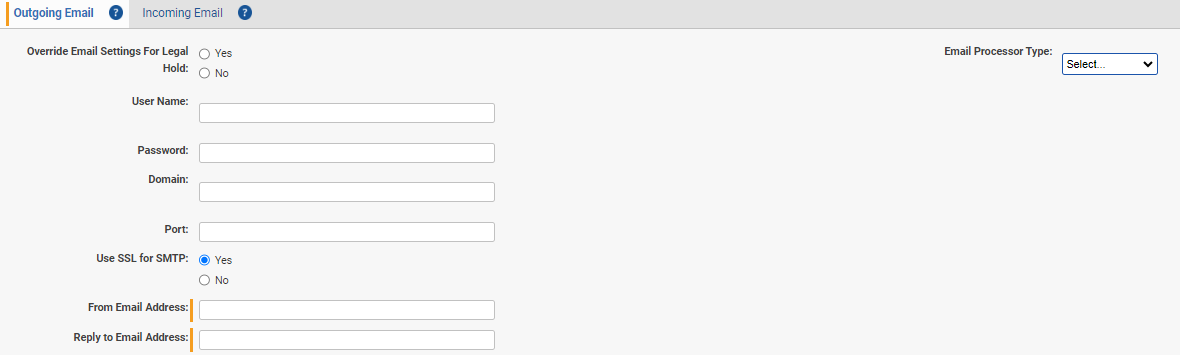
3. Enter information in the fields. For more information, see [Outgoing email fields](#Outgoing).
4. Update another section or click **Save**.
### Outgoing email fields
The fields you need to complete depend on the selected email processor type.
- **Override Email Settings for Legal Hold**
- Select **Yes** to configure unique email settings you want Legal Hold to use. Legal Hold can have unique email settings compared to Relativity as a whole. The settings are User Name, Password, Domain, Port, Use SSL for SMTP.
- Select **No** to use the existing server information. If you select No, Legal Hold will use Relativity's default SMTP server called SendGrid.
> **Note:** SendGrid does not support:
>
> - DomainKeys Identified Mail (DKIM)
> - Domain-based Message Authentication, Reporting, and Conformance (DMARC)
>
> This applies whether you use SendGrid directly or configure it through a custom SMTP server.
> If your organization requires DKIM and DMARC, use Microsoft Graph API or Gmail for outgoing email.
- When you select **No** and use Relativity's default SMTP server, then the *From Email Address* must use the *relativity.one* domain.
- The *relativity.one* domain is the only domain that Relativity's SMTP servers are authorized to send from.
- Using any other domain typically results in all sent emails getting caught in spam filters.
- **Email Processor Type**—depending on the type of email sent with Legal Hold, select **SMTP**, **Graph API**, or **Gmail**.
If **SMTP** is selected, complete the following fields:
- **User Name**—enter the user name for the account on the SMTP server used for sending emails. This can be an email address or domain\\user name depending on the server settings. Even if your SMTP server is configured for anonymous authentication, you must input a value. For example, *anonymous*.
- **Password**—enter the password for the account on the SMTP server that Legal Hold uses for sending emails. Even if your SMTP server is configured for anonymous authentication, you must input a value. For example, *anonymous*.
- **Domain**—enter the SMTP domain address. For example, *smtp.office365.com*.
> **Note:** Enter *smtp.office365.com* when using Microsoft 365 or *smtp.gmail.com* when using Google for outgoing email.
- **Port**—enter the SMTP port number. The port for SMTP is 587 and this will allow traffic to the appropriate IP ranges per instance geographies. Port 587 being opened is required to send emails through customer’s SMTP server
> **Note:** For security reasons, Relativity aiR only accepts the SMTP port 587 by default. Enter port 587 when using Microsoft 365 or Google for outgoing email. Contact Relativity Support to request another port be open for your Relativity aiR instance.
- **Use SSL for SMTP**
- Select **Yes** to use Secure Sockets Layer security for SMTP. You should consult with your IT department if you are unsure whether your SMTP server uses SSL.
> **Note:** Select Yes when using Microsoft 365 or Google for outgoing email.
- Select **No** to disable SSL for SMTP.
- **From Email Address**—enter the display name or email address you want to appear when sending communications from Legal Hold. When a custodian receives a project communication, it will appear as if it was sent from the display name and/or address. For example, use the following verbiage - *Display name \*. The custodian will see something like the following email:

- **Reply to Email Address**—enter the reply to email address. When a custodian clicks reply to a project communication, their reply sends to this address. See the From Email Address example above.
If **Gmail API** is selected, complete the following fields
- **Client ID**—enter the Application Client ID you created when registering the Legal Hold application in Google. For more information, see [Create credentials](https://help.relativity.com/RelativityaiR/Content/Relativity_Legal_Hold/Gmail_API.md#Create).
- **Client Secret**—enter the Application Client Secret you created when registering the Legal Hold application in Google. For more information, see [Create credentials](https://help.relativity.com/RelativityaiR/Content/Relativity_Legal_Hold/Gmail_API.md#Create).
- **From Email Address**—enter the email address of the account you registered with or an account you gave mailbox permissions to.
- You cannot use another email address other than the one you authenticated with.
- When using the Graph API, the *From Address* will be the address associated to the account that was used to authenticate to Gmail. When a custodian receives a project communication, it will appear as if it was sent from the account that authenticated to Gmail.
- **Reply to Email Address**—enter the email address of the account you registered with or an account you gave mailbox permissions to.
- You cannot use another email address other than the one you authenticated with.
- Custodian replies can be found in the account's inbox.
If **Graph API**, **Graph API Gov**, or **Graph API (Application)** is selected, complete the following fields.
> **Note:** When using the Graph API, for Delegated permissions only, you must first register your application in Microsoft Entra ID and set the permissions. After registering your application, then you must click the *Authenticate with Microsoft (Outgoing)* button in the Settings console to authenticate your application ID and password with Microsoft.
> - The **Authenticate with Microsoft (Outgoing)** button is only available when using Graph API with delegated permissions. For more information, see [Microsoft Graph API - Delegated permissions](https://help.relativity.com/RelativityaiR/Content/Relativity_Legal_Hold/Graph_API_Delegated.md).
> - When *Graph API (Application)* or *Graph API Gov* is selected, the button is not available. In these cases, validate configuration using **Validate Outgoing Email Settings** and **Test Outgoing Email Settings**. For more information, see [Microsoft Graph API - Application permissions](https://help.relativity.com/RelativityaiR/Content/Relativity_Legal_Hold/Graph_API.md).
>
> For more information, see [Microsoft Graph API - Application permissions](https://help.relativity.com/RelativityaiR/Content/Relativity_Legal_Hold/Graph_API.md).
- **Application Client ID**—enter the Application Client ID created during registering the Legal Hold application in Microsoft 365.
- **Application Client Secret**—enter the Application Client Secret created during registering the Legal Hold application in Microsoft 365. For more information, see [Creating a client secret](https://help.relativity.com/RelativityaiR/Content/Relativity_Legal_Hold/Graph_API.md#Creating).
- **Tenant ID/Domain**—enter the Domain name of the Microsoft 365 tenant the collection is intended for.
- **From Email Address**—enter the email address of the account you registered with or an account you gave mailbox permissions to. If you enter in an email address other than the one you authenticated with, you must give mailbox permissions to that Microsoft 365 account. For more information, see [Microsoft Graph API - Application permissions](https://help.relativity.com/RelativityaiR/Content/Relativity_Legal_Hold/Graph_API.md#Send).
- When using the Graph API, the *From Address* will be the address associated to the account that was used to authenticate to Microsoft. When a custodian receives a project communication, it will appear as if it was sent from the account that authenticated to Microsoft.
- If you want to send from another account that you did not use to authenticate with, you must give the mailbox permissions to the Microsoft 365 account you want to send from For more information, see [Microsoft Graph API - Application permissions](https://help.relativity.com/RelativityaiR/Content/Relativity_Legal_Hold/Graph_API.md#Send). If the permissions are not given to the other account, then Relativity will send communications as the registered account holder. For more information, see Microsoft's documentation:
- For admin's adding up email settings, see [Give mailbox permissions to another Microsoft 365 user](https://learn.microsoft.com/en-us/microsoft-365/admin/add-users/give-mailbox-permissions-to-another-user?view=o365-worldwide#send-email-from-another-users-mailbox).
- For user's creating communications, see [Allow members to send as or send on behalf of a group](https://learn.microsoft.com/en-us/microsoft-365/solutions/allow-members-to-send-as-or-send-on-behalf-of-group?view=o365-worldwide).
- **Reply to Email Address**—enter the reply to email address. When a custodian clicks reply to a project communication, their reply is sent to this address. See the From Email Address example above.
- **Enable Auto Refresh**—enable to have Relativity automatically refresh the token if an email has not been sent for 70 days eliminating the need re-authenticate.
> **Note:** If disabled and the Graph API is not used for 90 days, then the refresh token will be invalidated.
### Validating outgoing email settings
After configuring the Outgoing Email Settings, we recommend performing a system validation before [Testing the outgoing email settings](#Testing) in the next section. The system validation process does not send an email. It simply confirms the outgoing settings and displays any errors if it finds them. For example, it will test for valid authentication method used, email server connection, email address, and mailbox, just to name a few.
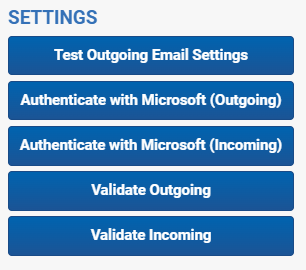
To perform a system validation, click the **Validate Outgoing** button in the Settings console. If an error is discovered, a message displays with details so you can correct it.
### Testing the outgoing email settings
After validating, you can proceed with confirming the settings were properly configured and ensuring the client's network accepts incoming emails correctly.
You will need the following to setup and test the email functionality:
- At least one Legal Hold Agent enabled.
- The Legal Hold Security Admin Group assigned to Relativity User.
- No Inbound blocking rules for emails on the client's network.
- The correct credentials supplied by the client's IT department.
- You must click **Authenticate with ###### (Outgoing)** in the Settings console before testing.
- Using the *Graph API*:
- Click **Authenticate with Microsoft (Outgoing)** in the Settings console before testing.
- The **Authenticate with Microsoft (Outgoing)** button is only available when using Graph API with delegated permissions.
- When *Graph API (Application)* or *Graph API Gov* is selected, the button is not available. In these cases, validate configuration using the **Validate Outgoing Email Settings** and **Test Outgoing Email Settings** buttons.
- For more information, see [Microsoft Graph API - Application permissions](https://help.relativity.com/RelativityaiR/Content/Relativity_Legal_Hold/Graph_API.md#Authenticating).
- Using the *Gmail API* :
- Click **Authenticate with Google (Outgoing)** in the Settings console before testing.
- For more information, see [Gmail](https://help.relativity.com/RelativityaiR/Content/Relativity_Legal_Hold/Gmail_API.md).
To test the Outgoing Email settings:
1. Click the **Test Outgoing Email Settings** button in the Settings console.
> **Note:** If this button is not visible, the Relativity user is missing the Legal Hold Security Admin Group.

A Test Email Settings modal appears.
2. Enter in one or more email addresses to send the test email to.
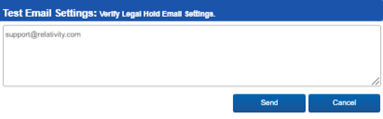
3. Once clicked, a message displays notifying you that the test email has been sent through the agent server. Be aware that this message does not confirm delivery of the test email, so you must check the recipient email address to confirm that the delivery was successful. When it is successful, the following test email appears in the recipient's Inbox. It's sent from the user account to the Reply to Email Address.
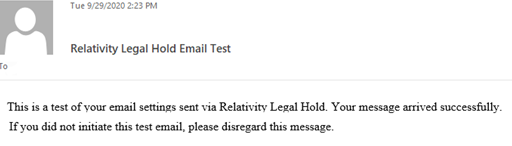
If the email is not received within minutes, check that the Legal Hold Agent's completed processing it (Job Type SendTestEmail). If it has completed, then check the Errors column in the Mailbox tab and refer to the [Troubleshooting email settings](#Troubles) section of this page.
## Adding Incoming Email settings
You must enter the incoming email settings on the Legal Hold Settings page before receiving communications. The incoming email settings allow Legal Hold to ingest Legal Hold emails that custodians reply to. If this functionality is not needed, disable it by changing the Frequency to Check field to *Select ...*
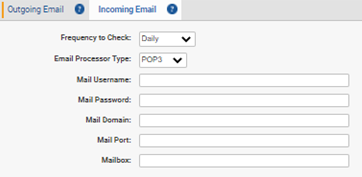
To update the Incoming Email settings on the Legal Hold Settings page, follow the steps below:
1. Click **Edit**.
2. Click the **Incoming Email** tab.
3. Enter information in the fields as described below. For more information, see [Incoming email fields](#Incoming).
4. Update another section or click **Save**.
> **Note:** The mailbox selected for the incoming mailbox setting should be only used for Legal Hold. The Legal Hold agent checks this mailbox for Legal Hold replies, imports any messages it finds, and then deletes all emails in the mailbox.
### Incoming email fields
The fields you need to complete depend on the selected email processor type.
- **Frequency to Check**—select how often you want the Legal Hold agent checks the mailbox for custodian replies to communications in order to pull them into the system.
- If you select a frequency but the incoming email settings do not have valid credentials, errors occur. After saving your settings, confirm the credentials after saving the email settings by clicking *Validate Incoming* in the Communications console. For more information, see [Console](#Validati).
- Select *Never* if you do not plan to use the incoming email functionality.
- **Email Processor Type**—select the email service you want to use to interact with third-party applications. Consult with your IT department if you are unsure which email processor type to use alongside your mail server.
If **IMAP (Internet Message Access Protocol)** or **POP3 (Post Office Protocol 3)** is selected, complete the following fields:
- **Mail Username**—enter the mail username, specified by email address or domain\\username depending on server settings, which will receive the custodian email replies.
- **Mail Password**—enter the password for the Mail Username address. This Mail Password field is case sensitive.
- **Mail Domain**—enter the fully qualified mail server name or IP address. For example, *demo.testing.corp*.
- **Mail Port**—enter the mail port number.
- **Mailbox**—enter the actual name of the folder containing the custodian replies to Legal Hold communications. For example, *Inbox*. This Mailbox field is case sensitive.
If **Graph API**, with delegated permissions, is selected, complete the following fields
> **Note:** When using the Graph API, you must first register your application in Microsoft Entra ID and set the permissions. After registering your application, then you must click the *Authenticate with Microsoft (Outgoing)* button in the Settings console to authenticate your application ID and password with Microsoft. For more information, see [Microsoft Graph API - Application permissions](https://help.relativity.com/RelativityaiR/Content/Relativity_Legal_Hold/Graph_API.md).
After registering your application, you must click the **Authenticate with Microsoft (Incoming)** button in the Settings console to authenticate your application ID and password with Microsoft.
- **Application Client ID**—enter the Application Client ID created during registering the Legal Hold application in Microsoft 365.
- **Application Client Secret**—enter the Application Client Secret created during registering the Legal Hold application in Microsoft 365.
- **Tenant ID/Domain**—enter the Domain name of the Microsoft 365 tenant the collection is intended for.
- **Mailbox**—enter the actual name of the folder containing the custodian replies to Legal Hold communications. For example, *Inbox*. This Mailbox field is case sensitive.