


Feedback

This site is currently undergoing maintenance — You may experience temporary interruptions.
This site is currently undergoing maintenance, so instances of "RelativityOne" may still be present. You may also experience 404 errors, search disruptions, and temporary style changes.
Last date modified: 2026-Oct-06
Personal Information (PI) detection helps you identify and classify sensitive data—such as Social Security numbers, email addresses, or passport numbers—during Data Analysis in Data Breach Response. You configure which detectors to use from the Settings tab before running Data Analysis. Detector selections affect what PI is identified, how entities are deduplicated, and how individuals appear in Entity Analysis and reporting.
The following terms are found throughout Personal Information detectors documentation:
| Deduplication Identifier | Expected Relationship | Description | Examples |
|---|---|---|---|
| Primary | 1:1 | One PI value belongs to one individual, and one individual has only one value of this type. | Social Security Number, Passport Number |
| Secondary | 1:many or many:1 | An individual may have multiple values, or the same value may appear across individuals. | Email Address, Date of Birth |
| Tertiary | many:many | Multiple individuals can share multiple values of this PI type. | Address, Phone Number |
| Binary | 0 or 1 | Default value applied when no Deduplication Identifier is selected. Does not participate in entity normalization. | - |
| Other | - | Used for PI that doesn't fit a standard deduplication pattern. | - |
Data Breach Response uses four types of detectors, each suited to a different kind of document:
| Detector | Detector Type | Applies to | Auto-linking |
|---|---|---|---|
|
OOTB GenAI detectors |
Unstructured |
Unstructured documents — both text-based and image-based |
Yes |
|
OOTB Structured detectors |
Structured |
Structured documents (spreadsheets, CSV files) |
Yes |
|
Custom Regex detectors |
Unstructured |
Unstructured documents with extracted text only |
No |
|
Custom Manual Detectors |
Manual |
Unstructured documents (manual tagging) and structured documents (column assignment) |
No |
A Detector Type value of All on an individual detector means that detector is available for both Unstructured and Structured detection.
Settings are available for users assigned the role of Lead.
The Detector table shows the description, status, and other information about each detector.
To view the Detectors table:
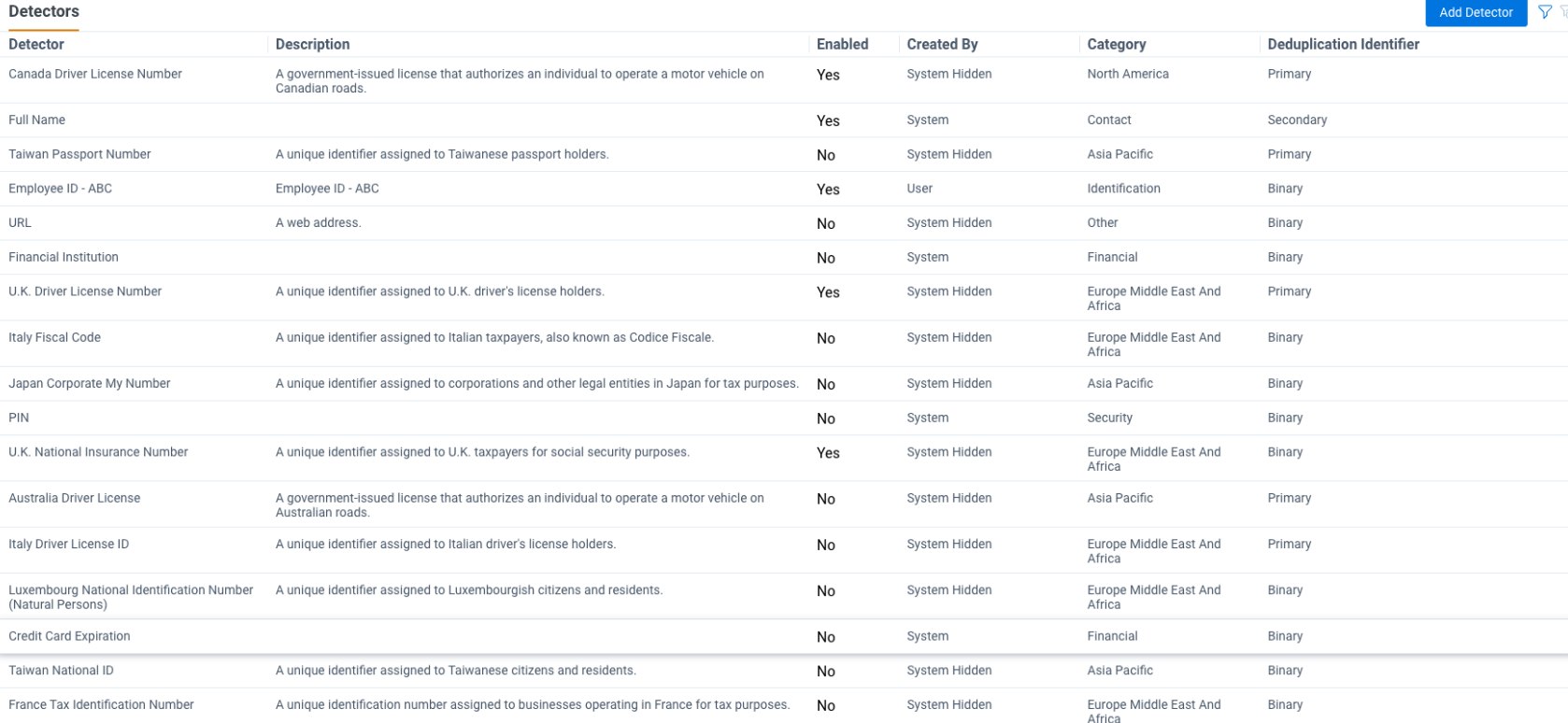
The Detectors table can be sorted and filtered on any column. Mass actions available include Enable Detectors and Disable Detectors. Select rows using the checkboxes, then apply from the action bar at the bottom of the table.
The following fields appear on the Detectors table:
| Field | Description |
|---|---|
| Detector | Names of Out of the Box Detectors and Custom Detectors |
| Detector Type |
Which document category the detector applies to. All (Unstructured and Structured), Unstructured, Structured, or Manual. |
| Description | A description of each detector |
| Enabled |
Yes/No status Detectors set to No will not be run during Data Analysis. You can disable detectors to limit PI identification to only the data types relevant to your incident. Disabling unnecessary detectors can reduce noise, improve review efficiency, and simplify entity normalization results.
|
| Created By | Lists whether the detector was created by the system or a user. |
| Category | Lists the detector category. |
| Deduplication Identifier | The settings that will be used in entity normalization. |
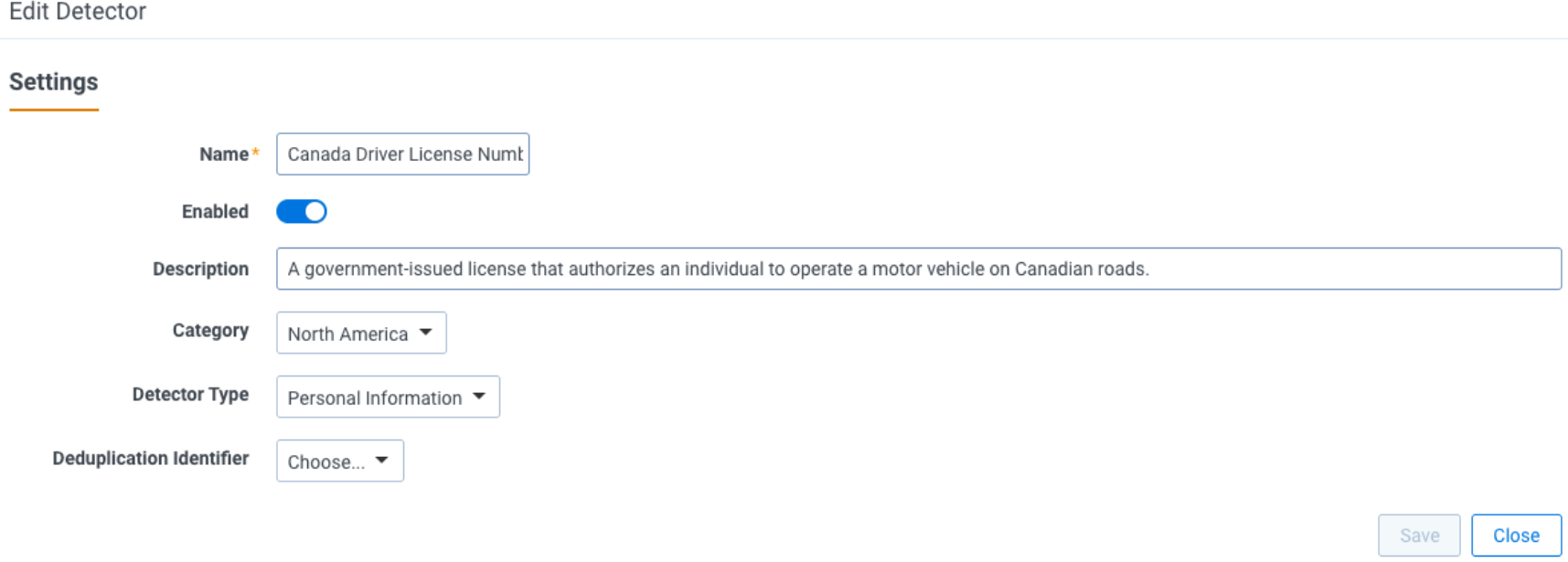
Click on any detector to see the details for that detector.
Data Breach Response supports the following out of the box detectors:
| Detector | Description | Detector Type | Enabled | Category |
|---|---|---|---|---|
|
ABA Routing Number |
A nine-digit code used to identify U.S. banks for financial transactions |
All |
Yes |
Financial |
|
Account Number |
A number used to identify a specific financial account |
All |
Yes |
Financial |
|
Address |
A location where a person lives or receives mail |
All |
Yes |
Contact |
|
Age |
All age terms and phrases |
Unstructured |
No |
Demographic |
|
Australia Tax File Number (TFN) |
A unique number assigned to individuals and organizations in Australia for tax identification purposes |
Unstructured |
No |
Asia Pacific |
|
Australian Individual Healthcare Identifier (IHI) |
A unique number assigned to a medical account in Australia for identification and billing purposes |
Unstructured |
No |
Asia Pacific |
|
Australian Medicare Provider Number |
Identifiers and details for healthcare providers registered with Medicare in Australia |
Unstructured |
No |
Patient |
|
Credit/Debit Card Expiration |
The month and year when a credit card expires |
All |
No |
Financial |
|
Credit/Debit Card Number |
A unique number used to identify a credit card account |
All |
Yes |
Financial |
|
Credit/Debit Card Security Code |
A short numeric code used to verify credit card transactions |
All |
No |
Financial |
|
Date of Birth |
The full calendar date when a person was born |
All |
Yes |
Demographic |
|
Date of Death |
The calendar date when a person passed away |
All |
Yes |
Patient |
|
Driver License Number |
A unique number assigned to a licensed driver |
All |
Yes |
Identification |
|
EU VAT (value added tax) Number |
A unique identifier assigned to businesses for Value Added Tax purposes within the European Union. Each EU country has its own format |
Unstructured |
No |
Identification |
|
Full Name |
A person's complete name, including first and last names |
All |
Yes |
Contact |
|
Health insurance number |
Someone's health insurance identification number |
Unstructured |
No |
Patient |
|
International Bank Account Number |
A globally recognized number used to identify a bank account for international transactions |
All |
No |
Financial |
|
Medical dates of service |
Someone's medical appointment or service dates |
Unstructured |
No |
Patient |
|
Medical information |
Medical or health-related information in a structured record |
Structured |
No |
Patient |
|
Medical provider name |
Someone's medical provider or healthcare facility name |
Unstructured |
No |
Patient |
|
Medical record number |
Someone's medical record number |
Unstructured |
No |
Patient |
|
National ID Number |
A government-issued unique identifier used to verify an individual's identity within a country |
Unstructured |
No |
Identification |
|
Other |
Any personal information not covered by standard categories |
All |
No |
Other |
|
Partial Credit/Debit Card Number |
A portion of a credit card number that does not include the full sequence |
Unstructured |
No |
Financial |
|
Partial Date of Birth |
The year a person was born, without the full birthdate |
Unstructured |
No |
Demographic |
|
Partial Social Security Number |
A portion of a US Social Security Number, not the full sequence |
Unstructured |
Yes |
Financial |
|
Passport Number |
A unique number printed on a passport issued by a government or governing agency |
All |
Yes |
Identification |
|
Password |
A secret word or phrase used to access a secure account or system |
All |
Yes |
Security |
|
Patient account number |
A number used to identify an individual patient across multiple records or health systems |
All |
No |
Patient |
|
Personal email address |
An email address used for personal communication outside of work |
All |
Yes |
Contact |
|
Personal Phone Number |
A phone number used for personal communication |
All |
Yes |
Contact |
|
PIN |
A short numeric code used to verify identity or authorize transactions |
All |
No |
Security |
|
Prescription information |
Someone's prescription medication information |
Unstructured |
No |
Patient |
|
SWIFT Code |
A code used to identify banks in international financial transactions |
Structured |
No |
Financial |
|
UK Electoral Roll Number |
A unique identifier assigned to individuals registered to vote in UK elections |
Unstructured |
Yes |
Europe, Middle East and Africa |
|
UK National Health Service Number |
A unique identifier assigned to patients in the UK's healthcare system |
Unstructured |
Yes |
Europe, Middle East and Africa |
|
UK National Insurance Number |
A unique identifier assigned to UK taxpayers for social security purposes |
Unstructured |
Yes |
Europe, Middle East and Africa |
|
UK Unique Taxpayer Reference |
A unique identifier assigned to UK taxpayers |
Unstructured |
Yes |
Europe, Middle East and Africa |
|
US Drug Enforcement Agency (DEA) Number |
A unique identifier assigned to medical professionals authorized to prescribe controlled substances in the U.S. |
Structured |
No |
Identification |
|
US Individual Taxpayer ID Number |
A unique identifier assigned to foreign individuals who need a US taxpayer identification number |
Unstructured |
Yes |
North America |
|
US Social Security Number |
A government-issued number used for identity and tax purposes in the US |
All |
Yes |
Identification |
|
Username |
A login name, handle, or account identifier used to sign in to a service, when it isn't a full email address |
All |
Yes |
Security |
Out of the box detectors are pre‑configured to identify common PI types. Detection coverage and accuracy can vary based on document structure, formatting, language, extracted text, and image quality.
In addition to OOTB detectors, you can also create and use custom PI detectors. Custom PI detectors allow you to identify PI types that are not covered by Out of the Box (OOTB) detectors.
Consider the following before creating custom regex detectors:
To create a Custom Regex Detector:
The Custom Detector will now appear in your Detectors list.
To create a Custom Manual Detector:
To enable or disable a Detector:
The quality of PI detections may be impacted by the quality of unstructured documents.
For unstructured documents with extracted text, Data Breach Response uses that text to create PI detections, so formatting affects performance.
Examples:
Custom Regex detectors run only on unstructured documents that have extracted text. They do not run on image-based documents, which use OOTB GenAI detectors only, or on structured documents, which use OOTB Structured detectors instead. Any project-specific PI in image-based or structured documents outside of these methods requires manual review, QC.
 What are Regular Expressions (RegEx)?
RegEx is a string of characters that represents a pattern. You can use RegEx to search for text that matches these patterns. For example, to detect Employee ID’s that consist of 2 capital letters followed by 5 digits, you could create the following custom detector using the expression: \b([A-Z]{2}[\d]{5})\b
Where:
Example scenario
For a particular project, it may be important to identify Employee ID’s. Employee ID is not an out of the box detector, so building a custom detector is required.
Employee ID’s look like the following:
In other words, they are all in the form of one capital letter followed by 5 digits, followed by two more capital letters.
Then, the corresponding regex would be: [A-Z]\d{5}[A-Z]{2}
Following the steps described in “Testing RegExes and Keywords,” you can use the interface to test whether this regex works:
In the box in the bottom right-hand corner, the text says:
This indicates that the regex successfully recognizes Employee ID’s.
