Last date modified: 2026-Oct-27

Annotating transcripts

You can add annotations to a transcript document as part of your Review process.

Designations and Exhibits tab

The Designations tab and Exhibits tab now display each annotation in a list no matter what file type they are added to. You can upload new designations from their respective tab. You can also export a .csv report to your workstation that includes whichever designations or exhibits you select.

Uploading designations

You can upload a .csv file containing designations and then view those designations in the Viewer alongside any existing designations that were already on the transcript.

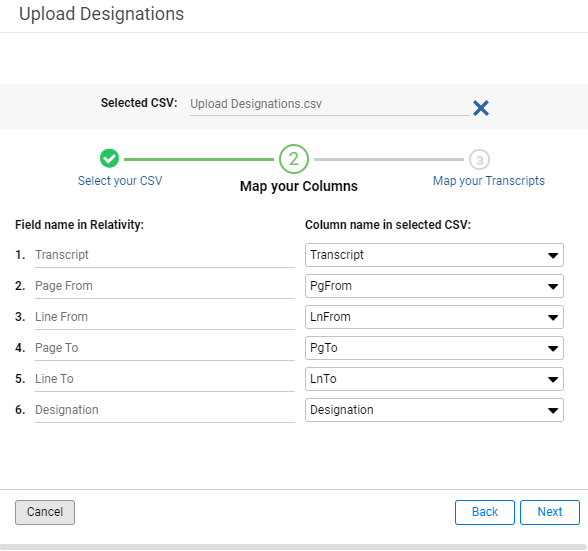
The .csv file must have the following columns:

  • Transcript name - The name of the transcript.
  • Page From - The page number on the transcript where the designation starts.
  • Line From - The line number on the transcript where the designation starts.
  • Page To - The page number on the transcript where the designation ends.
  • Line To - The line number on the transcript where the designation ends.
  • Designation - The designation.

To upload designations from a .csv file:
  1. Go to the Designations tab and click Upload Designations.
  2. Drag and drop your .csv file into the pop-up window or click browse for a file and select your .csv file.
  3. Verify that Relativity auto-mapped your columns correctly and click Next.

The Upload Designations modal with the fields mapped.

  1. Verify that Relativity auto-mapped your transcripts correctly and click Next.
  2. Click Upload.

The field for uploaded designations is the same field as designations that are added inline. This means that you will not be able to differentiate in the Viewer of the Review Interface between uploaded designations and designations added inline. To verify that your designations uploaded, look at the System created on field for designations.

Resolving upload designations warnings and errors

When you upload designations, two types of warnings and errors can occur - warnings related to missing data or data type errors in the .csv and import errors.

Uploading designations warnings occur when the .csv file has missing data or data in an invalid format. To resolve the warnings:
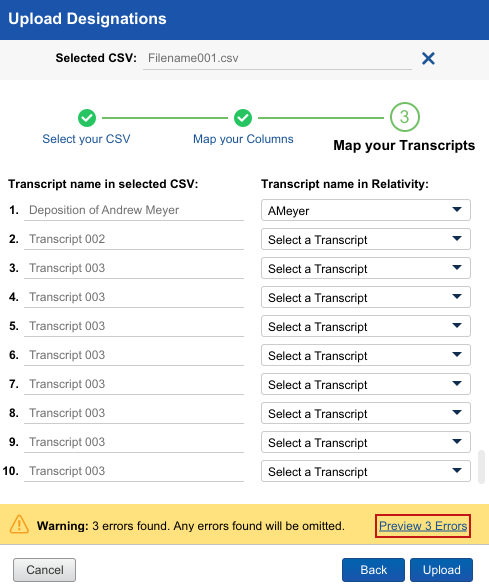
  1. In the Upload Designations window, click the Preview # Errors link.
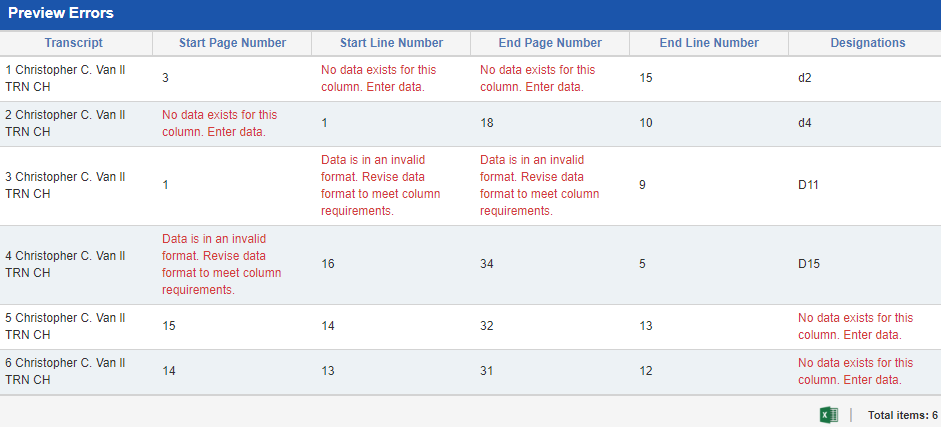
    The Preview Errors pop-up window will open. The Preview Errors pop-up window tells you the location of cells that have warnings attached to them in the .csv file.

Upload Designation with Warnings

The Preview Errors window with a number of errors listed.

  1. Locate the cells that have warnings in the .csv file and resolve them by either entering the missing data or revising the data format to meet column requirements.
  2. Upload the revised .csv.

When an import error occurs, go to the Errors tab to find our more information about the error.
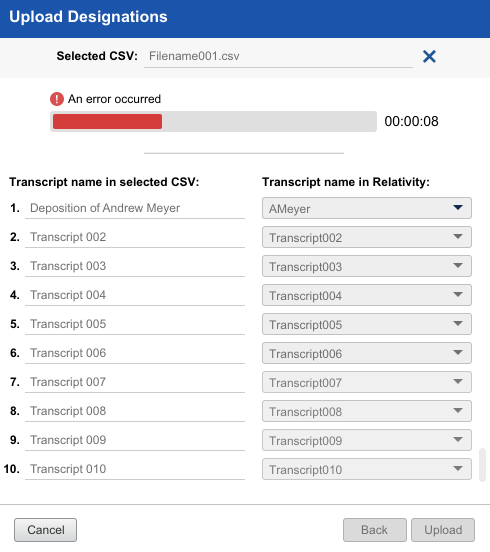
Upload designation

Exporting a designations or exhibits report

You can download a designations or exhibits report in .xls, .csv file, or .dat format to your workstation using the Export to File mass operation:

  1. Navigate to the Designations or Exhibits tab.
  2. Select either any designations or exhibits from the list that you wish to export.
  3. Select Export to File in the mass operations drop-down menu.
  4. Complete the fields. To learn more about these fields, see Mass export to file.
  5. Click Export.
    The designations or exhibits are downloaded to your workstation.

Exhibits

When reviewing transcripts, you can create direct references to exhibits.

If more than one user adds exhibit links or designations to the same transcript file at the same time, each user will only see the changes they have made until they refresh the page.

Link an exhibit

To link text in a transcript to other documents:
  1. On the Documents tab, select a transcripts file to open it in the Viewer.
  2. Select the desired text and right-click it.
  3. Hover your cursor over the Link Exhibit option.
  4. Select one of the following options:
    • Link This Occurrence - Links exhibit only to the selected text.
    • Link All Occurrences - Links exhibit to all occurrences of the selected text in the transcript.
  5. On the Link Exhibit modal, select the document would like to link to the selected text.
  6. Click Link Exhibit.
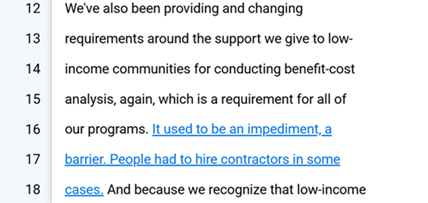
    The highlighted text is a link that can be clicked to access the relevant document.

Text in the Viewer including some that is hyperlinked because it is an exhibit.

Remove an exhibit

To delete an exhibit:

  1. Right-click on the exhibit text.
  2. Select the Remove This Exhibit Link option from the right-click menu.
  3. Click on the Remove Exhibit Link option in the modal.
    The hyperlink is removed from the transcript.

Designations

While reviewing transcripts, you can tag text as a designation to track it as part of your case strategy.

Viewing designations in the Viewer

If you open an MDB transcript in the Viewer, designations can display in two different ways in the and you can toggle between the options by clicking on the Designation Display icon.

If Colors Bars is selected, each designation displays as colored bars to the left of the text in the Transcribed Text panel. This option is helpful if there are multiple overlapping designations in a transcript.
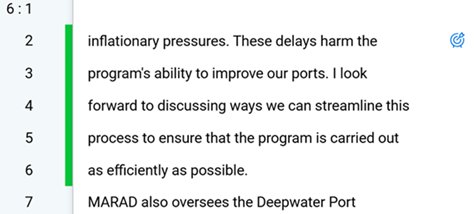
A section of text that is is highlighted by green color bars to the left of the text to show that its a designation.

This option is helpful if there are multiple overlapping designations in a transcript.

A section of text that is is highlighted by multiple designations to show how overlapping color bars works.

If Highlights is selected, each designation displays as highlights over the text in the Transcribed Text panel.
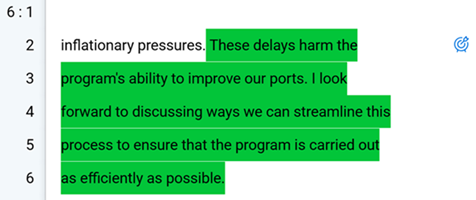
A section of text that is highlighted in green to show that its a designation.

Add a designation

To add a designation to a transcript:

  1. On the Documents tab, select a transcripts file to open it in the Viewer.
  2. Select the desired text and right-click it.
  3. Hover your cursor over the Add Designation option in the right-click menu.
  4. Select the designation type by doing one of the following:
    • Select the desired Designation Type from the menu.
    • If the desired designation type is not in the right-click menu, you can search for it. To do so, expand the Coding Pane, and select the Search All option in the right-click menu. On the Select Designation Type modal, you can filter the list of designation types as needed. Select the desired designation type and click Select to apply that type to the selected text.

Remove a designation

To delete a designation:

  1. Right-click on the Designations icon next to the designation you wish to remove.
  2. Select the Remove Designation option from the right-click menu.

Change a designation type

To change a designation to a new designation type:

  1. Right-click on the Designations icon next to the designation you wish to edit.
  2. Hover your cursor over the Change Designation option.
  3. Select the desired designation type to change the designation to the selected type.

Additional Transcripts application features

If you want to see the full document while using Case Dynamics, you can open the document in the Pop-Out Viewer and still use the coding panel.

Transcripts layout

Annotations are logged in the Transcripts layout and are called out by page and line numbers. If you click on the line number, this takes you to the exact place the annotation is located on the transcript. Clicking on the Exhibit hyperlink opens the document in the Viewer. Clicking on the Note hyperlink sends you directly to the Notes object under the Transcripts tab. The objects on the tabs are sorted by the Created On field. The newest object created is listed first. See Transcripts tab.
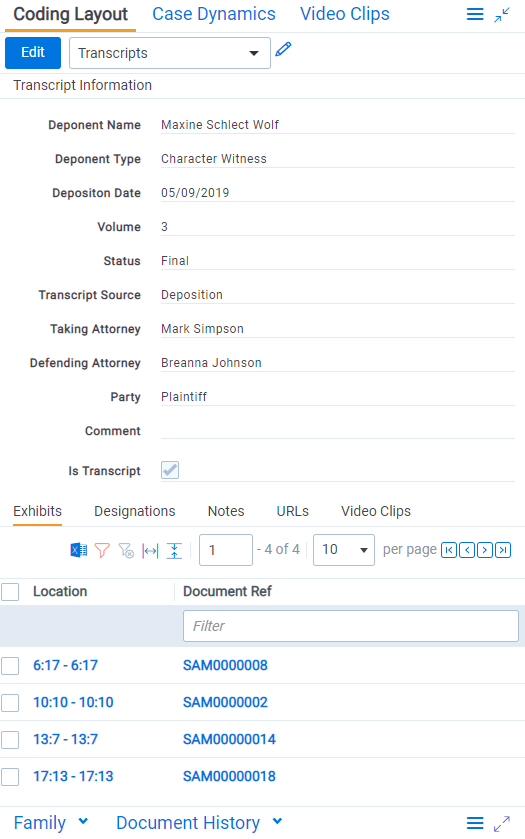
The Coding Layout section with a Transcripts layout selected.

Feedback