---
title: "Exception and warning resolution"
description: "This topic lists the types of exceptions and erros in processing, exception levels, exception phases, and how to resolve them."
keywords: ["processing exceptions", "processing errors", "resolutions", "file exceptions", "job exceptions", "errors"]
tags: ["processing", "relativity processing", "exceptions", "errors", "resolution"]
feature: "Processing"
audience: ["end user", "developer", "system analyst", "system administrator", "system engineer"]
version: "Relativity aiR"
type: ["User Guide", "Tutorial"]
url: "https://help.relativity.com/RelativityaiR/Content/Relativity/Processing/Processing_error_resolution.htm"
lastModified: "2026-11-20"
---
# Exception and warning resolution
There are two distinct types of exceptions that occur during processing: file exceptions and job exceptions. File exceptions are resolvable and occur when Relativity cannot process a file. For example, a password-protected file where Relativity cannot find the password. In this case, you can resolve the issue by providing the password and rerunning the process. Job exceptions occur when the processing engine cannot complete the job. For example, an exception may occur when there is a break in network connectivity where Relativity cannot access file storage. In this case, the resolution is to rerun the processing job after you restore network connectivity. Other exceptions may be more complex and require support intervention.
For information on where to find processing exception information, see [Processing exception overview](https://help.relativity.com/RelativityaiR/Content/Relativity/Processing/Processing_error_overview.md).
This topic details the following:
- [Types of processing exceptions](#errortypes)
- [Processing phases where exceptions may occur](#errorphases)
- [File exceptions](#fileerrors)
- [File exception actions](#FileErrorActions)
- [Resolving file exceptions](#commonfileerrorscenarios)
- [Retrying an exception from the processing set](#processingseterrorretry)
- [Exception categories and their probability of retry success](#errorcategoriesretrysuccess)
- [Retry file exception mass action](#errorresolutionworkflows)
- [Replacing corrupted files](#replacingcorruptfile)
- [Resolving a password-protected file exception](#resolvepasswordprotectfile)
- [Publish documents with field length exceptions](#FieldLength)
- [Email file processing time out](#Timeout)
- [Troubleshooting corrupted .msg files in a .pst container](#MSG-PST)
- [Corrupt PDF files not flagged during discovery](#CorruptPDF)
- [Job exception](#joblevelerrors)
- [Job exception workflow](#job-levelflowchart)
- [Resolving job exceptions](#joberroractions)
## Types of processing exceptions
There are two types of processing issues that may affect the outcome of your processing job: file exceptions and job exceptions.
- **File exceptions**—affect a single file. Overall, the processing job continues, even if file exceptions exist. File exceptions are resolvable and have a status of **Not Resolved** in the Files tab. An example of a file exception might is a password-protected file where Relativity cannot find the password. By supplying the password you can retry the exception.
- **Job exceptions**—affect the entire processing job and block publishing. You must resolve job exceptions before you can continue processing.
## Exception levels
Discover and publish exceptions are further defined by the exception level, which indicates severity of the issue. Each phase has two exception levels:
- Discover
- Warning—the job continues; however, metadata may be missing.
- Error—the job is blocked from completing.
- Publish
- Warning—the job continues; however, metadata may be missing.
- Error—the job is blocked from completing.
## Processing phases where exceptions may occur
Exceptions can occur during any processing phase, such as Inventory, Discover, and Publish.
- **Inventory**—all Inventory exceptions are unresolvable, and you cannot retry them. To address inventory exceptions, rerun Inventory from the same processing set.
- **Discover**—the Discover phase covers file discovery and text extraction.
- **Discover**—job exceptions that occur during discovery are unresolvable, and you cannot retry them. You should always address unresolvable discover job exceptions. Not addressing unresolvable exceptions may result in missing documents or incomplete metadata in published documents. Address these exceptions by creating a new processing set (or sets) and rediscovering the data.
- **Text-extraction**—job exceptions that are resolvable have an exception status of **Ready to retry**. Retry the exception from the same processing set.
- **Publish**—job exceptions during the publishing phase that are resolvable have an exception status of **Ready to retry**. Retry the exception from the same processing set.
## File exceptions
After completing the discovery or publish phases, you notice the processing job encountered file exceptions. You want to investigate and resolve the exceptions to maximize the data published to your workspace.
### File exception actions
You can take action on file exceptions from the mass actions drop-down menu located at the bottom of the **Files** tab page.
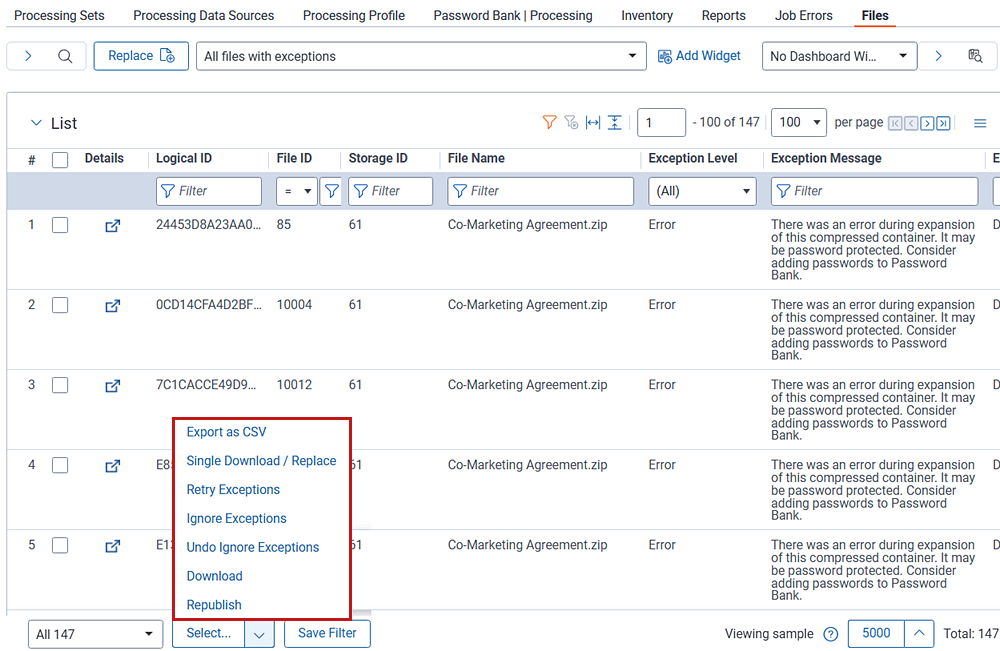
The following mass actions are available:
| Mass operation | Description |
| --- | --- |
| Export as CSV | This exports the list of processing exception as a CSV file. |
| Single Download/Replace | Use the Single Download/Replace mass operation to download a file to your local machine for investigation. After fixing the exception, you can use the same mass operation to replace the original file with a newer version.
Note the following regarding downloading and replacing files:
• You can only download or replace a single file at a time.
• You can only perform these actions on files with an exception status of Not Resolved.
• There is no file size limitation when downloading files.
• There is a one-gigabyte file size limitation when uploading replacement files.
• Performing a file replacement retries associated exceptions once completed.
• After uploading a new document, and you select Replace & Retry, the native file updates before you republish.
• The retry action for job exceptions only retries exceptions in a Ready to Retry state.
For more information on the Single Download/Replace mass operation, see [Single Download/Replace](https://help.relativity.com/RelativityaiR/Content/Relativity/Processing/Files_tab.md#Download) on the **Files tab** page. |
| Retry exceptions | This action provides the ability to resolve issues occurring during discover and publish. You can see these issues on the Current Files with Exceptions and All Files with Exceptions views within the **Files** tab. For details on how to retry exceptions from the Deleted Documents view in the **Files** tab, see [Retrying delete exceptions](https://help.relativity.com/RelativityaiR/Content/Relativity/Processing/Files_tab.md#Retrydelete).
• You must have edit permissions on the Discovered Files object to be able to retry file exceptions.
• Note the following regarding retrying exceptions:
• • Auto-publish is not enabled when you retry exceptions. If you resolve any discover or text extraction exceptions, you must manually publish them into your workspace by navigating back to the processing set and clicking the **Retry** button.
• • The discovery retry of exceptions process has a longer timeout period than the initial discovery process. It is not uncommon for the retry process to run longer than the initial discovery process.
• • You should always resolve all publish exceptions as these exceptions represent data not in review.
• • If an exception occurs on a loose file during discovery, Relativity still attempts to publish it. For example, if a Password Protected exception occurs on a PDF file during discovery, you can still publish the file in its current state. The resulting record may have metadata or extracted text missing depending on the issue, but still referenced during review.
• • Relativity automatically retries all publish exceptions for a set when you retry any exception within that set.
• • Do not work on multiple retry attempts simultaneously. If you submit a secondary retry while the initial retry is still in progress, the second retry waits in a queue until the first retry completes.
• • You can only submit exceptions with an exception Status of **Not Resolved** for retry. |
| Ignore exceptions | This provides the ability to set a file’s exception Status to Ignored, which removes it from the Current Files with Exceptions view. The record is visible in the All Files and All Files with Exceptions views. |
| Undo Ignore exceptions | Sets a file’s **exception Status** field back to its original value after you previously ignored it. |
| Download | Use the Download mass action to download multiple exceptioned files to your local drive.
Note the following regarding the downloading mass operation:
• You can only use the Download mass operation on files with an exception status of Not Resolved.
• When complete, files are packaged in a zip container and saved to your local drive.
• Use the Replace button to mass replace files.
• **Note:** The Replace button is located in the upper left side of the screen. It is not a part of the mass actions menu because mass actions require you to select files from the document list to apply the action. There are no files to select when replacing, as you are uploading them from your local drive.
• There is a 2.14 GB limitation on the zip container file size.
For more information on replacing multiple files at a time, see [Replacing corrupted files](#replacingcorruptfile). |
| Republish | Gives you the option of republishing exceptioned files after you resolve the exceptions. If the republish is successful, the files are available in the Documents list and removed from the Current Files with Exceptions view.
For details on how to republish files from the **Files** tab, see [Republishing files](https://help.relativity.com/RelativityaiR/Content/Relativity/Processing/Files_tab.md#Republis). |
## Resolving file exceptions
The following sections describe actions you may take to resolve file exceptions.
### Retrying an exception from the processing set
You can retry file exceptions from the processing set by clicking the **Retry File exceptions** button located in the **Process Files** console.
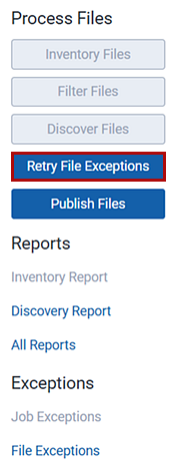
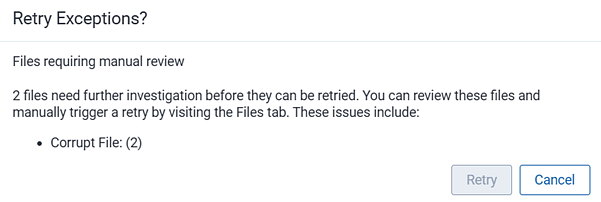
A confirmation message appears with information about the number of exceptions you are about to retry, along with the associated exception categories. Click **Yes** to proceed or **Cancel** to return to the processing set page.
#### Container file exceptions
File exceptions on container files, such as a .zip file, may result in missing data from one or more files within the container. In some cases, you may have many files in exception, even though you see a single file exception on the container. For container file exceptions, extract the files and then create a new processing set with the extracted files.
#### Exception categories and their probability of retry success
Relativity retries file exceptions that have a high chance of success. The exception category associated with the file determines the probability of success. exception categories such as Corruption or Password Protection are not retried as they are not likely to be successful without manual intervention. For example, adding passwords to the Password Bank or replacing corrupt files. The table below lists the types of exceptions that Relativity retries.
| Exception Category | Included in Retry Button |
| --- | --- |
| Corrupt Container | No |
| Corrupt File | No |
| Environmental | Yes |
| File Read-Write Error | Yes |
| Missing Attachment | Yes |
| Missing Extracted Text | Yes |
| Missing File Metadata | Yes |
| Password Protected Container | No |
| Password Protected File | No |
| Unknown | Yes |
| Unsupported | No |
### Retry file exceptions mass action
Starting from your processing set, perform the following steps:
1. From the **Process Files** console, click **File exceptions** to open the **Current Files with Exceptions** view. The list is automatically filters for your processing set.
2. You can filter the exceptioned files that are the most important to resolve. Some common filters are:
- **Exception Category**—group issues of a similar type.
- **Exception Phase**—groups issues occurring during a particular part of processing.
- **Custodian**—when you have a priority Custodian you want investigated first.
- **Sort Date**—to retry files within the matter's relevant date range.
3. Once you identify a group of records to resolve, select the **Retry Exceptions** mass action to begin the process. Alternatively, you can retry all exceptioned files without filtering.
You can now track the progress of the exception retry through the processing set's progress bar or by navigating to the [Processing Queue](https://help.relativity.com/RelativityaiR/Content/Relativity/Processing/Processing_Administration.md#Monitoring_active_jobs) tab and viewing active jobs.
### Replacing corrupted files
Use the steps below to upload remediated files from your local drive back into Relativity. You must place the files in a .zip container before uploading. There is a 1 GB file size limit for each .zip container.
1. Use the search bar to navigate to the **Files** tab.
2. Click the **Replace** button on the **Files** tab.

> **Note:** While the Replace action is a mass action, meaning multiple files are affected, it is not a part of the mass actions menu (at the bottom of the screen). Action items in the mass actions menu require selecting target files from the Files list. Since you are moving files from your local drive back into Relativity, there are no files from the list to preselect.
3. The Replace modal opens. Either drag and drop or browse for the .zip container holding your replacement files.
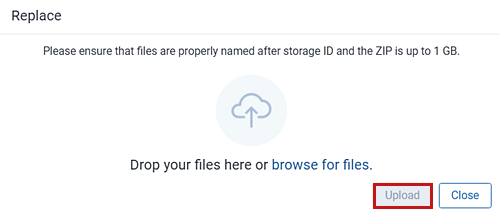
4. Click **Upload**.
When you upload the replacement file, Relativity performs the following checks:
- The replacement files are contained in a .zip file, which has a file size limit of 1 GB. If you exceed the file size limit, you will see an error. To resolve this error, redistribute the replacement files so the .zip container is within the file size limit.
- The replacement file's file name matches the original file's Storage ID.
- The replacement file size is within 10% of the original (larger or smaller) file size.
- The replacement file extension matches the original file extension.
- The original file has an exception status of Not Resolved.
5. The Replace modal updates with the number of successful files, successful files with warnings, and unsuccessful files.
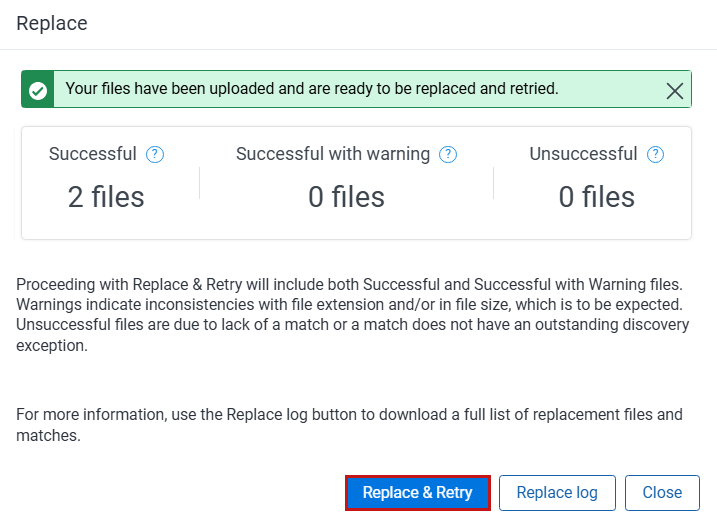
- **Successful**—the number of files successfully replaced.
- **Successful with warning**—files where the candidate file name minus extension has a Storage ID match in the Files tab and has an Exception Status of Not Resolved. In addition, these files may have a different extension or exceed the 10% deviation in file size.
- **Unsuccessful**—files where the candidate has a Files tab match but no outstanding exception, the candidate does not have a Files tab match, or Relativity could not extract the file from the .zip container.
You can view a log of the files, along with their status, by clicking the **Replace log** link on the modal. The log displays the following information:
- Replacement file name
- Candidate file extension
- Candidate file size
- Files tab Storage ID
- File tab file extension
- File tab file size
- Exception (error) status
- Validation status
- Reason for warning or failure.
6. Click **Replace & Retry**.
7. A final confirmation message indicates the completion of the replacement process. Click **Close**.
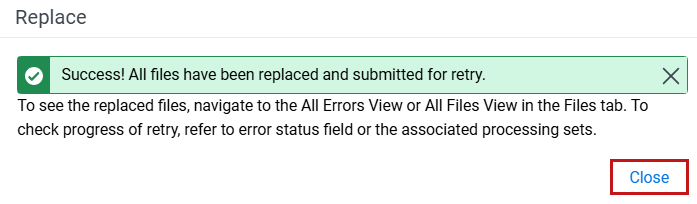
8. The last step is to **republish** your files so that Relativity updates metadata and extracted text fields.
### Resolving a password-protected file exception
Some files are password-protected. If Relativity cannot find the password during the Discover phase, you will see an exception with the category, Password Protected Container. The resolution for this exception is to add the password to the Password Bank.
To add a password to the bank, perform the following steps:
1. Navigate to the **Password Bank | Processing** tab.
2. Click **New**.
3. Select **Passwords** for the **Type** value.
4. Add a meaningful description to help you differentiate between other password entries.
5. Add one or more passwords. You must enter each password on a separate line.
6. Click **Save**.
7. **Retry** the file exception from either the processing set Process Files console, or from the Files tab mass actions drop-down menu.
For completed details on storing passwords, see [Password Bank](https://help.relativity.com/RelativityaiR/Content/Relativity/Processing/Password_bank.md).
### Publish documents with field length exceptions
When metadata exceeds the field length limit for optional fields, Relativity publishes the file, excluding the offending metadata, as an exception warning. The published content is available for review or other downstream functions such as indexing and search terms reports. Files with metadata exceeding the field length limit for required fields have an exception status where the entire file is held back and not published.
#### Resolving field length exception warnings
You cannot successfully retry field length exception warnings without some intervention. For example, suppose you have an optional email field with a field length of 250 characters and try to publish a file with an email containing 300 characters. You see the field length exception warning. You can change the email field length to 350 characters and retry the warning, resulting in the email metadata being published with its parent file.
You cannot change required (system-mapped) fields with a fixed-length text field type. In this case, Relativity displays an exception, and you cannot publish the file in its current state. For example, Container Name is a system-mapped field with a maximum limit of 255 characters. If you exceed that limit, you will see an exception. Since you cannot change the field properties, you must change the container name length to meet the field requirements. After that, you can retry the exception.
##### Steps
1. Use the search bar to navigate to the **Fields** tab.
2. Use the **Name** filter to locate the field you want to change. You can also scroll through the field names if you are not sure of the field name. In the image below, we want to change the **Email From** field.
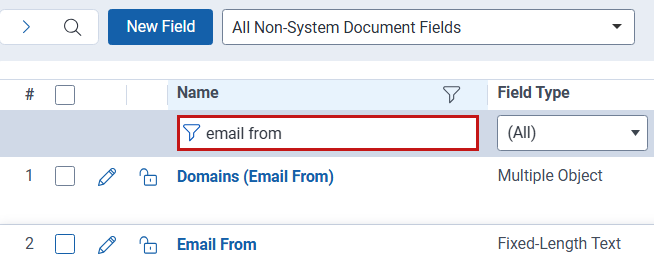
3. Click the field **Name** (in this example, Email From) to open the fields details.
4. Click **Edit**.
5. Change the Maximum Length field so that it exceeds the field characters that threw the exception.
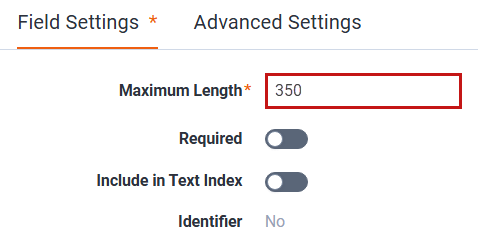
6. Click **Save**.
### Email file processing timeout
Processing uses an email-specific timeout when handling email files (.eml, .msg). This timeout operates independently from instance timeout settings and defaults to 20 minutes.
The time allowance helps to early identify problematic email files that have a very low likelihood of processing successfully and ensures availability of the resources to process other files within processing set.
If the timeout is exceeded, the following file-level exception appears:
*Relativity terminated processing this file after exceeding the email time limit. The cause of the extended processing time is unknown. Retry the error. If the issue persists, see the **Exception and error resolution** page in the documentation for suggested actions.*
#### Troubleshooting a persistent email timeout error
If the same error occurs after retrying, the cause may be related to unidentified file-specific issues or corrupt data. To resolve this issue, use a new copy of the file and retry processing. If issue persists, contact support for assistance.
### Troubleshooting corrupted .msg files in a .pst container
You can use the following steps to troubleshoot exceptions about corrupted .msg files in .pst containers encountered during processing.
The exception message will be similar to:
**For cases where Relativity extracted and discovered a message, but it might be corrupt**
*Relativity encountered an issue while extracting \ from a container. This file was discovered in Relativity, but it might be corrupt. Try repairing or replacing it, then retry.*
**For cases where Relativity failed to extract and discover a message**
Relativity failed to extract \ and its attachments from the container, resulting in the file not being discovered. Possible causes include an MSG file that exceeds 500 MB or data corruption in the file. First, retry the error. If the issue continues, consider including the file in a smaller container or processing it as a loose file.
The exception returns the File Name. The File Name is the equivalent of the Entry ID of the corrupted file. Use the Entry ID to locate and troubleshoot the issue using the tools described in the steps.
Example File Name: 00000000301D96839118B94DA10CED6A093B254944002000.MSG
Example Entry ID: 00000000301D96839118B94DA10CED6A093B254944002000
> **Note:** This documentation contains references to third-party software, or technologies. While efforts are made to keep third-party references updated, the images, documentation, or guidance in this topic may not accurately represent the current behavior or user interfaces of the third-party software. For more considerations regarding third-party software, such as copyright and ownership, see [Terms of Use](https://www.relativity.com/terms-of-use/).
The following topics are covered in this section:
- [Generating a list of impacted files](#GeneratingListImpactedFiles)
- [Troubleshooting tools](#TroubleshootingTools)
- [Option 1: Outlook Spy](#OptionOne)
- [Option 2: MFCMapi](#OptionTwo)
- [Option 3: PST Walker](#OptionThree)
- [Troubleshooting using O](#OutlookSpy)
- [Troubleshooting using MFCMapi](#MFCMapi)
- [Troubleshooting using PST Walker](#PSTWalker)
#### Generating a list of impacted files
There are two options for generating a list of impacted files. You can access the processing history for a specific file or you can generate a report that displays a list of exceptioned files and their Entry IDs.
Accessing the processing history: (This example looks for a single message file in a .pst container.
> **Note:** Use this option to locate a single message file.
1. Navigate to the **Files** tab.
2. Change the view to **All files with exceptions** to filter the document list.
3. Scroll through the document list until you locate the file in exception.
4. Click the **Show details** icon **Details** column for the .pst file.
5. Select the **Processing Exceptions** tab. In the Exception History section, you see a list of files with their file names. The file name is the equivalent of the Entry ID which you can use to further explore exceptions.
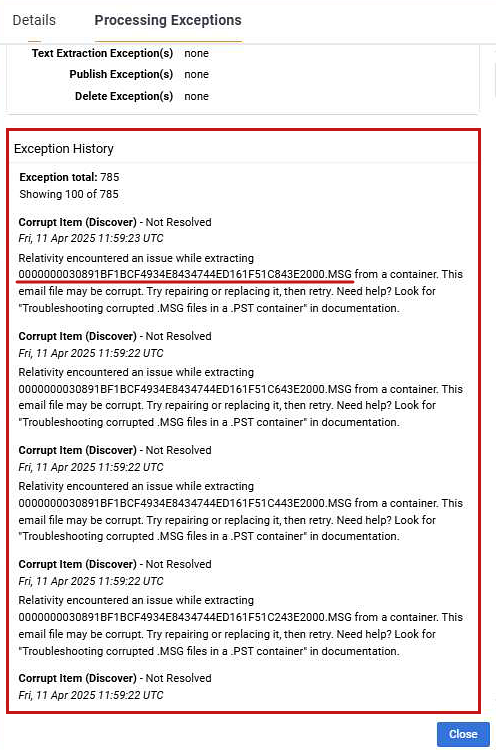
6. Return to the **Files** tab document list and filter the list by **File Name**. This is the corrupted document.

Generating a report that displays a list of exceptioned files:
> **Note:** Use this option to locate multiple files.
1. Navigate to the **Reports** tab.
2. Select the **Document Exception** report.
3. Select the appropriate **processing set**.
4. Click **Generate Report**.
5. **Export** the report to your local drive. Use either the CSV or XLSX options.
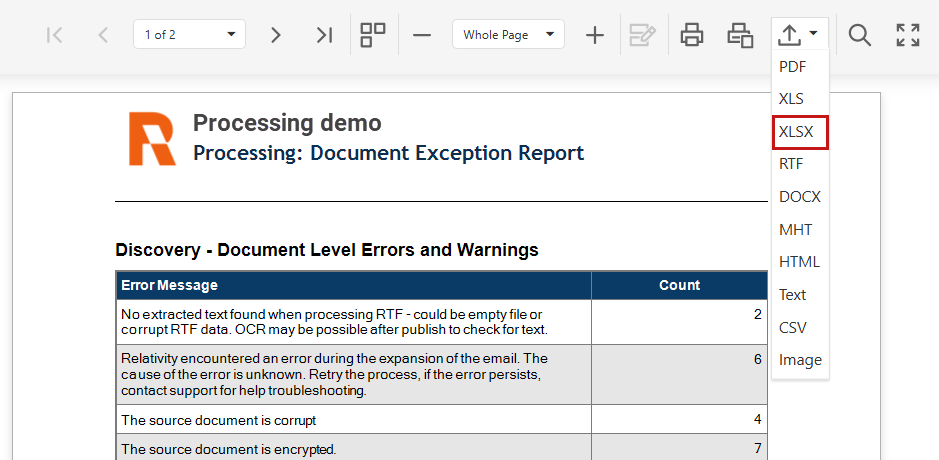
6. Open the report, then use Excel filters and functions to isolate the Entry ID from the rest of the exception message. To isolate a list of Entry IDs:
1. **Filter** all of the exception messages so that only exceptions with the phrase *Troubleshooting corrupted .msg* are displayed.
Use the **Text to Columns** function to isolate file names from their respective exception messages.
2. Click the **Text to Columns** option in the **Data** tab.
The Convert Text to Columns Wizard opens.
1. Select the **Fixed width** option and click **Next.**
2. In the Data preview pane, you see break lines for each column. Locate the break lines before and after the file name. **Double-click each break line** (except the file name lines) to delete them.
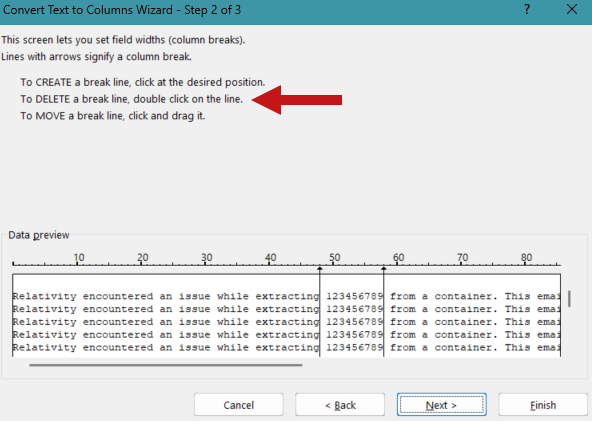
3. **Finish** the wizard.
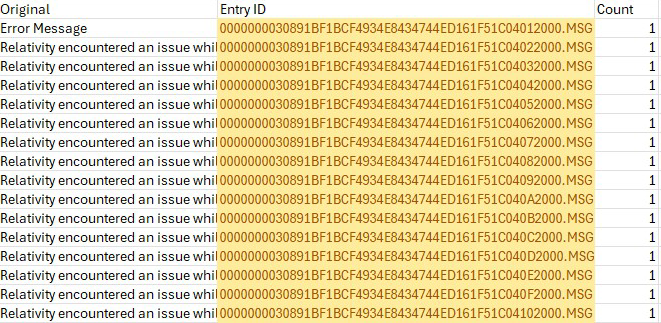
The file names are now isolated from the exception message.
Sample file name: 00000000301D96839118B94DA10CED6A093B254944002000.MSG.
The Entry ID is the file name without the file extension.
Sample Entry ID: 00000000301D96839118B94DA10CED6A093B254944002000.
> **Note:** See [Split text into different columns with the Convert Text to Columns Wizard](https://support.microsoft.com/en-us/office/split-text-into-different-columns-with-the-convert-text-to-columns-wizard-30b14928-5550-41f5-97ca-7a3e9c363ed7) on the Microsoft website for more information on the *Text to columns* function.
#### Troubleshooting tools
To work with .pst files, you must have Microsoft Outlook installed on your system, along with one of the following tools:
##### Option 1: OutlookSpy
OutlookSpy provides access to Outlook objects, including properties, call functions, and object hierarchy. You can download the software from the [OutlookSpy](https://dimastr.com/outspy/home.htm) website. You must have a license to use it.
##### Option 2: MFCMapi
This tool provides access to Messaging Application Programming Interface (MAPI) stores. You can download the software from [GitHub](https://github.com/microsoft/mfcmapi/releases). It is free.
##### Option 3: PST Walker
The PST Walker tool enables batch analysis of Entry IDs. Visit the [Apps Store](https://www.pstwalker.com/store.html) on the PST Walker website to download the software. You must have a license to use it.
#### Troubleshooting using Outlook with OutlookSpy
1. Open your local **Outlook**.
2. Click **File** > **Open & Export** > **Open Outlook Data File** and choose a .pst file to open.
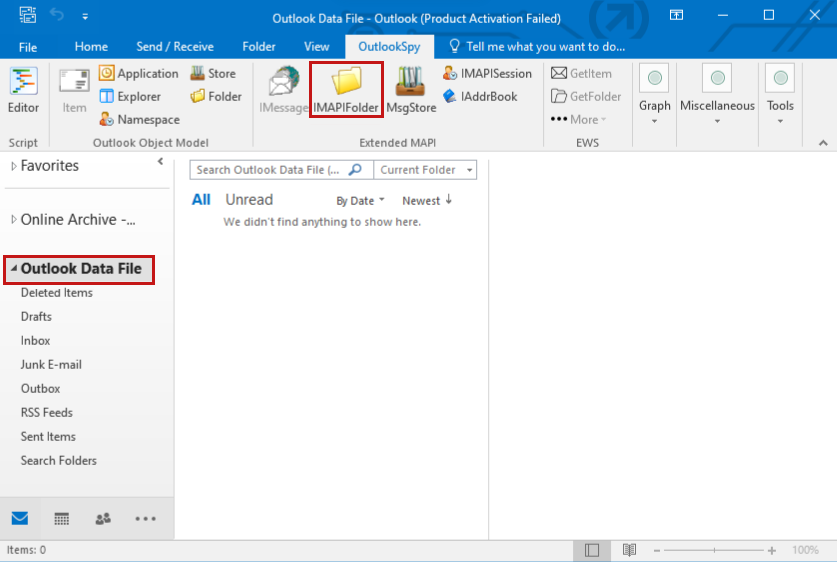
On the left side of your screen, you will see a menu with the file’s name.
3. Click the file name, and from the **OutlookSpy** tab, select **IMAPIFolder**.
4. Click the **OpenEntry** tab.
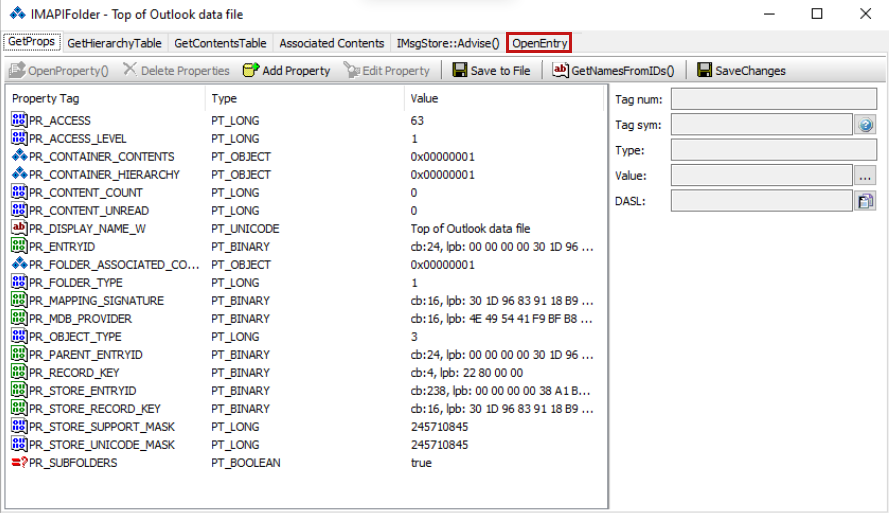
5. Click **Enter Entry ID Manually**.

6. Enter the **Entry ID** in the text box.
7. Click **OK**.
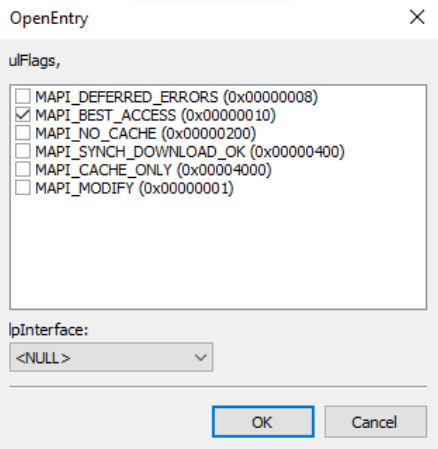
8. The OpenEntry flags screen opens. Keep the default **MAPI_BEST_ACCESS** option.
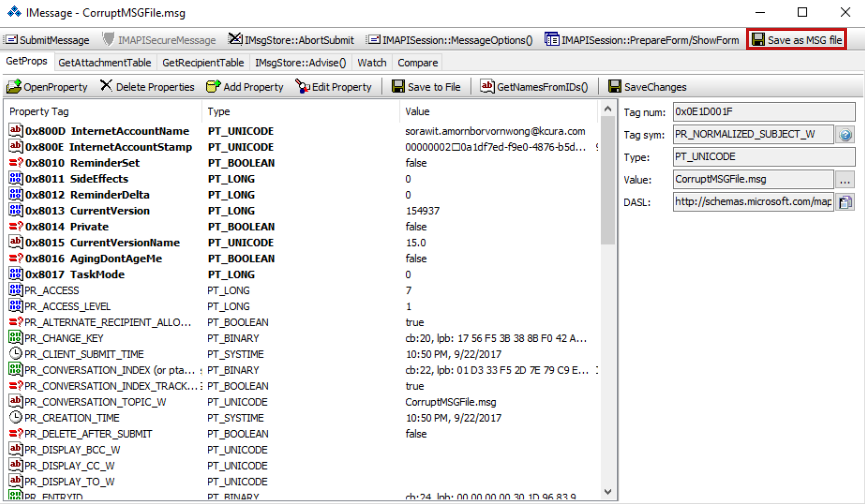
A screen displaying the .msg file's properties opens.
9. Click **Save as MSG file** to export the properties.
#### Troubleshooting using MFCMapi
The first few steps mirror the OutlookSpy process.
1. Open your local **Outlook**.
2. Click **File** > **Open & Export** > **Open Outlook Data File** and choose a .pst file to open.
On the left side of your screen, you will see a menu with the file’s name.
3. Open **MFCMapi** (downloaded from GitHub).
4. Click **Session** > **Logon…** .
5. Select your **Outlook profile**.
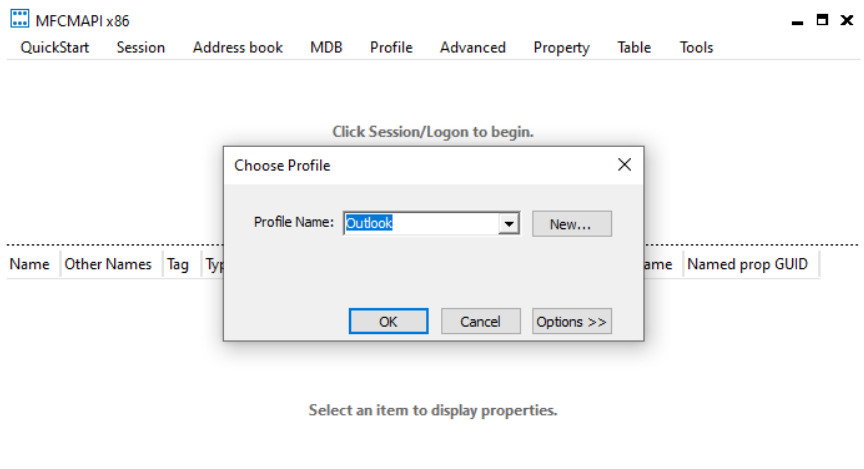
6. Click **OK**.
A screen displaying MAPI stores opens.
7. Double-click the .pst store containing the files you want to work with.
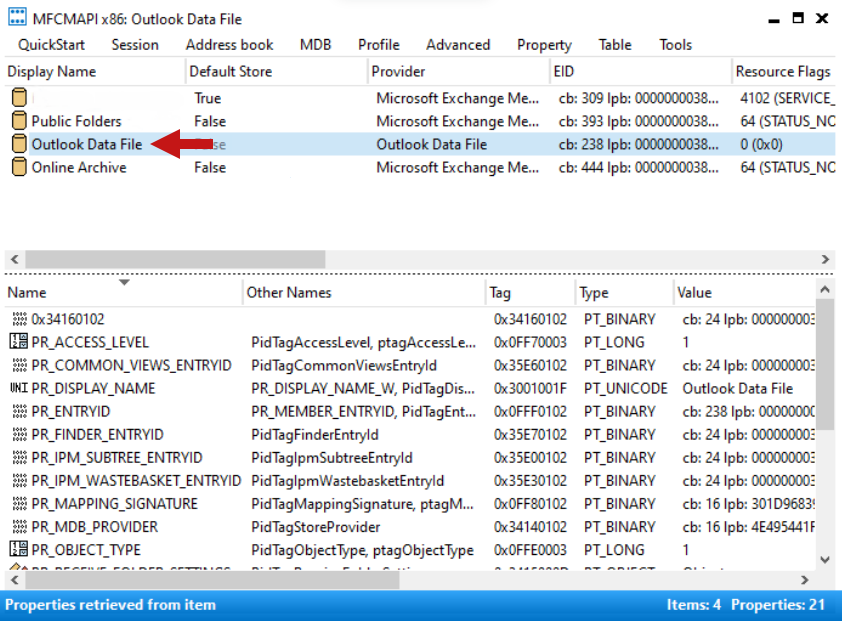
8. Click **Tools** > **Entry ID** > and then **Open given entry ID**.
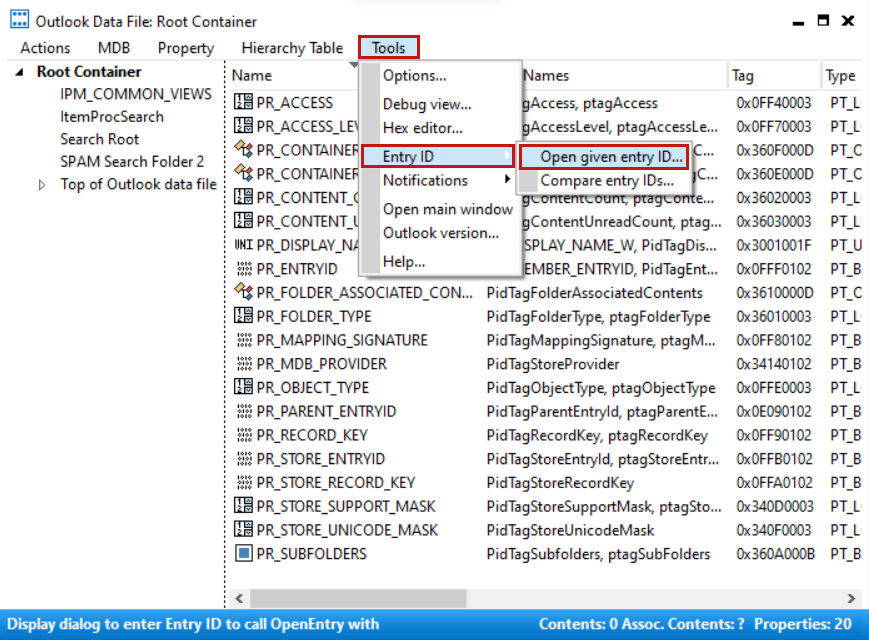
9. Enter the **Entry ID** in the Entry ID text box.
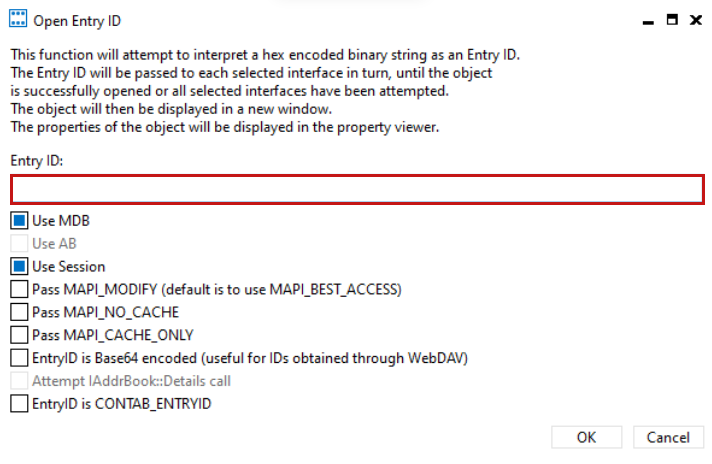
10. Click **OK**.
You see a new window displaying the file's data.
11. To export the data, click **Actions** > **Export message**.
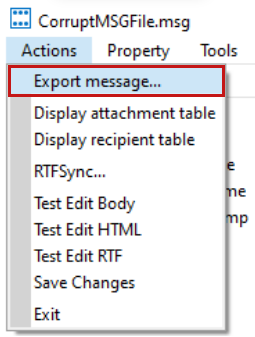
12. Select a format.
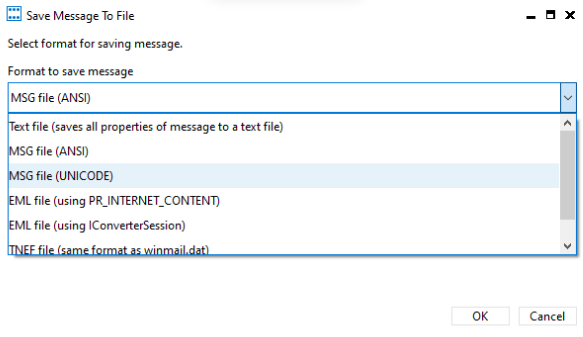
13. Click **OK**.
#### Corrupt PDF files not flagged during discovery
In some cases, corrupt PDF files are not flagged during discovery and therefore do not appear in the File Exceptions tab. During discovery, Relativity attempts to identify the file type, extract basic metadata, and extract text when possible, but it does not validate PDFs against external viewer standards. If the file structure is sufficiently readable and the corruption does not interfere with discovery or text extraction, the file may be successfully discovered and processed through publishing, even if it is otherwise damaged and cannot be opened in an external PDF viewer.
## Job exceptions
Navigate to the **Job Exceptions** tab to view a list of job exceptions. The **Current Files with Exceptions** view displays all outstanding job exceptions. The **All Files with Exceptions** view displays all job exceptions across time, regardless of their resolution. Review the **Status** and **Exception Message** fields for an overview of the issue and the potential for remediation.
### Job exception workflow
The following diagram shows the job exception workflows for Inventory, Discover, and Publish jobs.
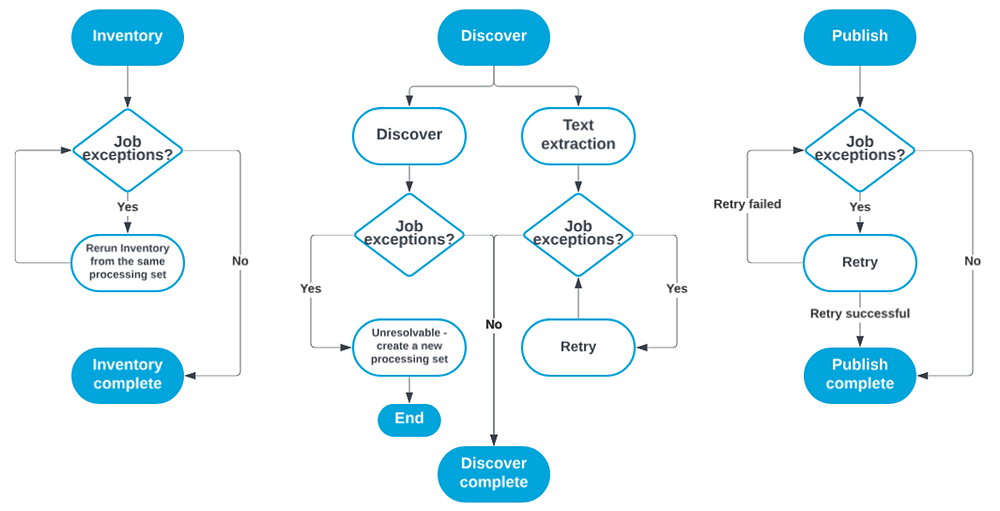
### Resolving job exceptions
The steps for resolving job exceptions depend on the phase running when the exception occurred. For some phases, exceptions are unresolvable; others require creating and running a new processing set. You can resolve some exceptions using mass actions or by retrying the exceptions from the processing set. The first step in resolving job exceptions is determining the phase in which the exception occurred.
To identify the phase where the exception occurred, perform the following steps:
1. Navigate to the **Job Exceptions** tab.
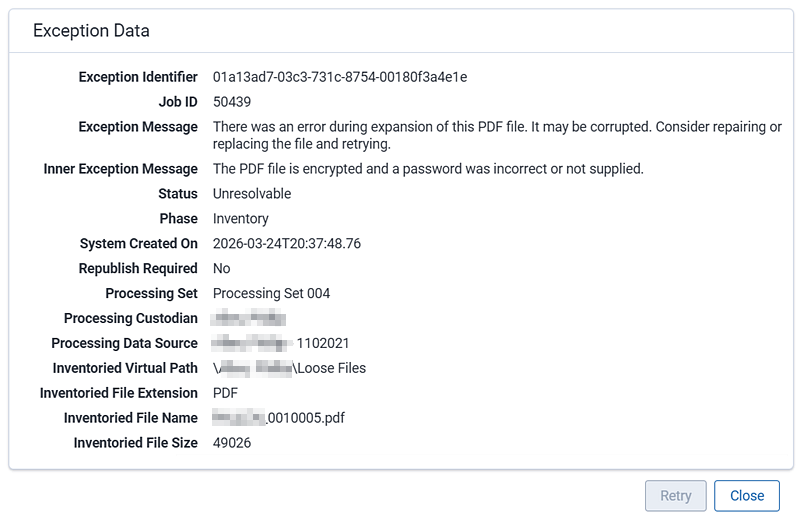
2. Click the **Show details for this exception** icon in the **Details** column for the exception you are researching. The Exception Data modal opens. You can review the details of the exception including the exception message, status, processing set, and whether or not publishing is required.
3. Locate the **Phase** entry key. The key value is the phase where the exception occurred. In the image below, the phase is Inventory.
#### Inventory
All inventory exceptions are unresolvable. You must address the exception outside of Relativity, then rerun Inventory from the processing set.
To re-inventory files, perform the following steps:
1. From the processing set, click the **Inventory Files** button in the **Process Files** console.
2. A confirmation message appears. Click **Yes**.
When you rerun the Inventory phase, Relativity clears any exceptions from the previous job.
For detailed information on the Inventory phase and exceptions, see [Inventory processing](https://help.relativity.com/RelativityaiR/Content/Relativity/Processing/InventoryProcessing.md#Inventory_errors).
> **Note:** When working with questionable data sets, run Inventory to get a pre-assessment of corrupt files. This way, you can review the exception messages returned for possible remediation before continuing to other processing phases.
#### Discover
The Discover phase includes file discovery and text extraction. You should treat exceptions that occur during the Discover phase with high priority, as they are generally unexpected. Resolving these exceptions depends on where they occurred during the discovery process. Not resolving Discover exceptions may result in incomplete metadata when the files are published.
To address exceptions that occur during file discovery, perform the following steps:
1. If possible, retry the exceptions from within the processing set.
2. If the exceptions are unresolvable, create a new processing set using the same data source as the exceptioned set.
3. Rerun Discover.
To address job exceptions that occur during text extraction, perform the following steps:
1. From the processing set, click the **Job Exceptions** link in the **Process Files** console.
2. You can retry exceptions with a status of **Ready to retry**. From the mass actions drop-down menu, select **Retry Exceptions**.
3. On the Retry exception(s) confirmation dialog, click **Retry**.
The status changes to Resolving. You can refresh the page until the status updates with either Resolved or Not Resolved. If the exceptions is not resolved, you must rediscover the files from a new processing set.
For detailed information on discovering files, see [Discovering files](https://help.relativity.com/RelativityaiR/Content/Relativity/Processing/Discovering_files.md).
#### Publish
Job exceptions during the publishing phase that are resolvable have an exception status of **Ready to retry**. Retry the exception from the same processing set.
For detailed information on the Publish phase and exceptions, see [Publishing files](https://help.relativity.com/RelativityaiR/Content/Relativity/Processing/Publishing_files.md#Retrying_errors_after_publish).