Last date modified: 2026-Oct-26
Exception overview
You may encounter exceptions from time to time while running processing jobs. Exceptions can occur during any processing phase, affecting single files or the entire job. This topic provides a high-level overview of the types of exceptions you may encounter and where to find details.
For information on resolving processing exceptions, see Processing exception resolution.
This topic details the following:
Types of processing exceptions
There are two types of processing issues that may affect the outcome of your processing job: file exceptions and job exceptions.
- File exceptions—affect a single file. Overall, the processing job continues, even if file exceptions exist. File exceptions are resolvable and have a status of Not Resolved in the Files tab. An example of a file exception might is a password-protected file where Relativity cannot find the password. By supplying the password you can retry the exception.
- Job exceptions—affect the entire processing job and block publishing. You must resolve job exceptions before you can continue processing.
Exception levels
Discover and publish exceptions are further defined by the exception level, which indicates severity of the issue. Each phase has two exception levels:
- Discover
- Warning—the job continues; however, metadata may be missing.
- Error—the job is blocked from completing.
- Publish
- Warning—the job continues; however, metadata may be missing.
- Error—the job is blocked from completing.
Processing phases where exceptions may occur
Exceptions can occur during any processing phase, such as Inventory, Discover, and Publish.
- Inventory—all Inventory exceptions are unresolvable, and you cannot retry them. To address inventory exceptions, rerun Inventory from the same processing set.
- Discover—the Discover phase covers file discovery and text extraction.
- Discover—job exceptions that occur during discovery are unresolvable, and you cannot retry them. You should always address unresolvable discover job exceptions. Not addressing unresolvable exceptions may result in missing documents or incomplete metadata in published documents. Address these exceptions by creating a new processing set (or sets) and rediscovering the data.
- Text-extraction—job exceptions that are resolvable have an exception status of Ready to retry. Retry the exception from the same processing set.
- Publish—job exceptions during the publishing phase that are resolvable have an exception status of Ready to retry. Retry the exception from the same processing set.
Processing exception tabs
Use the Files tab and Job Exceptions tab to view exceptions that occurred during processing. Relativity notifies you of exceptions on the processing set page when the job completes.
Files tab
The Files tab displays a list of all documents within your workspace. The Files tab has two views related specifically to file exceptions:
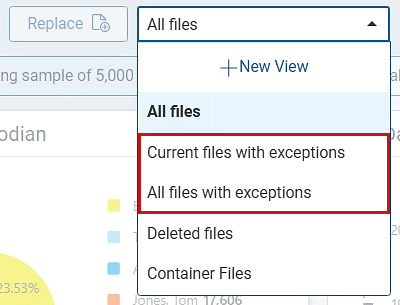
- Current Files with Exceptions—displays all outstanding exceptions from processing jobs. This is the primary location for workflows like exception retry, ignore, and file replacement.
- All Files with Exceptions—displays a historical report of exceptions from all processing sets, regardless of exception resolution.

For more information on the Files tab, see the Files topic.
File exception fields
The Current Files with Exceptions and All Files with Exceptions views display the following fields:
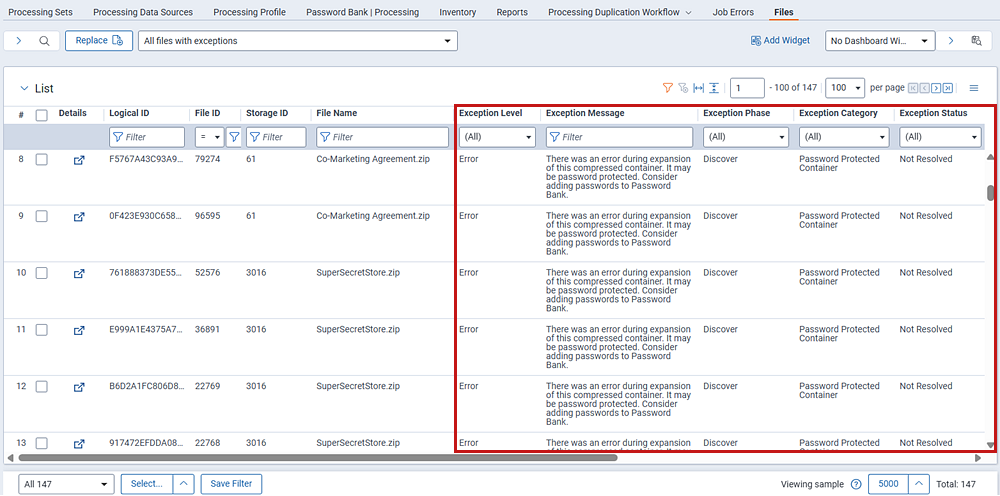
- Details—click this icon to open a dialog containing information on the file properties and exceptions. See Viewing file exception details for more detailed information.
- Logical ID—the unique identifier of the file in MDS storage.
- File ID—the unique identifier assigned to an instance of a file.
- Storage ID—the unique identifier assigned to a file.
Differentiating between the File ID and the Storage ID. Every file is assigned a unique Storage ID. Every instance of a file is assigned a unique File ID. For example, you may have a Word document with a unique Storage ID. If that document is attached to two different emails, then each instance of the document attachments is assigned a unique File ID. Therefore, a single file with a Storage ID, may have multiple instances, each with their own unique File ID.
- File Name—the original name of the file.
- Exception Level—this field displays the
type of exception Relativity encountered. There are two levels:
- Warning—the job continues; however, metadata may be incomplete.
- Exception—the job is blocked from completing. You must address the exception and retry the job.
- Exception Message—displays a message about the exception, along with possible resolution.
- Exception Phase—displays the phase in which the exception occurred. Exception phase options include Discover, Text Extraction, Publish, and Delete.
- Exception Category—displays the exception category such as a password protected file where Relativity cannot find the password. See the table below the field list for a list of Exception Category values.
- Exception Status—provides information on where the file is in exception remediation. The exception status value helps in determining if you need to take action on a file, or to see if the file had previous exceptions. When a file has all its exceptions resolved, the Exception Message, Exception Category, and Exception Phase fields no longer display any content. However, the Exception Status field displays Resolved to indicate that the file had issues that are now resolved. Exception status values include:
- Not Resolved—the exception is still outstanding.
- Resolving—the exception is in the process of being retried.
- Resolved—exception resolved.
- Ignored—exception ignored.
In some cases, the Exception Status field on the Files tab may not be in sync with the Exception Status field on the Documents tab. The mismatch occurs when you resolve an exception but do not republish the file. For example, after discovery, you notice a file exception due to a missing password. The Exception Status fields on the Files and Documents tabs show the same Exception Status. At some point, you fix the password and retry the exception. The exception status on the Files tab now shows resolved, while the Documents tab still shows an exception. Republishing syncs the fields once again.
The following table provides a listing of values for the Exception Category field, along with a description of the issues associated with the exception.
| Category name | Description |
|---|---|
| (Not Set) | Relativity did not set a category for this issue. |
| Corrupt Container |
These exceptions are exclusive to container files that have encountered corruption when attempting to open and locate files within the container itself. When containers have these exceptions associated to them, you will not see any extracted loose files. The exceptions are either ignored or downloaded offline for you to investigate whether the corruption is fixable, then subsequently replaced and retried. |
| Corrupt File / Corrupt Item | These exceptions are exclusive to non-container files that have found elements of corruption during Processing. The exceptions are either ignored or downloaded offline for you to investigate whether the corruption is fixable, then subsequently replaced and retried. |
| Empty File | Empty files contain 0 bytes and therefore have no content to retrieve. |
| Environmental | Environmental exceptions are a result of issues in the Relativity Processing environment. Retry and resolve these exceptions when encountered. |
| File Read-Write Error | These exceptions are a subset of Environmental issues specifically caused by file system issues. Retry and resolve these exceptions when encountered. |
| Missing Attachment |
Relativity could not extract an attachment from a document or email from its file. |
| Missing Extracted Text | These exceptions represent issues that occurred during Text Extraction jobs that have caused a file to be missing some or all associated text. Relativity could not identify a root cause. Retry and resolve the exceptions where possible. |
| Missing File Metadata | A file is missing a piece of metadata. |
| Password Protected Container | These exceptions are exclusive to container files that have encountered some form of password protection or encryption security measures. You must add the password or encryption key to the Password Bank to resolve the exception. For more information, see Password Bank.
When investigating publish exceptions, if you see five password protected exceptions associated with an .msg file, but the email and all its contents opens and displays correctly in the viewer, the email had a password-protected container attached. |
| Password Protected File | These exceptions are exclusive to non-container files that have encountered some form of password protection or encryption security measures. You must add the password or encryption key to the Password Bank to resolve the exception. For more information, see Password Bank. |
| Unidentified File Type | Relativity was not able to determine the file type. |
| Unknown | Relativity Processing could not identify the file during discovery. The file may be corrupt, but an exact cause was not known at the time of discovery. |
| Unsupported | Relativity Processing cannot obtain metadata or text from unsupported files. You can publish the files to your workspace, but they may not be accessible from the viewer. |
Viewing file exception details
You can view file details by clicking the Show details for this file icon. Details include file data, file metadata, and content metadata.
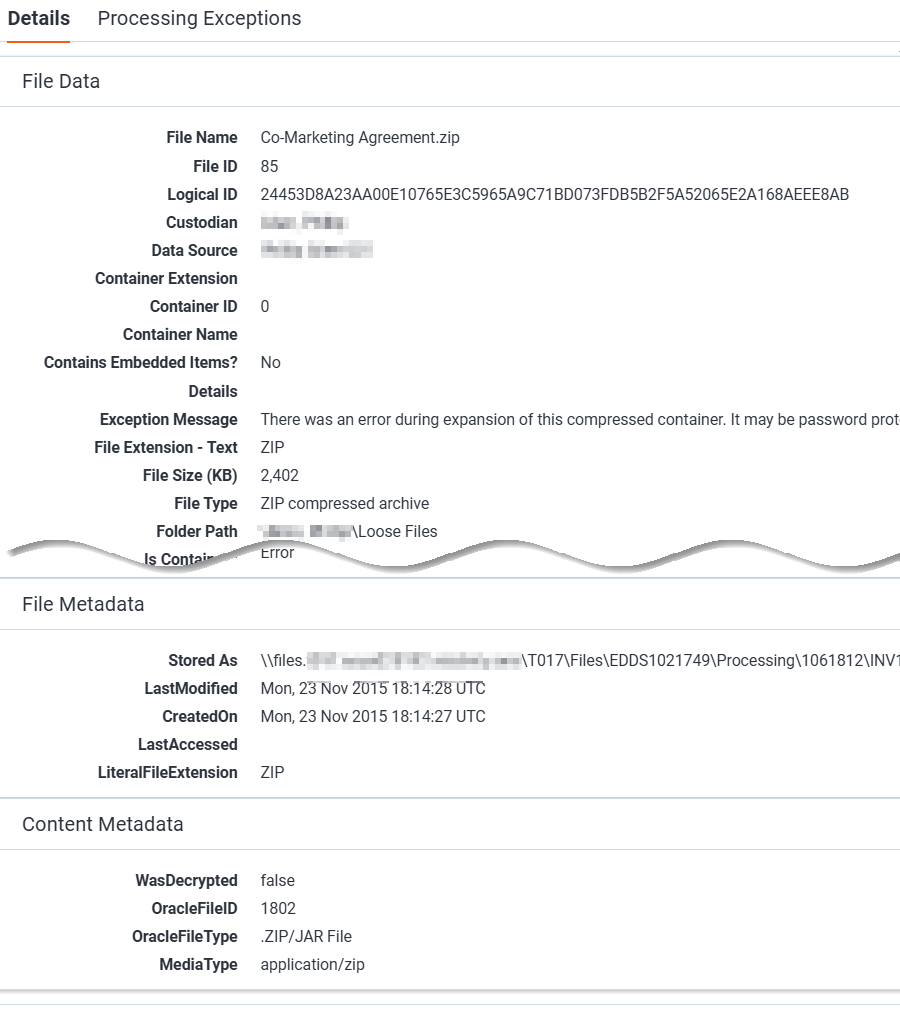
Click the Processing Exceptions tab to view a summary of exceptions, and the exception history.
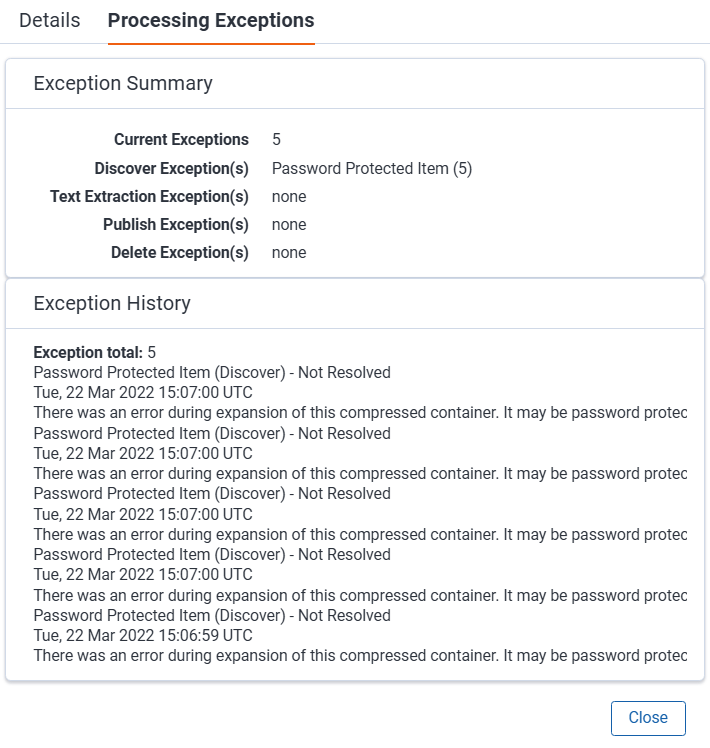
- The Exception History section represents all exceptions> that have ever occurred on a file. This acts as a timeline of the record’s exceptions, showing when they occurred, what they were about, and if any are still active. This includes exceptions resulting from retries of previous exceptions and contains category, phase, date/time, and message information. All times are kept in UTC format.
- The Exception Summary section displays a count of all active exceptions along with their associated category and phase. This is especially important when investigating exceptions> relating to container files, as there can be many associated to the parent container during file extraction. This helps determine the level of impact the issue has as it may affect many files originating from it.
Job Exceptions tab
The Job Exceptions tab displays a list of job exceptions that occurred on processing sets run in your workspace. These exceptions are usually not associated with any specific files within a processing set, but rather the entire set itself. The Job Exceptions tab has two views:
- Current Job Exceptions—displays all unresolved job exceptions.
- All Job Exceptions—displays job exceptions that occurred throughout the lifecycle of the matter.
Job exception fields
The Current Job Exceptions and All Job Exceptions views display the following fields:
- Details—click the Show details for this exception icon to open a modal with exception details. See Viewing job exception details for a list of fields contained in the modal.
- Name—the exception identifier.
- Exception Message—displays an overview of the exception.
- Status—provides the status of the exception. The most common exception status values include:
- Unresolvable—exceptions that you cannot retry.
- Ready to Retry—resolvable exceptions that you can retry.
- Retried—exceptions that have been retried and are unresolvable.
- In Progress—the exception is currently being retried.
- Phase—shows the phase in which the exception occurred. For example, Inventory or Publish.
- Processing Set—the name of the processing set in which the exception occurred.
- Processing Set Republish required—indicates if the exception needs to be retried in other to be published.
- Processing Data Source–the data source that houses the file containing the exception.
- Processing Custodian—the custodian associated with the data source containing the file on which the exception occurred.
- System Created On—the date and time at which the exception occurred during the processing job.
Viewing job exception details
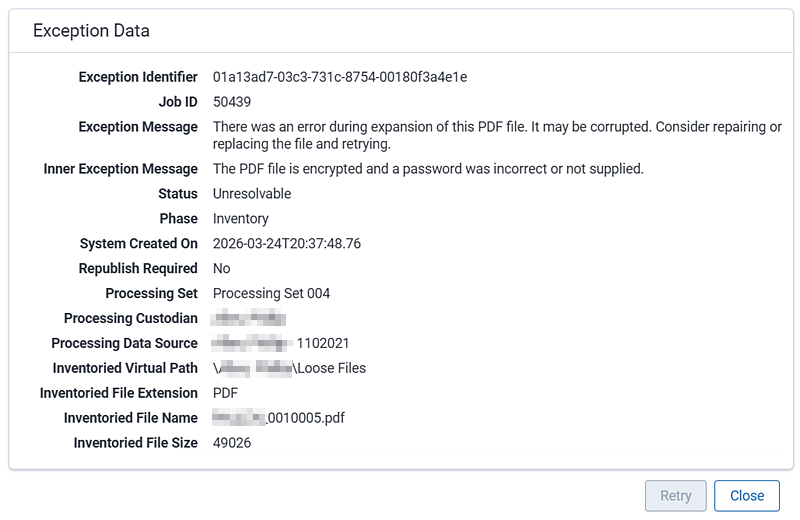
Click the Show details for this exception to open the Exception Data modal. You can view the exception message, along with the inner exception message, which provides additional insight into what caused the exception. The virtual path and file name may also help identify the source.
Viewing exceptions from a processing set
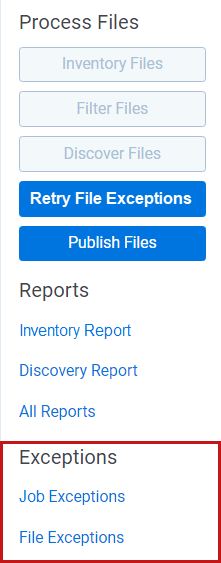
From within your processing set, use the links in the Process Files console to view job errors and file exceptions. Click the Job Exceptions link to open the Job Exceptions tab > Current Job Exceptions view. Click the File Exceptions link to open the Files tab > Current Files with Exceptions view.
Retrying exceptions after making changes to the processing profile
When you retry exceptions, Relativity attempts to reprocess exceptioned files using the processing profile settings associated with the processing set. If you change a field setting in the processing profile and then retry exceptions, some changes will be respected (or recognized,) and some will not. In other words, after changing the processing profile, Relativity uses the new settings for some fields during retry and ignores new settings for others. In the table below, fields marked Yes are fields where changes override the original setting. Fields marked No are fields where the original setting precedes any changes.
| Front-End Setting | Respected on retry? |
|---|---|
| Inventory | Discover Settings | |
| DeNIST and DeNIST Mode | Yes |
| Default OCR languages | No |
| Default time zone | No |
| Include/Exclude and Inclusion/Exclusion | Yes |
| Mode | Yes |
| File Extensions | Yes |
| Extraction Settings | |
| Extract children | No |
| When extracting children, do not extract | No |
| Roll up image text | No |
| Email Output | Yes |
| Excel Text Extraction Method | Yes |
| Excel Header/Footer Extraction | Yes |
| PowerPoint Text Extraction Method | Yes |
| Word Text Extraction Method | Yes |
| OCR | Yes |
| OCR Accuracy | Yes |
| OCR Text Separator | Yes |
| Short Message Conversion Settings | |
| Slice by | Yes |
| Slack | Yes |
| Download attachments | Yes |
| Teams | Yes |
Required security permissions
The following security permissions are required to perform actions on file errors:
| Object Security | Tab Visibility |
|---|---|
|
|
For more information on permissions, see Workspace permissions.
On this page