---
title: "Investigations in Relativity aiR"
description: "Relativity aiR enhances your investigation by expanding the standard set of tools used to find and analyze data and document findings."
feature: "Relativity"
audience: ["end user", "developer", "system analyst", "system administrator", "system engineer"]
version: "Relativity aiR"
type: ["User Guide", "Tutorial"]
tocPath: "Features|Solutions"
url: "https://help.relativity.com/RelativityaiR/Content/Relativity/Investigations.htm"
lastModified: "2026-10-29"
---
# Investigations in Relativity aiR
Organizations often execute investigations by searching email, documents, instant messages, network drives, user share folders, logs, and other data sources in their native format or native application. Relativity aiR enhances your investigation by expanding the standard set of tools used to find and analyze data and document findings.
> **Note:** For videos and tutorials that cover the basics of Investigations in Relativity aiR, see the [Investigations Introduction](https://learning.relativity.com/path/investigations-basics/investigations-introduction) learning path.
Read the following investigations overview
An investigation starts after an event or sequence of events have created risk or the possibility of risk to an organization. Organizations have policies that certain events immediately trigger an investigation. An investigation may also occur on an ad hoc basis as a result of a unique set of circumstances.
Investigations are bound by corporate policy, procedure, or sometimes regulatory rule. They are not triggered or enforced by a legal document request or other binding legal authority. An investigator is primarily interested in what occurred before and after an event, developing an understanding of the key players in the event, and reporting conclusions to management.
The results of an investigation can be inconclusive, or the examination shows that the event did not occur as it was originally described. Once an investigation concludes, the organization makes decisions to address the issues at the heart of the investigation or to reduce the possibility of the event occurring again.
You can use Relativity aiR to identify the communications and information that describes how and why an event occurred. Specifically, you can find participants involved in creating the documents, disseminating information, and helping or obstructing an investigation. In addition, Relativity aiR’s reporting and visualization tools can be used to help inform and instruct others on the sequence of events.
Once you have identified the people involved in the incident or event and you have processed your data into Relativity aiR you’re ready to get started with your investigation.
## Search for Key Documents
There are a number of ways for you to find key documents through Relativity aiR's searching capability as part of your investigations workflow.
### Search by term
You can search by term via the following methods:
| Term | Example |
| --- | --- |
| • [Simple Term Searches](https://help.relativity.com/RelativityaiR/Content/Relativity/dtSearch/Running_a_dtSearch.md) – run terms in the Term Search (or “dtSearch”) box at the top of the Documents list. |  |
| • [Boolean Searches](https://help.relativity.com/RelativityaiR/Content/Relativity/dtSearch/Using_dtSearch_syntax_options.md#Boolean) – string together key names or phrases with and or or (ex: *business and pleasure*) . |  |
| • [Proximity Searches](https://help.relativity.com/RelativityaiR/Content/Relativity/dtSearch/Using_dtSearch_syntax_options.md#W/N) – reduce search results using proximity operators –
w/# where # is the number of terms between the words. For example, business w/5 pleasure for records where the word business appears within 5 words of the word pleasure. |  |
### Visualize and document searches
Using [Search Terms Reports](https://help.relativity.com/RelativityaiR/Content/Relativity/Search_terms_reports.md), you can run a series of terms separately at once so that you can view all the results together on a dashboard and view the terms highlighted in the documents. You can then export these dashboards from Relativity to add to the report of your findings.
| Dashboard | Example |
| --- | --- |
| • Viewing the results in a dashboard -
use a Search Terms
Report widget on a dashboard to easily
see the terms hit on by the returned
document set. Click on any term to
easily filter for documents with hits on that term. | 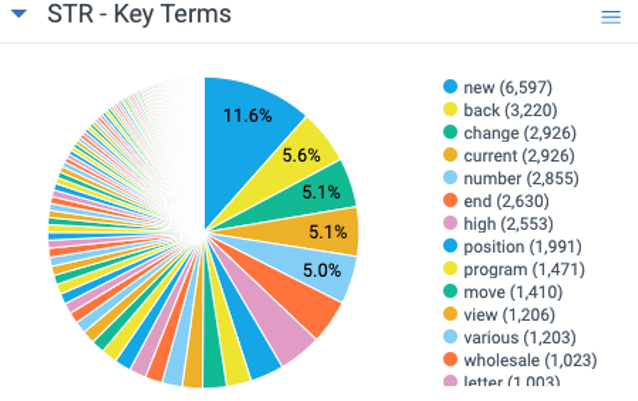 |
| • View the results with viewer highlights -
When you associate the terms in a Search Terms
Report with a Persistent Highlight Set, they will
automatically be highlighted in the document Viewer. | 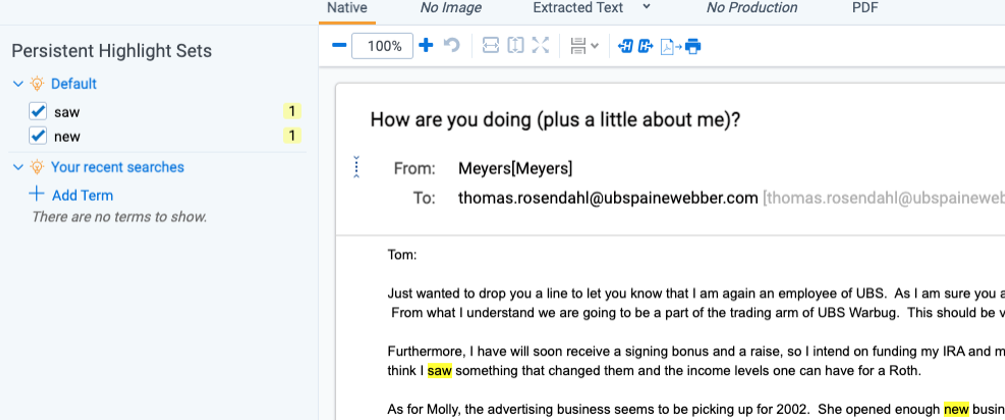 |
### Search by document concepts
You can search by document concepts via the following method.
| Widget | Example |
| --- | --- |
| • Use the [Cluster visualization widget](https://help.relativity.com/RelativityaiR/Content/Relativity/Analytics/Cluster_visualization.md#Using) to
understand the topics associated to
documents in your returned set.
Click into a cluster segment or sub-segment
to filter specifically for documents that contain
that concept. Find additional search terms
from the clusters or explore documents in
clusters to get a sense of the subject matters in documents. | 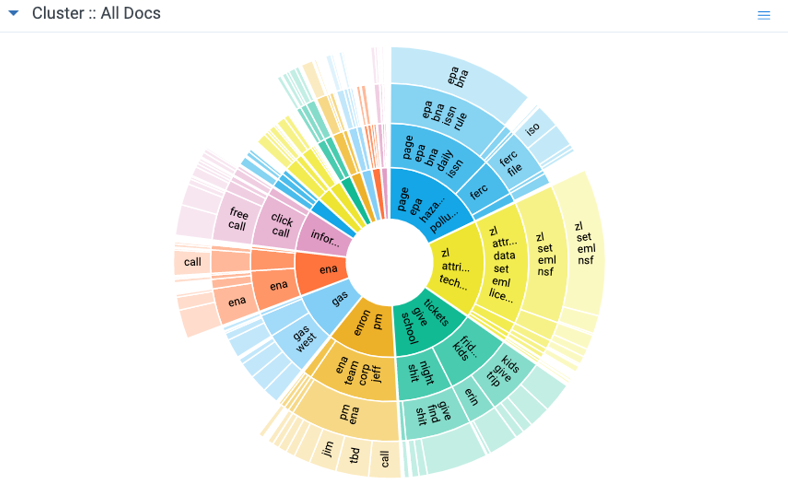 |
### Search by document attributes
You can search by document attributes via the following methods.
| Attribute | Example |
| --- | --- |
| • Filter on dates - click and drag on a [date widget](https://help.relativity.com/RelativityaiR/Content/Relativity/Pivot/Running_Pivot_reports_in_the_new_UI_framework.md) to quickly filter for documents whose
sent or created date fall between specific months or years. | 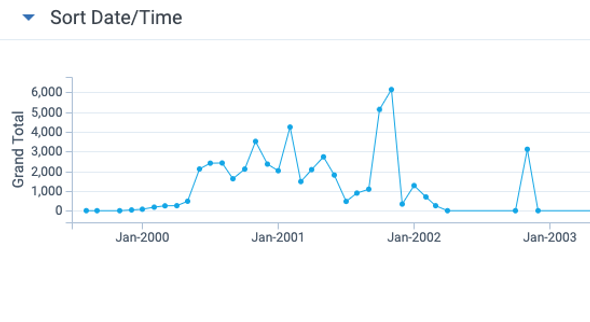 |
| • Save and rerun searches - [saved searches](https://help.relativity.com/RelativityaiR/Content/Relativity/Saved_search/Saved_search.md) allow you to string together
a combination of term searches with date
filters and more into a search that can be rerun
later. The Relativity aiR Investigation Template has
a number of saved searches included by
default to pull back specific kinds of documents. | 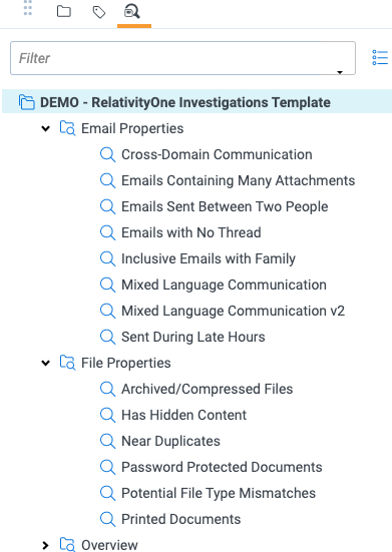 |
## Review Communications
You can use the following communication analysis methods as part of your Relativity aiR Investigations workflow.
| Widget | Example |
| --- | --- |
| • Analyze communications - use the [Communication Analysis widget](https://help.relativity.com/RelativityaiR/Content/Relativity/Analytics/Communication_analysis.md) to
understand how people are communicating
with each other. Select a key player and see
who they communicated with. Visit the Entity
object to see all email aliases for the people in the investigation. | 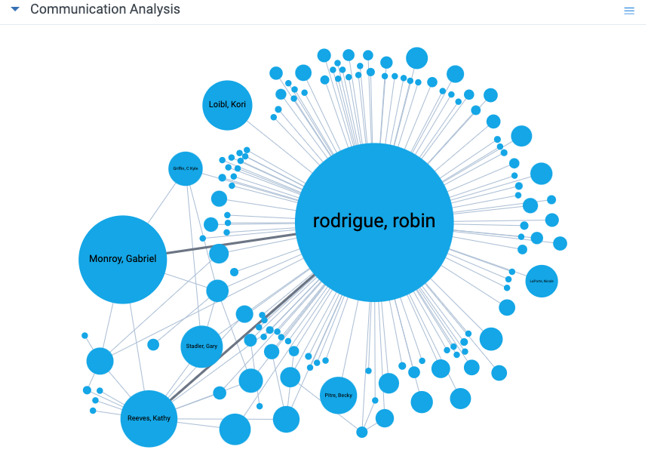 |
| • Visualize email threads - follow the
email conversation with [email thread visualization](https://help.relativity.com/RelativityaiR/Content/Relativity/Analytics/Email_thread_visualization.md).
Click email thread visualization icon in the
document viewer to see the visualization
and select the nodes to see
how events were captured in emails. | 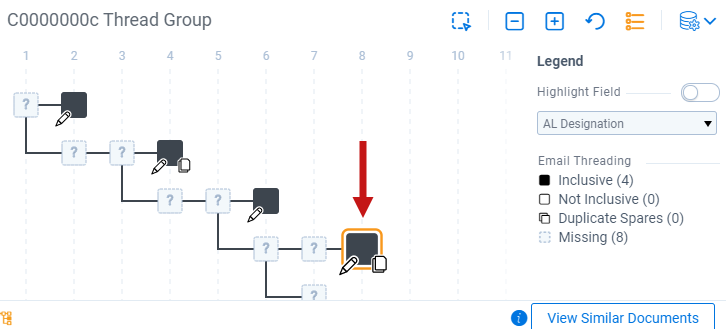 |
## Document Findings
Use the following methods to report on the findings of your investigation.
| Method | Example |
| --- | --- |
| • Mark relevant documents - mark key documents as *Relevant* in the [coding pane](https://help.relativity.com/RelativityaiR/Content/Solutions/Reviewing_documents_in_Relativity.md) of the document
viewer and leave a comment describing why it’s important. You can tag documents that are critical to the investigation as *Hot Doc*. | 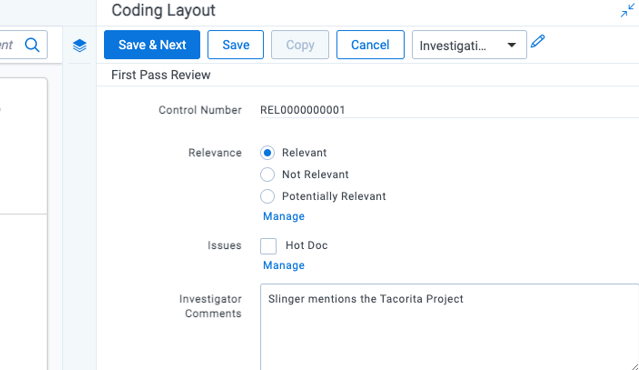 |
| • Download PDFs of relevant documents -
narrow the document list to pull back relevant
documents and run a [mass PDF operation](https://help.relativity.com/RelativityaiR/Content/Relativity/Mass_operations/Mass_PDF.md)
to download them all as PDFs. |  |
| • Download a list of relevant files -
create a report of your findings by using
the [mass Export to File operation](https://help.relativity.com/RelativityaiR/Content/Relativity/Mass_operations/Mass_export_to_file.md) to
download to a CSV or Excel file. |  |
## Tips
Consider using the following during your Relativity aiR Investigations workflow.
| Tip | Example |
| --- | --- |
| • Document preview - especially at the
beginning on your investigation,
use the [Document Preview](https://help.relativity.com/RelativityaiR/Content/Relativity/Workspaces/Workspace_navigation.md#Document2) functionality
on the list page to preview documents
quickly without having to open them in the full viewer. | 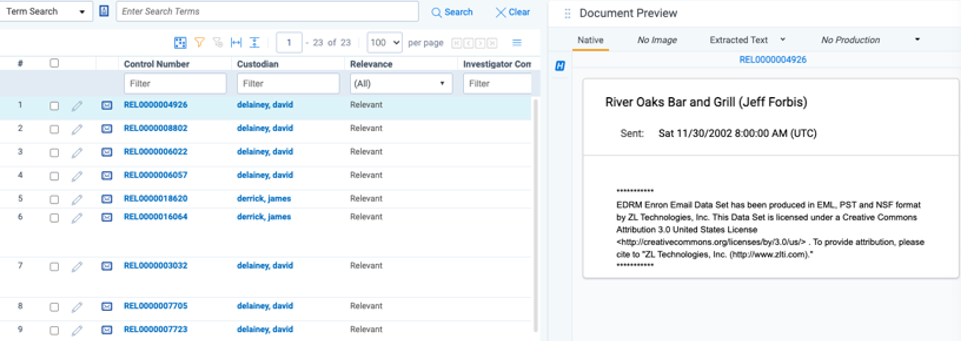 |
| • Extracted text view - when your document
set is primarily emails, consider using a
document view that only returns Extracted Text
to more easily scan documents for interesting content. | 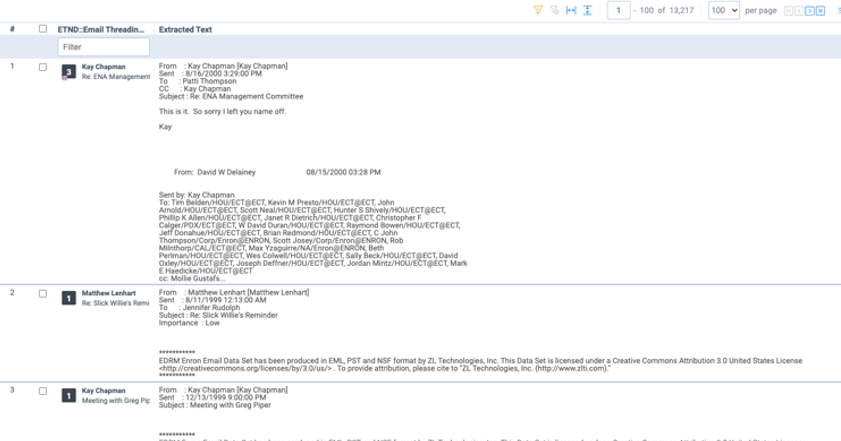 |
| • Exclude non-inclusive emails - create custom views
and filters that exclude non-inclusive emails
and duplicate documents to cull down
the number of returned documents. |  |