---
title: "Installing and upgrading Case Dynamics"
description: "This page provides information on installing and upgrading the Case Dynamics application."
feature: "Case Dynamics"
audience: ["end user", "developer", "system analyst", "system administrator", "system engineer"]
version: "Relativity aiR"
type: ["User Guide", "Tutorial"]
url: "https://help.relativity.com/RelativityaiR/Content/Relativity/Case_Dynamics/Installing_and_upgrading_Case_Dynamics.htm"
lastModified: "2026-11-18"
---
# Installing and upgrading Case Dynamics
> **Note:** Case Dynamics will be available in RelativityOne and RelativityOne Government through January 31, 2027, and you can continue to use it in its current state until then. We’ve moved the date from November 30, 2026 to give customers more time to prepare. The deprecation begins Monday, February 1, 2027, after which Case Dynamics will no longer be available. As part of the deprecation, we will remove the Case Dynamics specific features and preserve the core Fact, Issue, Interview Question and Entity RDOs, so that the data is preserved. These objects will remain available, and you can continue using them for your case work. To learn more and prepare for the deprecation, see [Case Dynamics deprecation](https://help.relativity.com/RelativityaiR/Content/Relativity/Case_Dynamics/Case_Dynamics_deprecation.md).
The Case Dynamics application must be installed in each workspace that you want to use application.
## Case Dynamics compatibility matrix
| Case Dynamics version |
| --- |
| 14.0.210 |
## Special considerations
Keep the following considerations in mind when installing and upgrading Case Dynamics:
- Only a user with the appropriate system admin rights can import application schema.
- You should install/upgrade during off-hours as this disrupts workspaces services and causes them to be inaccessible during the install/upgrade period.
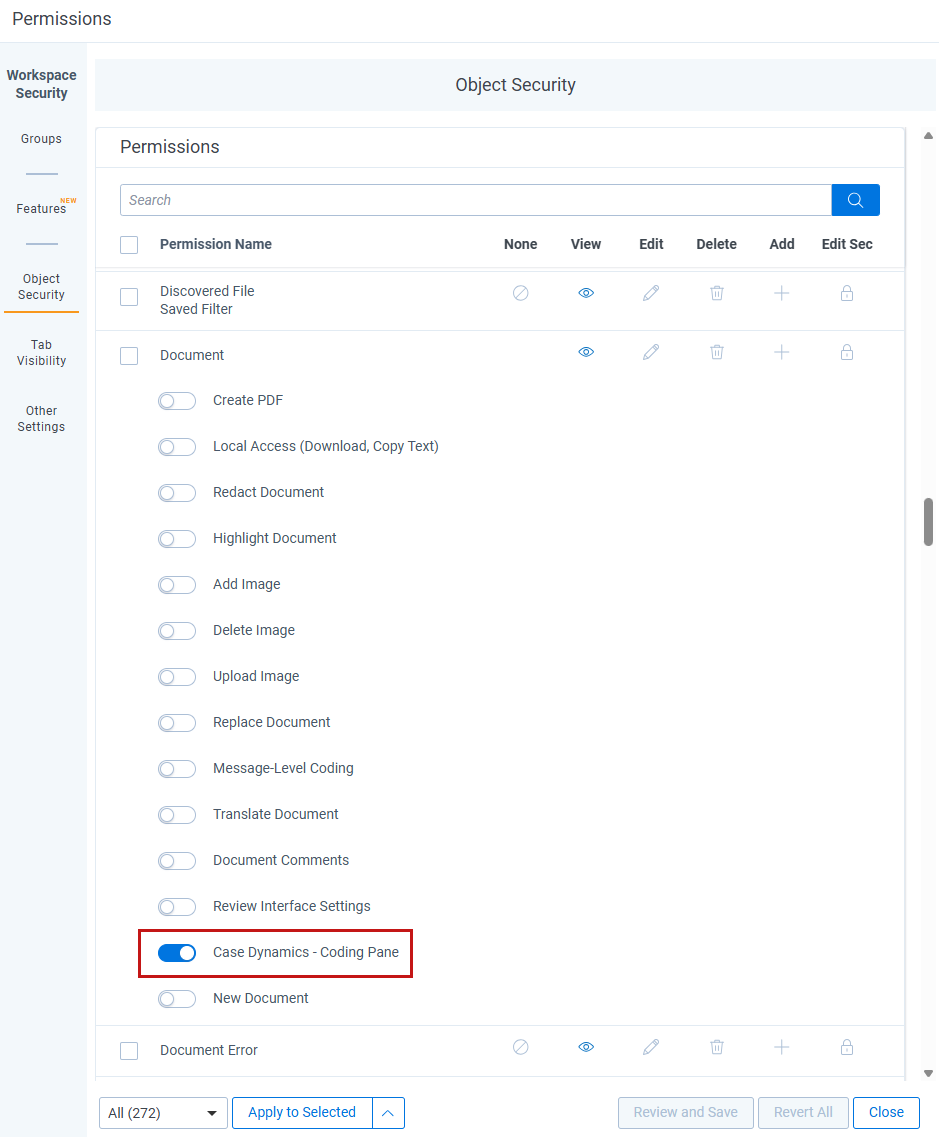
- Ensure that you have access to the **Case Dynamics - Coding Pane** permission. This permission allows group members to use the Case Dynamics coding pane. Without this permission, you will not be able to see the Case Dynamics coding pane link that allows you to access the Case Dynamics coding pane when reviewing documents. See [Security Permissions](#Security).
## Installing Case Dynamics
The latest version of the Case Dynamics application can be found in the Application Library and is part of the upgrade process. This application is also available for download in the [Relativity Community](https://community.relativity.com/s/files). Search for the name of the file, and then select the **Files** tab in the search results.
The installation process follows the same steps used to install other Relativity applications. For more information, see [Installing applications](https://help.relativity.com/RelativityaiR/Content/Relativity/Applications/Installing_applications.md).
You must have system admin permissions to install an application. See [Workspace security](https://help.relativity.com/RelativityaiR/Content/Relativity/Security_permissions/Workspace_security.md).
## Upgrading Case Dynamics
To upgrade the application, download the newly released schema from the [Relativity Community](https://community.relativity.com/s/files) and import it into the Application Library. You can find information about Case Dynamics product updates in the Relativity release notes.
> **Note:** If you have made any modifications to Case Dynamics, those will be lost upon upgrade.
## Security permissions
You must configure certain permissions for proper functionality of Case Dynamics.
1. Navigate to the **Workspace Details** tab.
2. Click **Manage Workspace Permissions**.
3. Click **Edit Permissions** for a group on the Group Management tab. Or, click **Object Security** and select a group from the **Current Group** drop-down menu.
4. Enable the following security permissions:
| Object Security | Tab Visibility | Other settings |
| --- | --- | --- |
| • **Alias object** - Delete, Add
• **Custom Date Box** - Delete, Add
• **Custom Legend** - Delete, Add
• **Document** (parent) - View, Edit
• • **Case Dynamics** - Coding Pane (child)
• **Email Alias** - Delete, Add
• **Entity object** - Delete, Add
• **Excerpt** - View, Edit, Delete, Add
• **Export History** - Delete, Add
• **Fact** - Delete, Add
• **Fact Attachment** - Delete, Add
• **Field** - Edit
• **Field MO Object** - Delete, Add
• **Interview Question** - Delete, Add
• **Interview Questions Attachment** - Delete, Add
• **Issues** - Delete, Add
• **Issues Attachment** - Delete, Add
• **Outline** - Delete, Add
• **Pivot Profile** - Delete, Add
• **Printing Profile** - Delete, Add
• **Production Set MO Object** - Delete, Add
• **Report File** - Delete, Add
• **Reports** - Delete, Add
• **Timeline Condition** - Delete, Add | • Case Dynamics (parent)
• • Entities (child)
• • Fact (child)
• • Interview Questions (child)
• • Issues (child)
• • Listview Fact (child)
• • Listview Interview Question (child)
• • Listview Issues (child)
• • Listview Outlines (child)
• • Outlines (child)
• • Printing profile (child)
• • Report Set (child)
• • Timeline Builder (child)
• • Outlines (child)
• • Printing profile (child)
• • Report Set (child)
• • Timeline Builder (child)
• Entities (parent)
• • Aliases (child)
• • Entities (child)
• **Note:** When you install the Analytics application in your workspace, a parent level Entities tab and a child Aliases tab are created. Additionally, the Entities child tab of the parent Case Dynamics tab will be moved under the Entities parent tab. | • Admin Operations
• • Delete Object Dependencies
• • Use Pivot/Chart |
Case Dynamics is now successfully configured. All other Relativity permissions behave in standard fashion within Case Dynamics.
### Control mass actions
Case Dynamics is permission-aware, meaning that system admins can control which items a user can use. For example, if the user does not have Delete permissions on the Fact item, they will not see the Mass Delete option.
The following table includes the mass actions that system admins can control on a particular item:
| View | Edit | Edit and Add | Edit, Delete, and Add |
| --- | --- | --- | --- |
| • Export to XLS
• Export to CSV | • Edit
• Print
• Replace
• Export to XLS
• Export to CSV | • Edit
• Copy
• Print
• Replace
• Export to XLS
• Export to CSV | • Edit
• Copy
• Print
• Replace
• Delete
• Export to XLS
• Export to CSV |