---
title: "Microsoft 365 - Teams data source"
feature: "Data sources"
audience: ["end user", "developer", "system analyst", "system administrator", "system engineer"]
version: "Relativity aiR"
type: ["User Guide", "Tutorial"]
url: "https://help.relativity.com/RelativityaiR/Content/Collect/Data_sources/Microsoft_365_-_Teams.htm"
lastModified: "2026-11-20"
---
# Microsoft 365 - Teams data source
This topic provides details on how to capture Microsoft 365 Teams with Collect.
> **Note:** This documentation contains references to third-party software, or technologies. While efforts are made to keep third-party references updated, the images, documentation, or guidance in this topic may not accurately represent the current behavior or user interfaces of the third-party software. For more considerations regarding third-party software, such as copyright and ownership, see [Terms of Use](https://www.relativity.com/terms-of-use/).
## Considerations
Note the following considerations about this data source:
- Requires enhanced licensing - E5 licensing. For more information, see [Licensing requirements](#Licensin).
- Attachments have a 200MB limit for collections.
- We recommend limiting the date range of the collection.
- Extended date ranges can increase collection time and potentially create issues.
- For more information, see [Collection size](#CollectionSize).
- Collect uses the Teams API endpoints.
- The Teams export does not currently support access to preserved Teams chat messages.
- This endpoint does not navigate to recoverable items folders. For example, the SubstrateHold folder.
- If the Azure Application Registration secret changes or expires, update all Microsoft data sources that use that registration. Go to *Collect Admin*, select each affected data source, click *Edit*, enter the new secret in the Application Secret field, and click *Save*.
- This data source does not support collection from inactive or deleted Microsoft 365 accounts.
- To collect preserved Teams content for an inactive account, retrieve the content through Microsoft Purview eDiscovery Premium and import it using Purview Sync.
- For more information, see [Purview Sync](https://help.relativity.com/RelativityaiR/Content/Relativity/Purview_Sync/Purview_sync.md).
### Grouped collection
Teams data is collected into grouped collections. Chat conversations often include multiple custodians in the same message threads or channels. Relativity collects this data as a single grouped data set rather than splitting messages by individual custodian.
For more information on grouped collections, see [Grouped collections](https://help.relativity.com/RelativityaiR/Content/Collect/Collection/Grouped.md).
### Attachments and linked cloud files
Relativity includes files directly attached to conversations are included as children to the parent RSMF file that is generated during collection.
Relativity retrieves the linked cloud files residing in OneDrive and SharePoint during Teams collections. Currently, the most recent version of the file is retrieved. If the file no longer exists or is inaccessible, an item-level error is recorded in the errors report for the target collection. Relativity includes linked cloud files are included as children to the parent RSMF.
### Collection size
Teams collections are slower relative to other Microsoft sources due to API constraints and high activity levels.
| Category | Details |
| --- | --- |
| Hard limits (enforced) | 30 custodians per job |
| Planning thresholds (guidance) | About 0.5 GB/hour per custodian (average)
Active tenants slow even with short ranges |
| When to split | Active channels over long periods |
| Notes | Slower due to Teams Export API |
Plan for slower throughput. Always segment long or highly active channel collections.
## Task checklist
The table lists the order to perform the necessary tasks for setting up the data source for Collect.
> **Note:** Separate Microsoft data sources inside Collect can use the same Microsoft Azure app registration.
> This means you only need to create one Microsoft Graph application and provide one Client ID and one Client Secret. You can then enter that same set of credentials for Microsoft data sources within Collect.
| Order | Application | Task |
| --- | --- | --- |
| 1 | Azure | [Registering the Collect application](#AzurePortal) |
| 2 | Azure | [Obtaining a client secret](#Obtainin) |
| 3 | Azure | [Setting API permissions](#Setting) |
| 4 | Collect | [Creating the data source in Collect](#Creating) |
| 5 | Collect | [Configuring the data source in Collect](#Configur) |
## Accessing Microsoft 365 tenants
Register the Collect application in Azure to access Microsoft 365. When registering the application, the Microsoft 365 administrator creates a Microsoft Application ID and secret. You will use the ID and secret to configure data sources in Collect and they provide access to the Office 365 tenants. You can register the application through Azure Portal or by registering the application permissions through the Microsoft App Registration Portal. After registering the application, request administrator consent. From there, it is possible to revoke application access.
Use this information to create a Microsoft integration point. For more information, see [Importing from Microsoft Entra ID](https://help.relativity.com/RelativityaiR/Content/Relativity/Integration_Points/Importing_data_through_Integration_Points.md#ImportingMSAzureAD).
Depending on your Relativity aiR license, commercial or government, and your Microsoft tenant, Microsoft 365 or Microsoft 365 Government, you will be able to collect from either Microsoft 365 or both Microsoft 365 and Microsoft 365 Government data sources. Commercial users can only collect from Microsoft 365 tenants. Government users can collect from Microsoft 365 and Government 365 tenants. These data sources act the same, but have different icons within Collect.
### Licensing requirements
With the Teams Export API, Relativity meets compliance when collecting data. To use the API and collect Teams chats, users must meet one of the following licensing requirements. This licensing applies to individual custodian accounts.
- Office 365 E5/A5/G5
- Microsoft 365 E5/A5/G5
- Microsoft 365 E5/A5/F5/G5 Compliance and Microsoft 365 F5 Security & Compliance
- Microsoft 365 E5/A5/F5/G5 Information Protection and Governance
For more information, see relevant Microsoft documentation on the Microsoft site:
- [Export Teams content](https://docs.microsoft.com/en-us/microsoftteams/export-teams-content)
- [Teams licenses](https://docs.microsoft.com/en-us/graph/teams-licenses)
- [Microsoft 365 guidance for security and compliance](https://learn.microsoft.com/en-us/office365/servicedescriptions/microsoft-365-service-descriptions/microsoft-365-tenantlevel-services-licensing-guidance/microsoft-365-security-compliance-licensing-guidance#microsoft-graph-apis-for-teams-data-loss-prevention-dlp-and-for-teams-export)
### Registering the Collect application
Start with registering your application in the Azure portal by following the steps below.
> **Caution:** The listed permissions and roles are required and supported by Relativity.
> - Relativity does not support substitutions or reduced permissions.
> - You can submit requests for alternative or reduced permissions as product feedback.
For more information on registering an application in Azure, see [Microsoft's documentation](https://docs.microsoft.com/en-us/azure/active-directory/develop/quickstart-register-app) or [Microsoft's authentication documentation](https://docs.microsoft.com/en-us/exchange/client-developer/exchange-web-services/how-to-authenticate-an-ews-application-by-using-oauth).
> **Note:** These steps must be completed by a Microsoft 365 administrator.
1. Open your [Azure Portal](https://portal.azure.com/).
2. Click **Microsoft Entra ID** (formerly known as Azure Active Directory).
3. Click **App registrations**.
4. Click **New Registration** to display the Register an application page.
5. Enter an application name in the **Name** field.
6. Accept the default setting, **Accounts in this organizational directory only**, as the supported account type.
7. Click **Register**.
8. Once the application is registered, make note of the **Application (client) ID** and **Directory (tenant) ID** for use later when configuring the data source in Relativity aiR Collect.
### Obtaining a client secret
Next, obtain the client secret for the registered application in the Azure portal. For more information, see relevant Microsoft documentation on the Microsoft site.
> **Note:** These steps must be completed by a Microsoft 365 administrator.
1. From the registered application's page, click the **Certificates & secrets** option in the left navigation bar.
2. Click the **Client secrets** tab.
3. Click **New client secret**.
4. Enter a description for the client secret in the **Description** text box.
5. Select **730 days (24 months)** from the Expires list. The client secret will expire after this time frame.
- Once the client secret expires, you must create a new client secret in the Azure portal as described in these steps.
- Then you must update your Microsoft 365 Collect data sources with it. For more information, see [Expired Azure client secrets](#Expired).
- For any additional assistance with client secrets, please contact the Azure Admin in your organization.
6. Click **Add** to create a new secret.
> **Caution:** Microsoft will only show the secret value this one time. There is no way to recover a secret.
7. Click the copy icon to copy the **Secret Value** to the clipboard.
- Paste it to a safe location.
- You will use the Secret Value later when creating the data source in Collect.
- Confirm you copy the *Secret Value* and not the Secret ID.
8. Give your Relativity Admin the Application ID and the Client Secret for setup of Collect.
- This application secret is also needed for setting up a Microsoft Entra ID integration point.
- For more information, see [Importing from Microsoft Entra ID](https://help.relativity.com/RelativityaiR/Content/Relativity/Integration_Points/Importing_data_through_Integration_Points.md#ImportingMSAzureAD).
#### Expired Azure client secrets
If your Azure client secret expires, follow these steps:
1. Get a new secret as outlined in the steps above.
2. Go to **Collect Admin** in Relativity aiR.
3. Select the desired data source that has expired, and click **Edit**.
4. Input the new client secret value in the **Application Secret** field.
5. Click **Save**.
You must repeat these steps for all Microsoft data sources that you have set up.
### Setting API permissions
Each data source has its own set of permissions necessary to allow access to the tenants. To add the correct permissions based on your selected Microsoft 365 data source, follow the steps below. For more information, see relevant Microsoft documentation on the Microsoft site.
> **Note:** These steps must be completed by a Microsoft 365 administrator.
1. From the registered application's page, click the **API permissions** option in the left navigation bar. The User.Read permission is automatically added by default.
2. Click **Add a permission**.
3. Click **Microsoft Graph**.
4. Select **Application Permissions**.
5. Select the following permissions from the Permission list. Refer to *Azure Application Registration Permissions for Collect* below for more information about these permissions.
- User.Read.All
- ChannelMessage.Read.All
- Chat.Read.All
- Files.Read.All
- Group.Read.All
- TeamsTab.Read.All
- Team.ReadBasic.All
- ChannelMember.Read.All
6. Click **Add permissions**.
7. Click **Grant Permission**.
8. Make a note of the application ID that Microsoft assigned to the app registration. This ID is also required for setup of data sources in Collect.
> **Notes:**
> - The window displays all permissions granted. Verify that all permissions have been granted.
> - Click **Accept** to grant the permissions.
#### Azure Application Registration Permissions for Collect
The Collect application in Relativity aiR is a tool designed to streamline the data collection process for eDiscovery. Its primary purpose is to gather data from various sources, such as cloud-based applications and other data repositories, in a manner that is secure, defensible, and efficient. Collect aims to reduce the time and effort involved in data collection, ensuring that the data is accurate and complete, while maintaining chain of custody and compliance with legal and regulatory requirements.
Due to the architecture of the Collect application, Delegated permission can’t be used and are not supported. The Collect application requires the use of Microsoft Graph API Azure Application permissions to facilitate the collection of data that occurs in processes running in the background.
The Collect application requires specific Graph API Application permissions be granted to an Azure Application Registration to facilitate efficient and comprehensive data collection for e-discovery and compliance purposes.
Following is an explanation of each Azure application Graph API permission required and why it is needed to support collections of M365 data. For a PDF of this information, see [Azure Application Registration Permissions for Collect](https://help.relativity.com/PDFDownloads/RelativityaiR_PDF/Azure%20Permissions%20Explained_MS.pdf "RelativityOne Azure Permissions Explained").
Required Azure Application Graph API Permissions:
1. **Calendars.Read**—this permission allows Relativity to access calendar events. For e-discovery, it's important to capture calendar data as it can provide crucial context, timelines, and evidence related to the case or investigation.
2. **ChannelMember.Read.All**—this permission provides access to the membership information of all Teams channels. It allows Relativity to see who is part of each channel, which can be important for understanding who had access to certain communications and information during an investigation.
3. **ChannelMessage.Read.All**—this permission provides access to all messages in Microsoft Teams channels. It allows Relativity to capture and review conversations and discussions that take place in Teams channels, which may contain pertinent information for legal or compliance purposes.
4. **Chat.Read.All**—this permission enables Relativity to read all chat messages in Microsoft Teams. This includes private chats between users. Access to these messages is essential for gathering complete communication records and ensuring that no relevant information is overlooked in an investigation.
5. **Contacts.Read**—this permission allows access to contacts and is necessary to gather information about communications and relationships between individuals, which can be critical in understanding the full scope of interactions and connections in an investigation.
6. **eDiscovery.Download.Read**—this permission allows Relativity to download export packages and item reports from Microsoft Purview eDiscovery. These exports can contain documents, emails, Teams messages, and other collected data that are relevant to a legal matter or compliance review. This permission is required to retrieve exported data from Microsoft Purview for processing and review.
7. **eDiscovery.ReadWrite.All**—this permission allows Relativity to read and manage Microsoft Purview eDiscovery objects, including cases, custodians, holds, searches, review sets, and exports. It enables Relativity to create and manage e-discovery workflows programmatically, helping organizations automate the identification, preservation, collection, and review of potentially relevant information for legal and compliance matters.
8. **Files.Read.All**—this permission enables Relativity to access all files in OneDrive and SharePoint. It is essential for collecting documents, spreadsheets, presentations, and other files that might contain relevant information for a legal matter or compliance review. This permission is also required to support collection of linked OneDrive and SharePoint files in Outlook emails and Teams chats.
9. **Full_access_as_app Permission**—the Microsoft Graph API does not support accessing Outlook Online Archives (Archived Mailboxes). We utilize Microsoft's Exchange Web Services (EWS) API to collect Archived Mailboxes.
10. **Group.Read.All**—this permission allows Relativity to read all groups in the directory, including their properties and memberships. It helps in understanding the structure and membership of various groups within the organization, which can be important for context in e-discovery and compliance scenarios.
11. **Mail.Read**—this permission allows access to emails, which is one of the core components of e-discovery. This permission allows Relativity to read email messages in users' mailboxes to identify, preserve, and analyze communications that are pertinent to the case.
12. **Sites.Read.All**—this permission allows Relativity to access all SharePoint sites, including content and metadata. It ensures that any relevant information stored in SharePoint sites can be collected and reviewed.
13. **Team.ReadBasic.All**—this permission allows Relativity to read basic properties of all Teams. It helps in identifying and understanding the different Teams within the organization, their purposes, and their memberships, which can be relevant for investigations and compliance checks.
14. **TeamsTab.Read.All**—this permission allows Relativity to read the properties of all tabs in Microsoft Teams. Tabs can contain important resources, documents, and tools that users interact with. Access to this information can provide additional context and insights into the work and communications of users.
15. **User.Read.All**—this permission provides access to read the properties and membership of users. It is useful for identifying and understanding the roles, permissions, and activities of different users within the organization, which can be relevant for investigations and compliance checks.
## Finding Azure credentials
If an application is already created and you need to find the application information to complete the Source Connection step, follow the steps below in the Azure Portal. For more information, see relevant Microsoft documentation on the Microsoft site.
1. Open your [Azure Portal](https://portal.azure.com/).
2. Click **Microsoft Entra ID** (formerly known as Azure Active Directory).
3. Navigate to **Enterprise applications**.
4. In the list of applications, locate and click on your application.The application page displays.
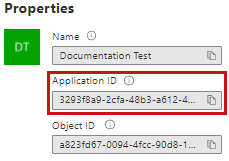
5. Navigate to **Properties**.
6. Click the **copy icon** next to the **Application ID**. The ID is copied to your clipboard to use as needed.
## Revoking application access
Revoke the application from the Azure portal or by using a PowerShell script. For more information, see [Microsoft's documentation](https://docs.microsoft.com/en-us/skype-sdk/trusted-application-api/docs/tenantadminconsent#revoking-tenant-admin-consent).
### Revoking access via Azure Portal
To revoke access from the Azure portal:
1. Open your [Azure Portal](https://portal.azure.com/).
2. Navigate to **Enterprise Application**.
3. Under **All applications**, search for your application and click its link.
4. Under **Manage > Properties**, click **Delete**.
Collect no longer has access.
### Revoking access via Powershell
Revoke access in Powershell using the Remove-MsolServicePrincipal script. See the Powershell example below of retrieving and deleting an application registration.
Get-MsolServicePrincipal -AppPrincipalId 19ab8a2e-ccce-4fa8-a9ee-eb16e220d602
ExtensionData : System.Runtime.Serialization.ExtensionDataObject
AccountEnabled : True
Addresses : {}
AppPrincipalId : 19ab8a2e-ccce-4fa8-a9ee-eb16e220d602
DisplayName : Relativity-Development-Application
ObjectId : 51798fb3-e72c-4373-8c63-6e7d0dd63ad7
ServicePrincipalNames : {19ab8a2e-ccce-4fa8-a9ee-eb16e220d602}
TrustedForDelegation : False
Remove-MsolServicePrincipal -AppPrincipalId 19ab8a2e-ccce-4fa8-a9ee-eb16e220d602
## Creating the data source in Collect
The Collection Admin tab is where you create, edit, and remove data sources from your workspace. You only need to setup each data source once. You must create your data sources prior to setting up your custodian targets.
1. In Relativity aiR, navigate to **Collect**.
2. Click the **New Collection Source Instance** button.
3. Enter in a unique name for the data source.
4. Select **M365 - Teams** or **G365 - Teams**.
> **Note:** Collect automatically collects any preserved data in an in-place hold or litigation hold. Microsoft stored data on a hold in a preservation library and separate folders. For more information, see [Microsoft Retention Policies](https://docs.microsoft.com/en-us/office365/securitycompliance/retention-policies).
5. Enter the required information in Settings. For more information, see [Settings fields](#Settings).
6. Click **Save**.
After clicking Save, Relativity verifies the parameters and connectivity to the Microsoft 365 data source. If successful, Collect saves the data source. If the connection fails, a message appears indicating the connection failed. If verification fails, verify that the values are correct. Collect will save the data source when it's corrected and verified.
Once the set up is complete, the data source information on the Collect Admin page.
## Settings fields
To connect Relativity to a Microsoft Teams data source, you need to gather and enter the information for the following fields:
- **Domain**—enter the Tenant ID or Primary domain (domain name usually ends with .onmicrosoft.com) of the Microsoft 365 tenant the collection is intended for. To locate the tenant ID or primary domain name, see [Microsoft documentation](https://learn.microsoft.com/en-us/partner-center/account-settings/find-ids-and-domain-names#find-the-microsoft-entra-tenant-id-and-primary-domain-name).
- **Application Id**—enter the application ID created during registering the Collect application in Microsoft 365.
- **Application secret**—enter the application secret created during registering the Collect application in Microsoft 365. For more information, see [Accessing Microsoft 365 tenants](#AcessingM365Tenants).
Depending on your Relativity aiR license, commercial or government, and your Microsoft tenant, Microsoft 365 or Microsoft 365 Government, you will be able to collect from either Microsoft 365 or both Microsoft 365 and Microsoft 365 Government data sources. Commercial users can only collect from Microsoft 365 tenants. Government users can collect from Microsoft 365 and Government 365 tenants. These data sources act the same, but have different icons within Collect.
### Data source details
Each data source details page includes an Action console. Each data source has different actions.
On the Microsoft Teams data source page, click **Validate Connection** in the Actions console to validate the client ID, certificate, and other credentials with Microsoft 365.
## Configuring the data source in Collect
In Relativity aiR, configure the data sources chosen in the Collection Details step.
> **Notes:**
> - The Microsoft 365 Teams data source collects the most recent version of each message.
> - Deleted messages are available to collect for 21 days from the time of deletion.
> - Task module content is not currently supported for collection.
### Data source criteria
Add criteria to collect specific data. To configure the data sources, complete the following fields:
- **Select and unselected tabs**—choose the data sources to collect from by moving unselected data sources to the selected list.
- **Field**—choose the field to filter on within the data source.
> **Note:** You must add start and end dates to complete the Data Sources step.
- **Operator**—choose an operator such as equals, contains, greater than, or less than.
- **Value**—enter a value to find in the selected field.
After selecting field options, you must click **Add Criteria**.
Details to know about criteria:
- Each criteria is then separated by an AND operator.
- Leave the data source criteria empty to collect all data from the sources.
The following table lists the filter criteria supported for Microsoft Teams collections.
Relativity collects Microsoft Teams data in RSMF. For more information, see [The Relativity Short Message Format (RSMF)](https://help.relativity.com/RelativityaiR/Content/System_Guides/Relativity_Short_Message_Format/Relativity_short_message_format.md).
> **Note:** You must register Relativity in Microsoft 365 before using this data source. For information on registering Relativity in Microsoft 365, see [Accessing Microsoft 365 tenants](#AcessingM365Tenants).
When using search criteria to filter for Teams, you must select start dates and end dates. All dates are in Coordinated Universal Time (UTC).
| Criteria | Operators | Description | Example |
| --- | --- | --- | --- |
| Chat Type | Equals | When you use the Chat Type property in a query, the search returns all messages in either Private Channels, Private Chats, Public Channels, Shared Channels, or Meetings. | If you search a Chat Type with the Public Channels operator selected, Relativity collects only messages in public channels that the custodians are in. |
| End Date | Less Than or Equals | When you use the End Date property in a query, the search returns all messages the day of and before the entered date. | If you search a Start Date of 1/1/2001 and an End Date of 1/1/2020, Collect returns all messages on and between the two dates. |
| Exclusive Channels | Equals | When you use the inclusive option, only the specified channels will be collected. You must use the channels friendly name. Use commas to separate multiple entries. | If you want to exclude the General and Contracts channels, enter: general, contracts.
**Note:** Channel names are not case sensitive. |
| Exclusive Teams | Equals | When you use the exclusive option, all channels except the excluded channels will be collected. You must use the channels friendly name. Use commas to separate multiple entries. | If you want to exclude the Development and Documentation teams, enter: development, documentation.
**Note:** Team names are not case sensitive. |
| Inclusive Channels | Equals | When you use the inclusive option, only the specified channels will be collected. You must use the channels friendly name. Use commas to separate multiple entries. | If you want to include the General and Contracts channels, enter: general, contracts.
**Note:** Channel names are not case sensitive. |
| Inclusive Teams | Equals | When you use the inclusive option, only the specified teams and the channels associated with them will be collected. You must use the teams friendly name. Use commas to separate multiple entries. | If you want to include the Development and Documentation teams, enter: development, documentation.
**Note:** Team names are not case sensitive. |
| Slice in Interval in Hours | Equals | When you use The Slice Interval in Hours property, the search returns all messages in a specific time range or defaults the slice interval to 24 hours. | If you search with a slice interval set to one hour and a conversation spans five hours, you will end up with five RSMFs after processing. For more information, see [RSMF Slicing](https://help.relativity.com/RelativityaiR/Content/System_Guides/Relativity_Short_Message_Format/RSMF_Slicing.md). |
| Start Date | Greater Than or Equals | When you use the Start Date property in a query, the search returns messages that exist the day of and after the entered date. | If you search a Start Date of 1/1/2001 and an End Date of 1/1/2020, Collect returns all messages on and between the two dates. |
Included in the Microsoft 365 Teams criteria are two toggles:
- **Collect linked files external to M365**—enable the toggle to collect modern attachments, or files linked in Teams that are external to the Microsoft 365 tenant.
- You must opt in to confirm that you want to collect files outside of Microsoft 365.
- For more information, see [Modern attachments](#Modern).
> **Note:** This option is only available for Relativity aiR production environments. Relativity aiR Government environments cannot collect external files.
- **Enable Dedupe**—enable the toggle to exclude cards contained in Teams chat messages. Due to the nature of how Microsoft provides card information, inclusion of cards prevents deduplication of RSMFs during processing. For more information, see [Microsoft's documentation](https://docs.microsoft.com/en-us/microsoftteams/platform/task-modules-and-cards/what-are-cards).
For more information, see [Microsoft Security and Compliance Center documentation](https://docs.microsoft.com/en-us/office365/securitycompliance/keyword-queries-and-search-conditions).
### Modern attachments
When collecting Microsoft Teams data, files shared as modern attachments are collected as separate documents.
The Teams message contains a link to the file, while the file itself appears as a standalone record in Relativity aiR. This is expected behavior.
#### Validate modern attachments
Use the steps below to confirm that a modern attachment referenced in a Teams message was collected successfully.
1. Navigate to **Documents**.
2. Filter the *Record Type* by **File**.
3. Open a file and confirm Source Path shows a SharePoint or OneDrive location.
4. Copy part of the file name.
5. Search Documents for that file name.
6. Open the related Teams message.
Record Type = Short Message, if available.
7. Confirm the message contains a cloud link to the file.
The file and message are linked as designed.