---
title: "Creating and running an Archive job"
description: "Archive a workspace with ARM by setting its source, destination, options, and notifications, then run the job and track its phases, stages, and statuses."
feature: "ARM"
audience: ["end user", "developer", "system analyst", "system administrator", "system engineer"]
version: "Relativity aiR"
type: ["User Guide", "Tutorial"]
tocPath: "Features|Data transfer|ARM"
url: "https://help.relativity.com/RelativityaiR/Content/ARM/Creating_and_running_an_Archive_job.htm"
lastModified: "2026-11-24"
---
# Creating and running an Archive job
The archive function assesses a workspace’s primary and critical components and packages those components into an archive. ARM includes the following components:
- workspace database
- natives, images, produced images
- processing
- coding decisions
- layouts
- views
- saved searches
- extracted text
- Review Center
- Audit
- dtSearch index
- Structured Analytics
- Conceptual Analytics
## Creating an Archive job
Complete the following steps to create a new Archive job:
1. Click **New Archive** at the top of the ARM Jobs page.
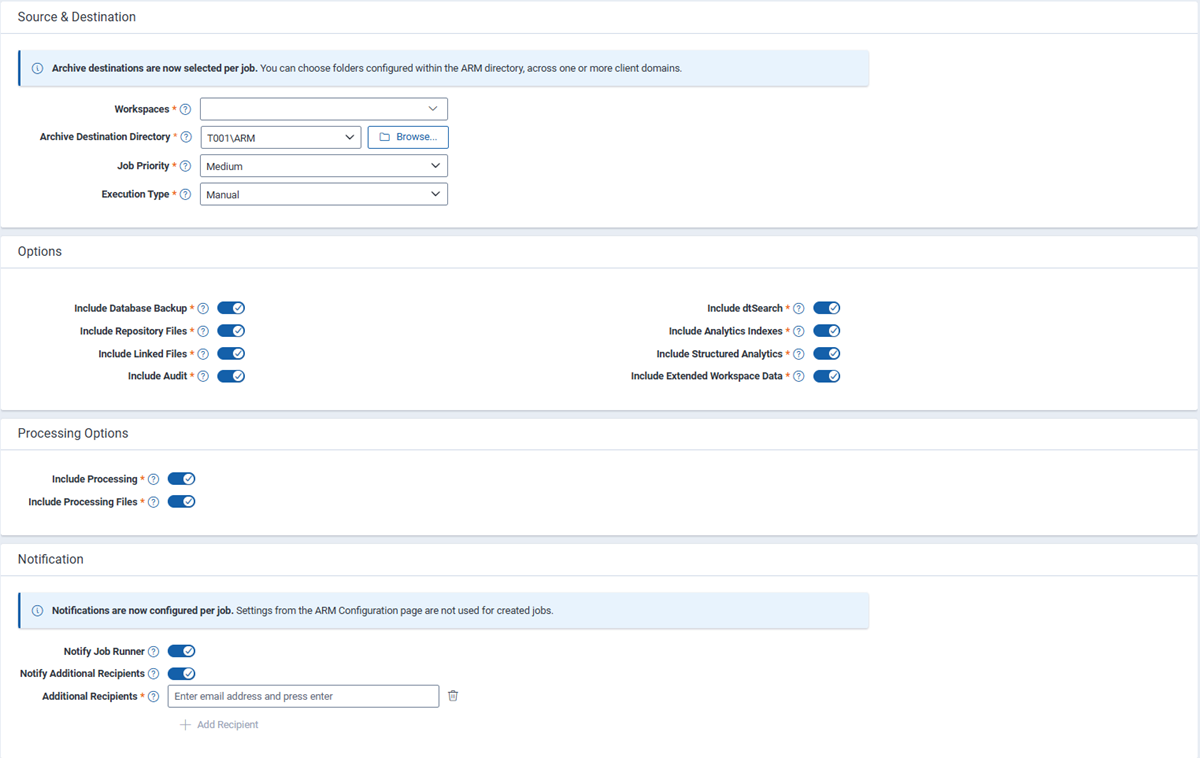
2. Configure settings in [Source & Destination fields](#Source), [Options fields](#Options), [Processing Options fields](#Processi), and [Notification fields](#Notifica) sections.
3. Click **Save**.
At this point, you can:
- Click **Run Job** in the console to run the job manually.
- Click **Delete Job** in the console to delete the job.
- Click the **ARM Jobs** tab on the page to navigate back to the ARM Jobs list and view the newly created Archive job.
### Source & Destination fields
See the fields to complete in the Source & Destination section
Complete the following fields:
- **Workspace**—select the workspace(s) from the drop-down list, or enter a workspace name in the search box that appears. You can select multiple workspaces simultaneously from the drop-down list. When you select multiple workspaces, ARM creates a new Archive job with the same settings for each workspace. If you schedule a start time with multiple workspaces selected, each job shares the same start time.
- You need to have access to the workspace to create a job.
- If you cannot select or save a job with a specific workspace, verify that you have access to it and that no Not Started/In Progress/Errored job exists for that workspace.
- Workspaces that are in Cold Storage do not appear in the Workspace drop-down list. You must move them to an active state before archiving.
- Only one in progress job can exist for an archive at a time. If there is another Archive job in progress for a given workspace, you cannot select that workspace. You can create a job for a workspace that has no ARM jobs or whose ARM job is in 'Canceling' status.
- **Job Priority**—select a priority of High, Medium, or Low for the job from the drop-down list. The job priority determines the order in which the ARM agents attempt to complete tasks for jobs that are running concurrently with other jobs.
> **Note:** If multiple jobs are run at the same time with the same priority, the job with the earliest creation date is prioritized. Even if you create multiple Archive jobs at the same time, each job receives a unique creation date. If two jobs do share a creation date, the priority is determined alphabetically.
- **Archive Destination Directory**—the file path to the archive directory. These locations are pre-configured and are displayed for selection. There may be one or many locations configured for archive storage.
- **Execution Type**—select from the following options:
- **Manual**—run the job manually from the Jobs List page.
- **Scheduled**—run the job automatically at a specified date and time. When you select this option, the Scheduled Start Time field appears. Click inside the field, and then select a date and time from the calendar. You can schedule multiple jobs to run at the same time.
### Options fields
> **Note:** The size of an ARM archive can be significantly larger than the workspace size reported in Cost Explorer or shown for a workspace in Cold Storage. Cost Explorer reports billable storage size; an ARM archive is a self-contained package that contains everything needed for a full restore.
See the fields to complete in the Options section
Complete the following fields:
- **Include Database Backup**—select this checkbox to include the workspace database in the archive. The database will be backed up and placed in the archive directory. If you do not select this option, the database is not archived. To restore the archive, you must manually restore the database on the target SQL Server.
- **Include Repository Files**—select this checkbox to include all files in the workspace file repository, including natives, images, production, and files on file fields. Files imported from the load files or created in the workspace are considered Repository Files. Files published through Processing are not considered Repository Files.
- **Include Linked Files**—select this checkbox to include files that are linked to the workspace, but are not located in the workspace file repository, in the archive directory.
- Currently, ARM does not support archiving and restoring with keeping links between workspaces.
- Linked Files included in the archive will be placed into the restored workspace repository after a successful restore.
- Linked Files will be any files marked as InRepository=0 in the File table which include files loaded with pointers.
- If you exclude Processing from an archive, published files will be considered as Linked Files.
- **Include Audit**—select this checkbox to include audit data.
- **Include dtSearch**—select this checkbox to include dtSearch indexes in the archive directory. If dtSearch indexes exist in the workspace, but you do not select the option to include them, when the workspace is restored, those indexes cease to function and need to be removed and recreated from scratch. It is very important to archive dtSearch indexes if you want to keep them.
- **Include Analytics Indexes**—select this checkbox to include Analytics indexes in the archive directory.
- **Include Structured Analytics**—select this checkbox to include structured analytics sets such as email threading, language identification, etc.
- **Include Extended Workspace Data**—select this checkbox to include all admin scripts, non-core applications, and standalone resource files as exports in the archive directory. You must select this option to preserve the status of a Repository workspace when restored.
> **Note:** The [Repository Workspace application](https://help.relativity.com/RelativityaiR/Content/Relativity/RelativityOne_document_repository.md) will be included in the archive created when you select **Include Extended Workspace Data** option.
### Processing Options fields
See the fields to complete in the Processing section
Complete the following fields:
- **Include Processing**—select this checkbox to include Processing data in the archive directory.
- When you select this option, ARM takes all information from both the Store database and the primary database relevant to the jobs in the Store. It also packages all discovered files, including non-repository files, from the data source location.
- Select this only if Processing is installed in the workspace and the workspace contains processing data. If you select it for a workspace that has no processing data, the archive job fails (with an Invariant store missing error).
- You must have the Processing Migration Agent installed and enabled in order to use this option. If that agent is disabled, an error appears when you attempt to archive.
- You should not have any processing jobs, such as inventory, discovery, or publish, running in the workspace you are archiving while performing the processing Archive job.
- If you receive an authentication error during the Archive job, verify that the IdentityServerURL entry in the Invariant AppSettings table contains a valid address with a fully qualified domain name.
> **Note:** When Include Processing is not selected, ARM does not archive database or discovered files, and published files are treated as Linked Files. Also, you are not able to process any data, such as documents, sets, profiles, from the source workspace in the restored workspace, because that data was not included when archived. If you do not plan to use Processing after restoring but need a copy of published files, do not select Include Processing and select Include Linked Files under the Options section.
- **Include Processing Files**—select this checkbox if you want all the files and containers that have been discovered by Processing to be archived and placed in the directory. Processing Files are the physical files that live under the workspace’s Processing Directory in the file repository—not just the metadata. Processing includes the Processing application and its data, that is metadata and DB state, not the source files under the Processing folder.
- Not including Processing Files assumes that files already exist in the destination, are not needed in the destination—for example, as a part of a Files first workflow, or are stored and can be made available from elsewhere—for example, from persistent NAS backup or archive to be imported directly.
### Notification fields
See the fields to complete in the Notification section
Complete the following fields:
- **Notify Job Runner**—select to send notifications to the user who created the job and to the user who runs it. When the creator and the executor are the same user, only one notification is sent.
- **Notify Additional Recipients**—select to send notifications to one or more additional email addresses that you specify on the job. If you select this option, Additional Recipients field appears for entering email addresses.
- **Additional Recipients**—appears when Notify Additional Recipients option is selected.
For more details, go to [Configuring notifications for an ARM job](https://help.relativity.com/RelativityaiR/Content/ARM/Configuring_notifications_for_an_ARM_job.md).
## Running an Archive job
After you click the **Run Job** button for an already existing Archive job, ARM displays the job in progress screen with main status of the job, detailed stage information, archive settings, and actionable panel on the right.
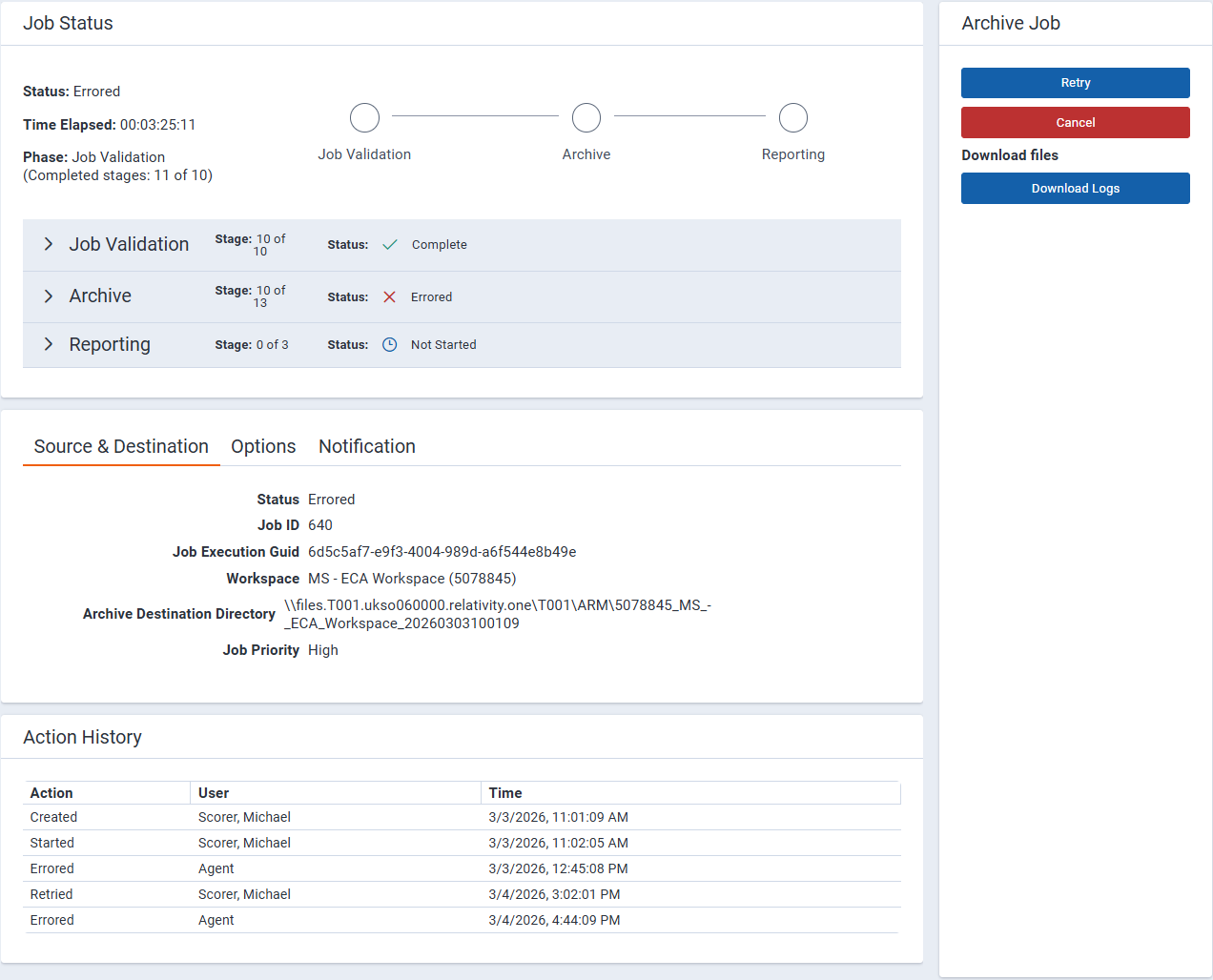
On the top of the page, you can see the job's phase overall status with the following information:
- **Status**—status of the job.
- **Time Elapsed**—the time elapsed since the job was started.
- **Phase**—displayed if the Archive job is in Validation, Archiving or Reporting phase.
Each ARM job consist of three main phases, each containing multiple stages. You can click on a phase to expand all stages inside. Stages in a phase are executed simultaneously.
### Job phases and stages
When running an Archive job, phases and stages are as follows:
1. **Job Validation**—ARM verifies different workspace and environment components to establish if the workspace is ready to be archived.
1. Archive Preparation
2. Environmental validation
3. Application Data Migration
2. **Archive**—ARM creates a copy of the workspace in the archive directory.
1. File migration
2. Data archiving: Database backup
3. Data archiving: Application and scripts
4. Archive components queuing
5. Application Data Migration
3. **Reporting**—the core archiving process is completed and the application is gathering statistics, verifying content, and preparing missing and malware file lists.
1. Statistic gathering
2. Missing and Malware files list preparation
3. File repository folder validation
In the actionable panel on the right, you can do the following with a currently running job:
- Cancel job—when you cancel a job, it continues executing tasks until it reaches a safe spot to cancel. Even if a job has 'Canceling' status, you can create a new job for the same source.
- Download logs—click **Download Logs** to download a report on the job in .txt format.
When an Archive job finishes, ARM displays a summary page. For details, see [Summary page](#Summary).
> **Note:** When archiving a workspace, ARM writes the workspace database backup as multiple .bak parts in parallel, rather than splitting them only when a file size limit is hit. The job splits the database into roughly 200 GB chunks, with a minimum of 4 parts and a maximum of 64 parts. ARM's restore process reassembles and restores all parts automatically. Customers who restore databases using their own external scripts or processes outside of ARM should note that their restore process must account for all .bak parts belonging to the same archive, meaning all parts share the same backup set and must be restored together, and that the number of parts can vary (4–64) per job.
### Job statuses
An Archive job can have several statuses:
- **Not Started**—job has been created but not run. You can run the job or delete it from ARM.
- **Execution requested**—the job has been initialized, and is waiting for resources to be picked up.
- **In Progress**—the job is running, and detailed progress can be reviewed on the page.
- **Processing with Errors**—one or many tasks in the job errored but other tasks in a stage are still in progress. When all tasks are complete, job status changes to Errored and you can **Retry** it.
- **Errored**—the job encountered an error, you can click **Retry Job** to restart it or click **Cancel Job** to stop it.
- **Cancellation**—when you cancel the job, initially the status changes to Cancellation Requested. When cancellation reaches a safe spot to cancel, the status changes to Cancellation Complete.
### Summary page
You can review completed ARM jobs on the Summary page.
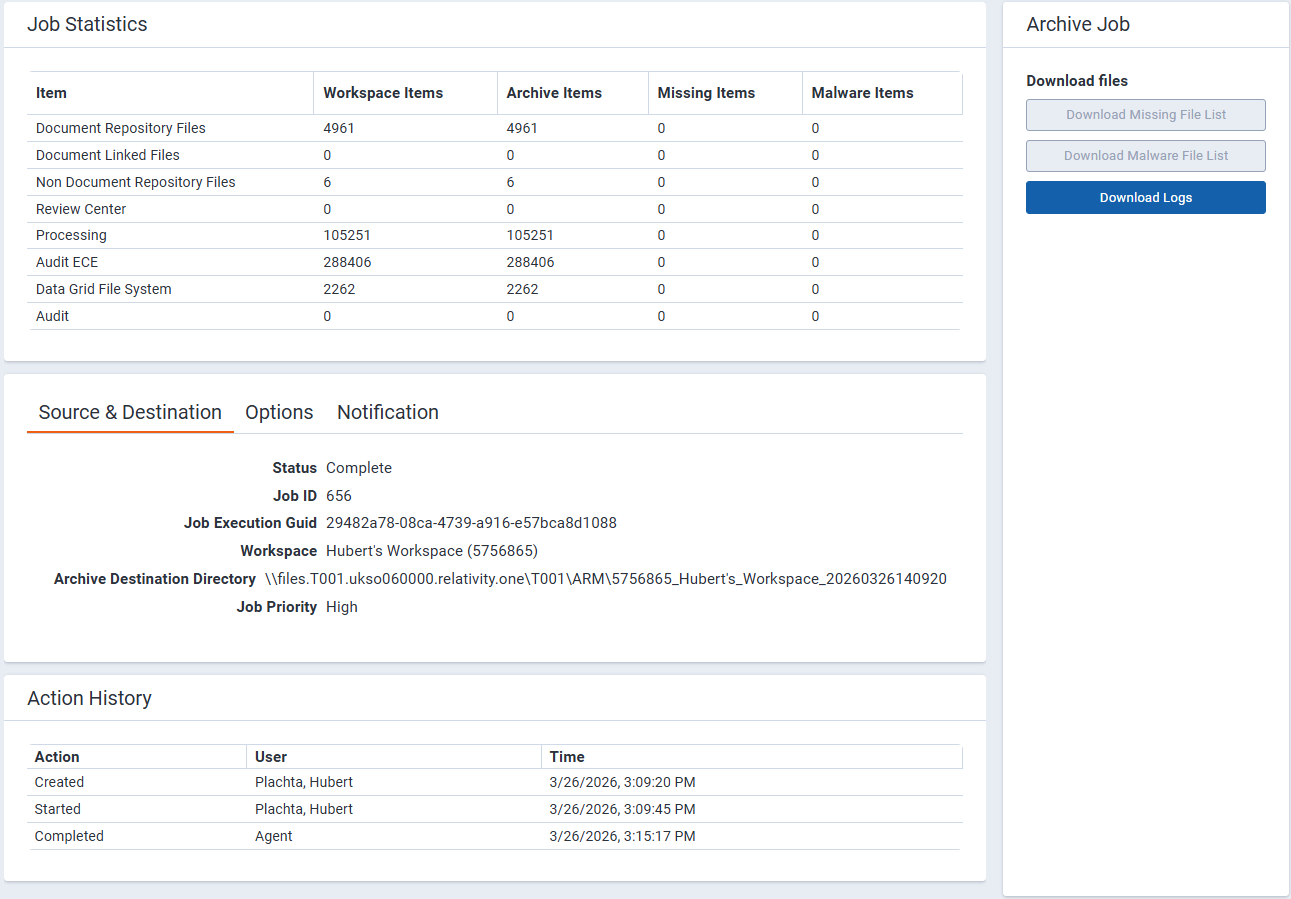
**Job Statistics** section—presents the number of workspace, archive, skipped, and malware items in the Archive job. These items are displayed for the following file types:
> **Note:** Archived Repository Files contain Document Repository Files and Non Document Repository Files. These are files stored in a workspace’s repository, including document files and workspace object files.
- **Document Repository Files**—the number of Repository Files archived. That includes all the files, except documents published by Processing.
- **Document Linked Files**—the number of Archived Linked Files. These are document files stored in Relativity aiR but linked from a different workspace. If Include Processing has been disabled, all files published by Processing are calculated as Linked Files.
- **Non Document Repository Files**—the number of Non Document Repository Files archived. Files attached to Relativity objects in the workspace but not to documents are called non-document files, such as placeholder and file type icon.
- **Review Center**—the number of files archived for Review Center application.
- **dtSearch Indexes**—the number of dtSearch indexes archived.
- **Analytics Conceptual**—the number of Conceptual Analytics files archived.
- **Processing**—the number of Processing files archived.
- **Audit EC**—the number of Audit records archived.
- **Data Grid File System**—the number of Data Grid files archived. That includes files related to Data Grid enabled fields, such as Extracted Text.
- **Structured Analytics**—the number of Structured Analytics files archived.
During an Archive job, if ARM cannot find a file in File repository, the file is reported as Missing. During an archive and a restore job, if Relativity detects a file as a potential malware file, ARM reports the file as Malware File.
**Source & Destination** section—displays the following information for each job:
- **Status**—jobs can have the following statuses:
- **Cancellation Complete**—a successfully canceled job cannot be retried.
- **Complete**
- **Job ID**—the identification number of the job.
- **Job execution guid**—additional identification number for the job.
- **Workspace**—name of the workspace selected for the job.
- **Archive Destination Directory**—location of the archive folder.
- **Job Priority**—priority selected for the job.
Also, you can display job settings in Options and Notification tabs.
**Action History** section—displays history and detailed information on users’ interaction with the job.
In the actionable panel on the right, you can:
- **Download Malware File List**—if ARM detects Malware Files during Archive, you can click **Download Malware File List** to download a .csv file containing a list of the malware files.
- **Download Missing File List**—for Archive jobs, if any of the files in the job were missing, you can click **Download Missing File List** to download a .csv file containing a list of the missing files.
- **Download Logs**—click **Download Logs** to download a report on the job in .txt format.